SETUP GUIDEHow to set it up8 sections. Choose a role to highlight what matters to you.
Everyone
1What it is and why
What it is
Your own project quotations, reached from the Grants menu so a grant manager can follow the costed proposals of the applications they prepare.
What you do here
Use it to keep your grant proposal quotations in step with the grant: revise them while Created, send them with the application and confirm them after the award.
Example
For example, BEAT's grant manager has three grant proposal quotations; after the funder cuts GR-2026-03 from 250,000.00 to 230,000.00 she creates a revised quotation, because the sent one can't be changed.
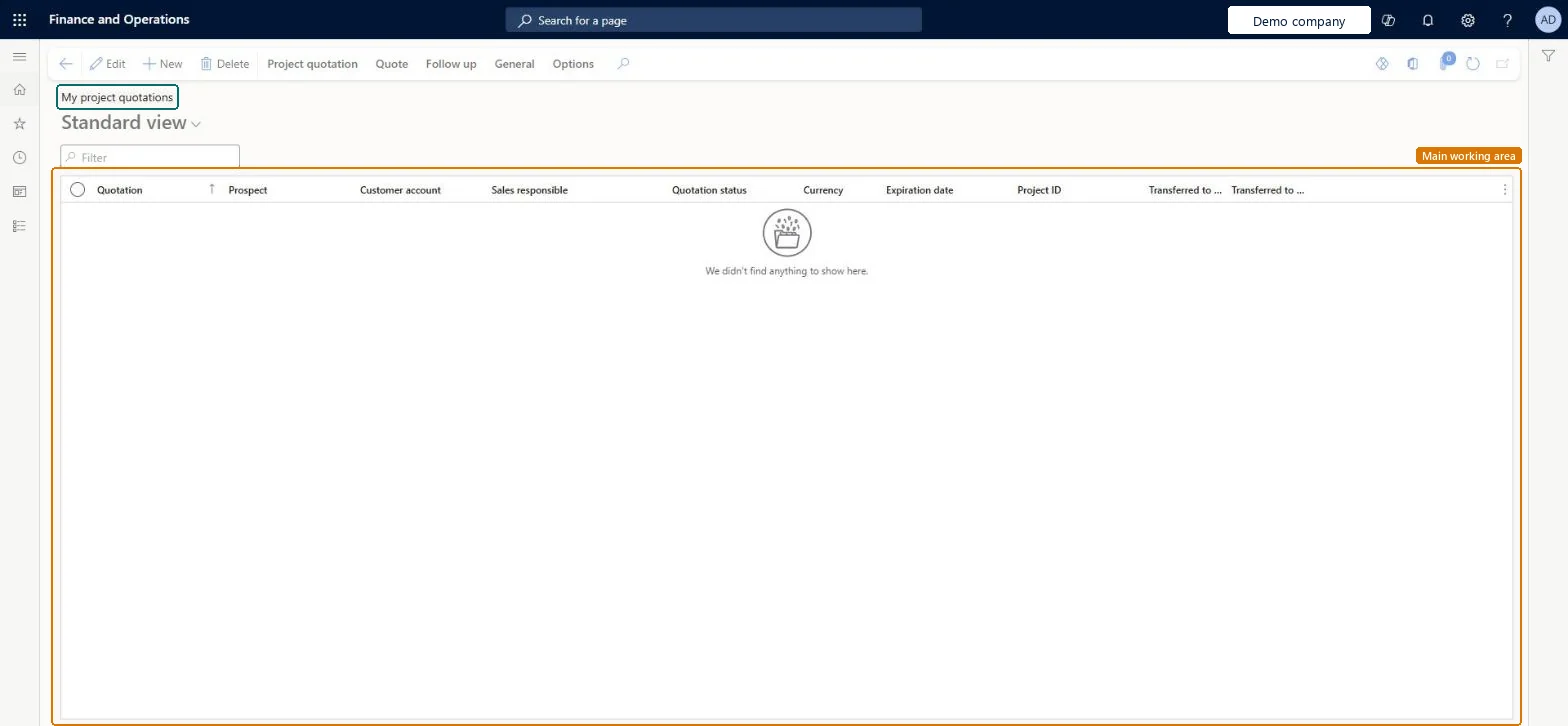
The page in Dynamics 365. page title tab to open what to set or check
About the examples: Examples and screenshots in this guide use BEAT, a demo company in a Dynamics 365 test environment. Use your own company's codes and values instead of copying them.
Setup steps on this page
Keep grant proposals in step with the award
Quote the amount actually awarded.
Steps from Microsoft
Go to Project management and accounting > Grants > Quotations > My project quotations.
Open the grant on Grants and check its status and awarded amount.
If the awarded amount differs from the quoted budget, create a revised quotation; a sent one can't be changed.
When the grant is Awarded, confirm the matching quotation on the Follow up tab.
Transfer it to the grant-funded project and link the project on the grant.
Before confirming, compare the quotation total with the grant's awarded amount.The confirmed quotation becomes the project forecast; a quotation for the requested amount overstates the budget.
On the live system, Project manager, Sales clerk and Sales representative use this page.
Checked in Dynamics 365
Solution architect
5Design impact
Shared or per company
Per company: each legal entity has its own project quotations. Microsoft Learn
Can it be undone
One-way: Sending locks the quotation.
If you change it later
The menu item is the same one as under Quotations, so this list shows your project quotations, reached from the Grants menu. Sending locks the quotation. Microsoft Learn
Technical architect
6Technical
Menu item
SalesQuotationsListPage_MyProjChecked in Dynamics 365
Form
SalesQuotationProjTableChecked in Dynamics 365
Table
SalesQuotationTableShown as “Sales quotation” in Record infoChecked in Dynamics 365
To set it up or change itProject manager ProjProjectManagerSales clerk TradeSalesClerkSales representative TradeSalesRepresentativeGive people one of these roles. On this system, 3 roles can open this page.Checked in Dynamics 365
Actions on the page
Project quotation: Maintain, Copy, ViewQuote: Tax, Process, Accounts, Sales prices, Journals, Bank documentFollow up: Generate, ModifyGeneral: Set up, Customer, Activities, Manage, Related informationOptions: Personalize, Page options, ShareChecked in Dynamics 365
ProjQuotationHeaderEntity (Project quotation headers): loaded for each company.Load order: Load customers or prospects, quotation types and project categories first, then the open project quotation headers and their lines.Load first: Customers, Quotation template groups, Project categoriesMicrosoft Learn
Checked in a working Dynamics 365 system, version 10.0.49: the menu item, form, table and security, the page.
To cite this step: PM-OPS-380, Keep grant proposals in step with the award. Beyond ERP Atlas Hub, 2026-11-11. https://www.beyonderp.cloud/atlas/step/PM-OPS-380