SETUP GUIDEHow to set it up8 sections. Choose a role to highlight what matters to you.
Everyone
1What it is and why
What it is
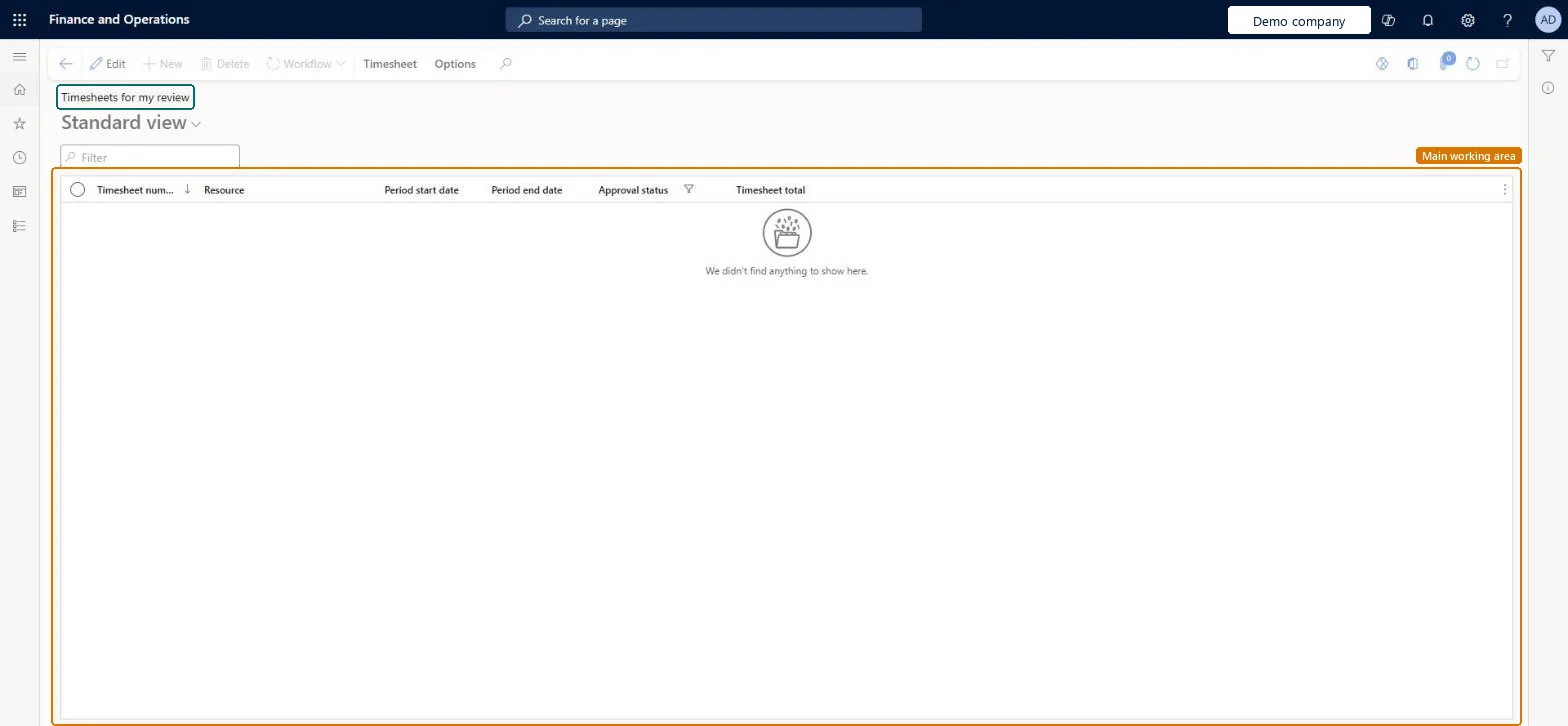
The approver's queue of project timesheets: the timesheets the workflow has assigned to you for review, with resource, period, approval status and total.
What you do here
Use it to open each timesheet waiting for you and approve, delegate or return it, at header or line level.
Example
For example, on Monday the BEAT project manager opens Timesheets for my review, finds 5 timesheets with 182.00 hours, approves four and returns Emma's because 4.00 hours were booked to the wrong activity.
The page in Dynamics 365. page title tab to open what to set or check
About the examples: Examples and screenshots in this guide use BEAT, a demo company in a Dynamics 365 test environment. Use your own company's codes and values instead of copying them.
Setup steps on this page
Approve timesheets at the right level
Approve fast without approving wrong lines.
Steps from Microsoft
Go to Project management and accounting > Timesheets > Timesheets for my review.
Select a timesheet and select Edit to open it.
Review the lines: project, activity, category and hours per day.
On the Workflow menu, select Approve, Delegate or Return, or mark single lines for line-level approval.
Check the timesheet leaves your review list once you have acted on it.
The worker whose timesheet you review.Checked in Dynamics 365
Emma
Approval status
Where the timesheet is in the workflow.Checked in Dynamics 365
Submitted
Timesheet total
The total hours on the timesheet.Checked in Dynamics 365
37.50
Period end date
The last day of the timesheet period.Checked in Dynamics 365
13/12/2026
Common errors and fixes
Message
What to do
The list is empty although timesheets were submitted.
Only timesheets the workflow assigns to you are listed; check the timesheet workflow approvers on Project management and accounting workflows. Microsoft Learn
Test checklist
Submit a timesheet whose workflow assigns you as approver.
Open Timesheets for my review and check it is listed.
Approve it.
Check the list has one row fewer and the timesheet shows Approved on All timesheets.
Use line-level approval when one timesheet covers several projects, so each project manager approves only their own lines.Header approval approves every line, including hours on projects the approver doesn't manage.
On the live system, Project manager and Project timesheet user use this page.
Checked in Dynamics 365
Solution architect
5Design impact
Shared or per company
Per company: each legal entity has its own timesheets; a worker can still record time for a project of another legal entity through intercompany timesheets. Microsoft Learn
Can it be undone
Reversible: Returned timesheets can be corrected and resubmitted.
If you change it later
Approving moves the timesheet on in the workflow; approved hours reach the project only when the timesheet is posted. Microsoft Learn
Technical architect
6Technical
Menu item
TSTimesheetEntryGridViewTimesheetsForMyReviewChecked in Dynamics 365
Form
TSTimesheetEntryChecked in Dynamics 365
Table
TSTimesheetTableShown as “Timesheets” in Record infoChecked in Dynamics 365
PrivilegesMaintain project timesheet approvals ProjTimesheetApprovalMaintainDutiesApprove project timesheets ProjProjectTimesheetsApprove2 security rolesProject manager ProjProjectManagerProject timesheet user ProjTimesheetUserChecked in Dynamics 365
Roles to set it up and use it
To set it up or change itProject manager ProjProjectManagerProject timesheet user ProjTimesheetUserGive people one of these roles. On this system, 2 roles can open this page.Checked in Dynamics 365
Actions on the page
Timesheet: Maintain, Related information, Print, PolicyOptions: Personalize, Page options, ShareChecked in Dynamics 365
TSTimesheetTableEntity (Timesheet Headers): loaded for each company.Load order: Timesheets are usually not migrated; post the open ones in the old system. If loaded, load workers, projects, project categories and timesheet periods first, then the headers.Load first: Workers, Projects, Project categories, Timesheet period typesMicrosoft Learn
Checked in a working Dynamics 365 system, version 10.0.49: the menu item, form, table and security, the page.
To cite this step: PM-OPS-180, Approve timesheets at the right level. Beyond ERP Atlas Hub, 2026-11-11. https://www.beyonderp.cloud/atlas/step/PM-OPS-180