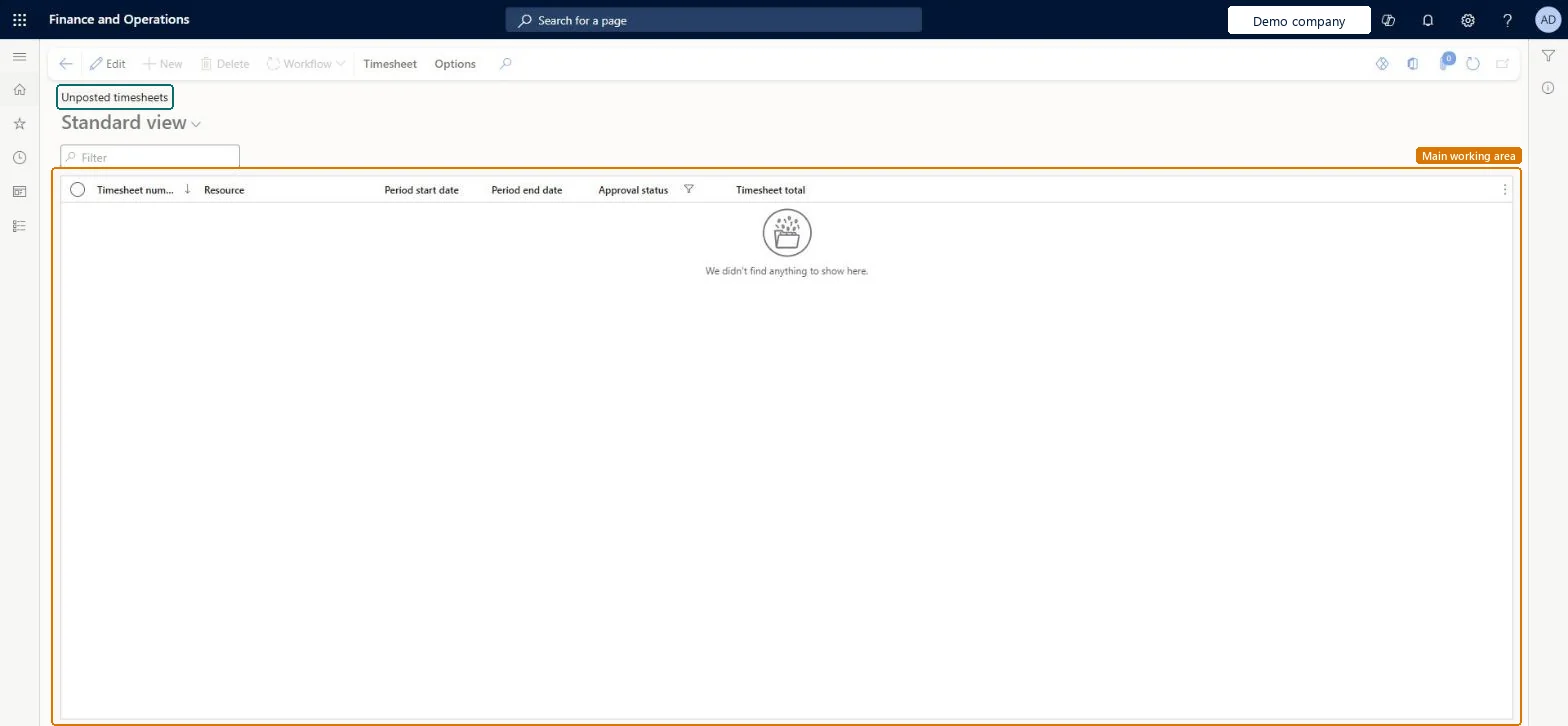
The list of timesheets that are not yet posted, whatever their approval status, so the project accountant can chase approvals and post the approved ones before the period closes.
PAGE GUIDEWhat the page does and how to use it8 sections. Choose a role to highlight what matters to you.
Everyone
1What it is and why
What it is
The list of timesheets that are not yet posted, whatever their approval status, so the project accountant can chase approvals and post the approved ones before the period closes.
What you do here
Use it at period end to see which hours have not reached the projects yet and why: still created, waiting for approval, or approved but not posted.
Example
For example, on 31/12/2026 the BEAT project accountant finds 9 unposted timesheets: 6 Approved with 221.00 hours, which she posts, and 3 Submitted, which she chases with the approvers.
The page in Dynamics 365. page title tab to open what to set or check
About the examples: Examples and screenshots in this guide use BEAT, a demo company in a Dynamics 365 test environment. Use your own company's codes and values instead of copying them.
Setup steps on this page
Clear unposted timesheets before period end
Get every approved hour onto the projects.
Steps from Microsoft
Go to Project management and accounting > Timesheets > Unposted timesheets.
Filter Approval status on Approved to find the timesheets ready to post.
Filter on Submitted to find the timesheets still waiting for an approver.
Select Edit to open a timesheet and check its lines.
Run Post all approved timesheets for the approved ones and check they leave this list.
Filter on Approval status: Approved timesheets are posted, Submitted ones are chased with the approvers.The list mixes every reason a timesheet is unposted; each status needs a different action.
On the live system, Project accountant use this page.
Checked in Dynamics 365
Solution architect
5Design impact
Shared or per company
Per company: each legal entity has its own timesheets; a worker can still record time for a project of another legal entity through intercompany timesheets. Microsoft Learn
Can it be undone
Reversible: Reversible: the list changes no data; posted hours are corrected with a project adjustment. Microsoft Learn
If you change it later
Posting an approved timesheet creates the hour transactions on the projects; the timesheet then leaves this list. Microsoft Learn
Technical architect
6Technical
Menu item
TSTimesheetEntryGridViewUnpostedTimesheetsChecked in Dynamics 365
Form
TSTimesheetEntryChecked in Dynamics 365
Table
TSTimesheetTableShown as “Timesheets” in Record infoChecked in Dynamics 365
To set it up or change itProject accountant ProjProjectAccountantGive people one of these roles. On this system, 1 role can open this page.Checked in Dynamics 365
Actions on the page
Timesheet: Maintain, Related information, Print, PolicyOptions: Personalize, Page options, ShareChecked in Dynamics 365
TSTimesheetTableEntity (Timesheet Headers): loaded for each company.Load order: Timesheets are usually not migrated; post the open ones in the old system. If loaded, load workers, projects, project categories and timesheet periods first, then the headers.Load first: Workers, Projects, Project categories, Timesheet period typesMicrosoft Learn