Project accountant, Project manager, Timesheet delegate user and 1 more role
Business process
Manage project delivery
Menu item
TSTimesheetEntryGridViewMyTimesheets
Main table
TSTimesheetTable
Data entity
TSTimesheetTableEntity
Setup steps
1 on this page
Show what matters for
SETUP GUIDEHow to set it up8 sections. Choose a role to highlight what matters to you.
Everyone
1What it is and why
What it is
Your own project timesheets, where you enter the hours worked by project, activity and category and submit them for approval.
What you do here
Use it to record your time each period, or a colleague's if you are their delegate, and send it to the approval workflow.
Example
For example, a BEAT consultant who spent two hours and fifteen minutes on task 1.2 of PRJ-0042 enters 2.25 hours for Tuesday, fills the week to 37.50 hours and submits the timesheet.
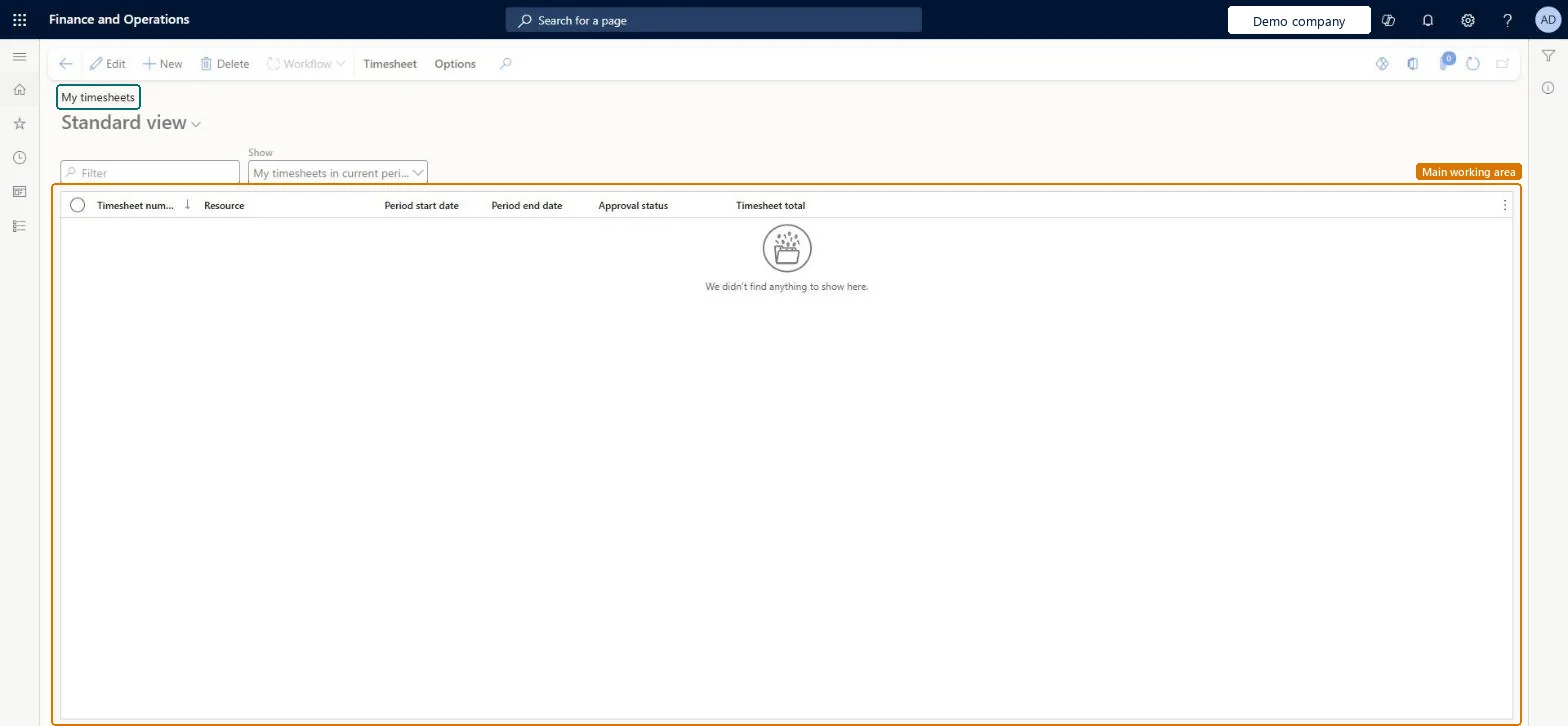
The page in Dynamics 365. page title tab to open what to set or check
About the examples: Examples and screenshots in this guide use BEAT, a demo company in a Dynamics 365 test environment. Use your own company's codes and values instead of copying them.
Setup steps on this page
Enter time with project, activity and category
Record hours so they post to the right task and price.
Steps from Microsoft
Go to Project management and accounting > Timesheets > My timesheets.
Select New, check the resource or select the worker you are a delegate for, enter a date and select OK.
Select New line and select the project, the activity number and the category.
Enter the hours worked each day in decimal format.
Optionally add taxes, financial dimensions and comments in Line details.
Select the project, the activity number and the category on every line, and enter hours as decimals.The category sets the price and the line property; the activity ties the hours to the work breakdown structure.
On the live system, Project manager, Project accountant, Project timesheet user and Timesheet delegate user use this page.
Checked in Dynamics 365
Solution architect
5Design impact
Shared or per company
Per company: each legal entity has its own timesheets; a worker can still record time for a project of another legal entity through intercompany timesheets. Microsoft Learn
Can it be undone
Reversible: Unposted timesheets can be returned and changed.
If you change it later
Submitting sends the timesheet to the approval workflow; the project cost changes only when the approved timesheet is posted. Microsoft Learn
Technical architect
6Technical
Menu item
TSTimesheetEntryGridViewMyTimesheetsChecked in Dynamics 365
Form
TSTimesheetEntryChecked in Dynamics 365
Table
TSTimesheetTableShown as “Timesheets” in Record infoChecked in Dynamics 365
PrivilegesProjTimesheetDelegateMaintain project timesheets ProjTimesheetMaintainDutiesMaintain project timesheets ProjProjectTimesheetsMaintainProjTimesheetDelegate4 security rolesProject accountant ProjProjectAccountantProject manager ProjProjectManagerTimesheet delegate user ProjTimesheetDelegateProject timesheet user ProjTimesheetUserChecked in Dynamics 365
Roles to set it up and use it
To set it up or change itProject manager ProjProjectManagerProject accountant ProjProjectAccountantProject timesheet user ProjTimesheetUserTimesheet delegate user ProjTimesheetDelegateGive people one of these roles. On this system, 4 roles can open this page.Checked in Dynamics 365
Actions on the page
Timesheet: Maintain, Related information, Print, PolicyOptions: Personalize, Page options, ShareChecked in Dynamics 365
TSTimesheetTableEntity (Timesheet Headers): loaded for each company.Load order: Timesheets are usually not migrated; post the open ones in the old system. If loaded, load workers, projects, project categories and timesheet periods first, then the headers.Load first: Workers, Projects, Project categories, Timesheet period typesMicrosoft Learn
Checked in a working Dynamics 365 system, version 10.0.49: the menu item, form, table and security, the page.
To cite this step: PM-OPS-160, Enter time with project, activity and category. Beyond ERP Atlas Hub, 2026-11-11. https://www.beyonderp.cloud/atlas/step/PM-OPS-160