Project management and accountingPeriodicProject resources
action:ResProjectResourceDataPopulate
Business process
Plan projects
Menu item
action:ResProjectResourceDataPopulate
Main table
ResProjectResource
Setup steps
1 on this page
Show what matters for
SETUP GUIDEHow to set it up8 sections. Choose a role to highlight what matters to you.
Everyone
1What it is and why
What it is
A periodic job that runs a one-time data upgrade for resource scheduling in all companies: it fills the ResProjectResource, ResCalendarDateTimeRange and ResEffectiveDateTimeRange tables.
What you do here
Use it once to finish turning on the resource scheduling performance feature, when the system warns that this job must be run.
Example
After BEAT's upgrade to 10.0.49, resource managers see a warning that Populate project resources across all companies must be run. The administrator runs it once in BEAT; it fills the project resource data for all 3 companies and the warning disappears.
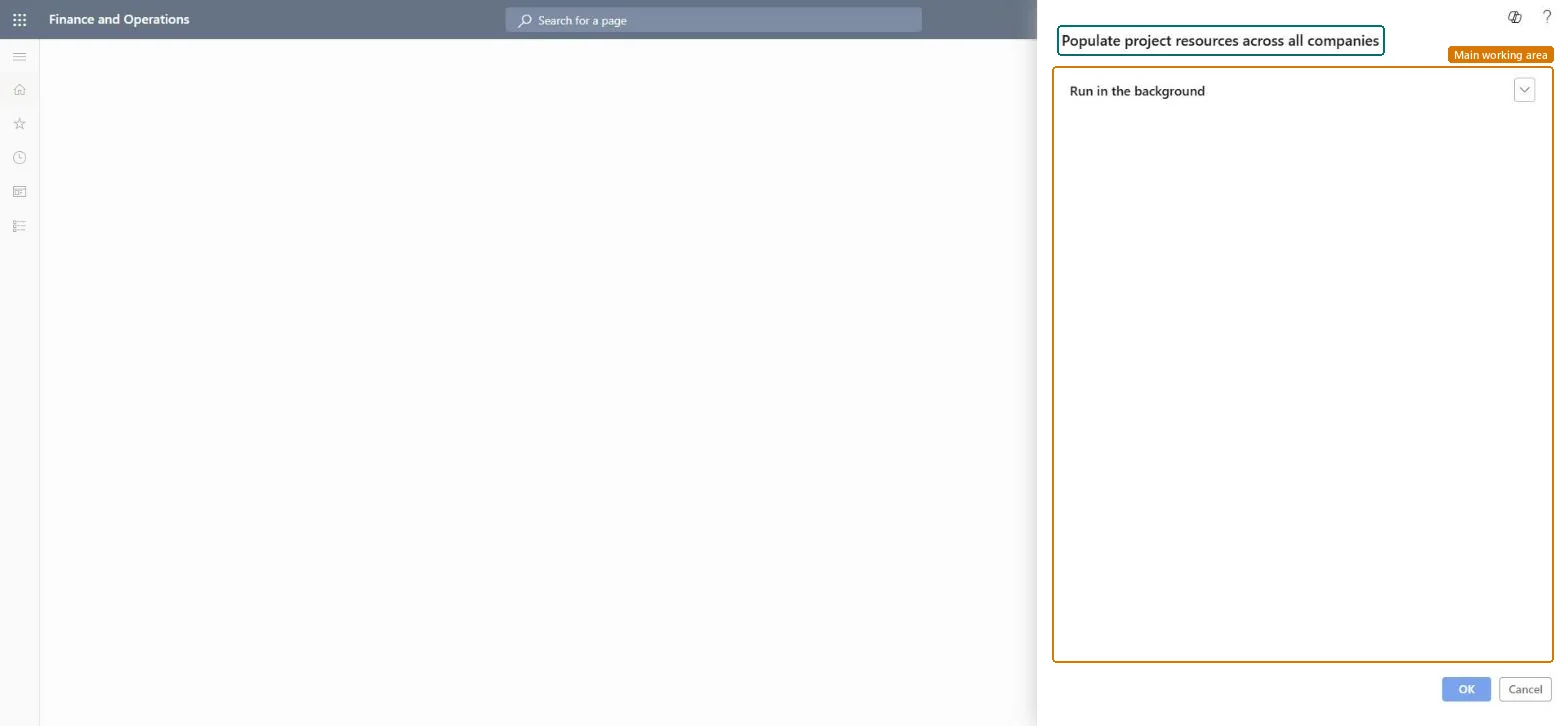
The page in Dynamics 365. page title tab to open what to set or check
About the examples: Examples and screenshots in this guide use BEAT, a demo company in a Dynamics 365 test environment. Use your own company's codes and values instead of copying them.
When to run it
When to run it
Once, when the resource scheduling performance feature is on and the system warns that this job must be run.
How often
Once per environment; again only if the warning returns.
Batch settings
Run it in the background.
What the output shows
Populated ResProjectResource and date range data used by the faster resource lookup.
Go to Project management and accounting > Periodic > Project resources > Populate project resources across all companies.
Make sure Enable project resource scheduling performance enhancement feature is on and Synchronize resource calendars capacity across all companies has run.
Run it once, in one legal entity; it upgrades the data for all companies.
Open a resource scheduling operation and check that the warning about this job no longer appears.
Run once after the calendar capacity job, in one legal entity.The upgrade covers all companies; running it before calendar capacity gives incomplete data.
On the live system, Project manager and Resource manager use this page. Learn: it completes the feature Enable project resource scheduling performance enhancement feature (on by default from 10.0.36).
Cross-company: it upgrades the scheduling data of all companies in one run. Microsoft Learn
Can it be undone
Irreversible: One-time data upgrade.
If you change it later
Without this job, resource scheduling operations show a warning. Learn advises not to use the feature if a customization depends on the roll-up process or the ResProjectResource table. Microsoft Learn
Technical architect
6Technical
Menu item
action:ResProjectResourceDataPopulateChecked in Dynamics 365
Form
SysOperationTemplateFormChecked in Dynamics 365
Table
ResProjectResourceChecked in Dynamics 365
Roles to set it up and use it
To use itProject manager ProjProjectManagerResource manager ProjResourceManagerGive people one of these roles. On this system, 2 roles can run this page.Checked in Dynamics 365
Load order: Populate project resources across all companies has no data entity in Data management: it is a periodic job and keeps no records of its own. Nothing is migrated; run it once in the target system after resources and calendars are loaded.Microsoft Learn