Project management and accountingPeriodicRevenue recognition
action:ProjControlPeriod_DeleteV2
Business process
Manage project financials
Menu item
action:ProjControlPeriod_DeleteV2
Setup steps
1 on this page
Show what matters for
SETUP GUIDEHow to set it up8 sections. Choose a role to highlight what matters to you.
Everyone
1What it is and why
What it is
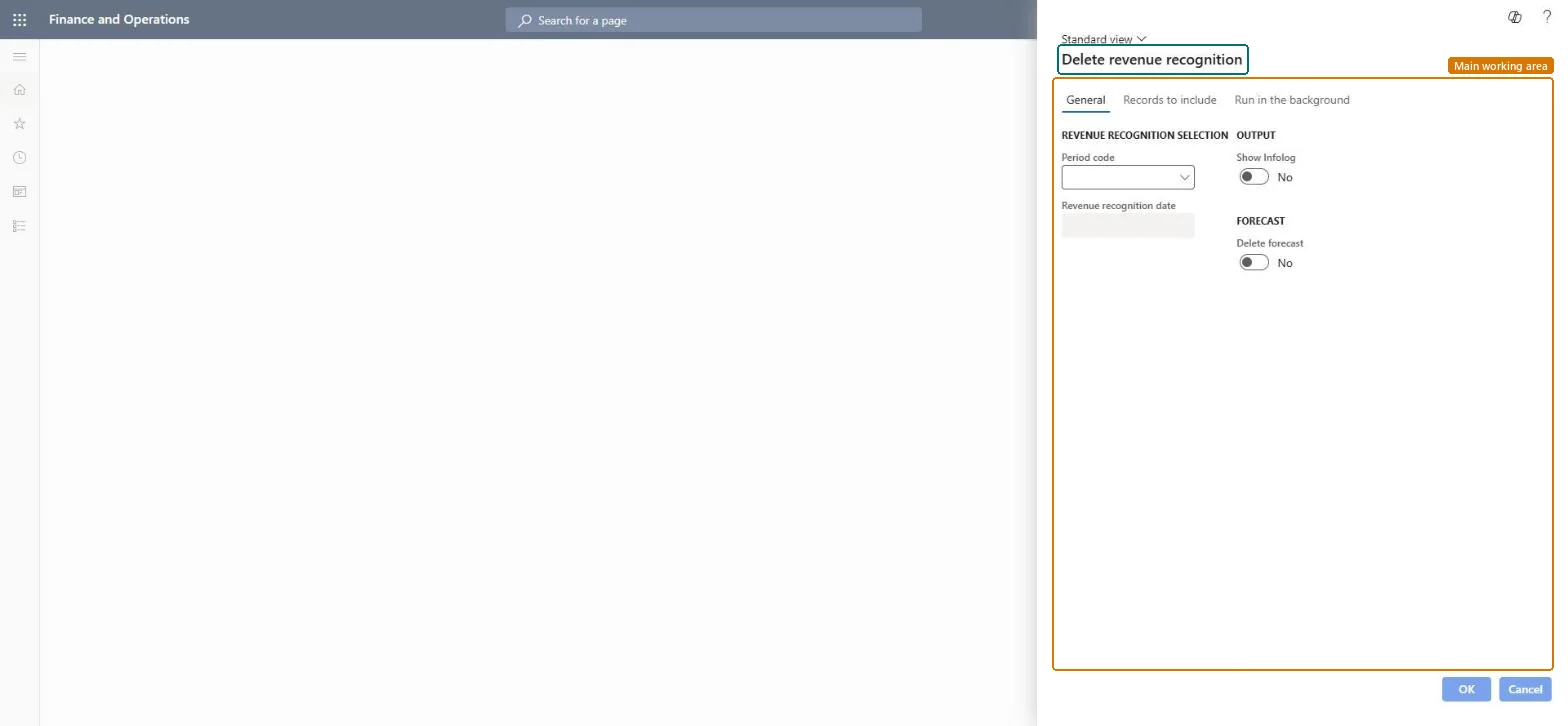
A periodic job that deletes the revenue recognition records of a period code and date, and optionally the forecast created with them, so the period can be created again.
What you do here
Use it when a period's records were created with the wrong settings, such as the wrong date, cost to complete method or forecast model. Posted periods are corrected with Reverse revenue recognition, not deleted.
Example
BEAT created October 2026 revenue recognition for period code MONTH with forecast model FC-2025 by mistake. Before anything is posted, the project accountant deletes the 14 records for 10/31/2026 with Delete forecast on, then creates them again with FC-2026.
The page in Dynamics 365. page title tab to open what to set or check
About the examples: Examples and screenshots in this guide use BEAT, a demo company in a Dynamics 365 test environment. Use your own company's codes and values instead of copying them.
When to run it
When to run it
Only when a period's records were created with wrong settings and aren't posted yet.
How often
On demand.
Batch settings
Run in the background if many projects are involved.
What the output shows
The records for the period code and date are removed, with their forecast when Delete forecast is on.
Delete only unposted periods, filtered on the affected projects; leave Delete forecast off unless the forecast was created with the wrong model.Posted periods need a reversal; deleting the forecast changes forecast-based reports.
On the live system, Project manager uses this page.
Checked in Dynamics 365
Solution architect
5Design impact
Shared or per company
Per company: it deletes the revenue recognition records of the legal entity you run it in. Microsoft data model
Can it be undone
Irreversible: Deleted records can't be restored; recreate them.
If you change it later
Deletes the period's revenue recognition records and, with Delete forecast on, the forecast created with them; the period must be created again before it can be posted. Microsoft Learn
Technical architect
6Technical
Menu item
action:ProjControlPeriod_DeleteV2Checked in Dynamics 365
Form
ProjControlPeriod_DeleteChecked in Dynamics 365
Roles to set it up and use it
To use itProject manager ProjProjectManagerGive people one of these roles. On this system, 1 role can run this page.Checked in Dynamics 365
Load order: Delete revenue recognition has no data entity in Data management, and the revenue recognition period table (ProjControlPeriodTable) has none either. Migrate WIP and accrual balances, then create revenue recognition in the target system from the first open period.Microsoft data model