Project management and accountingPeriodicQuotations
action:SalesQuotationMassCreate_Proj
Business process
Manage project contracts
Menu item
action:SalesQuotationMassCreate_Proj
Setup steps
1 on this page
Show what matters for
SETUP GUIDEHow to set it up8 sections. Choose a role to highlight what matters to you.
Everyone
1What it is and why
What it is
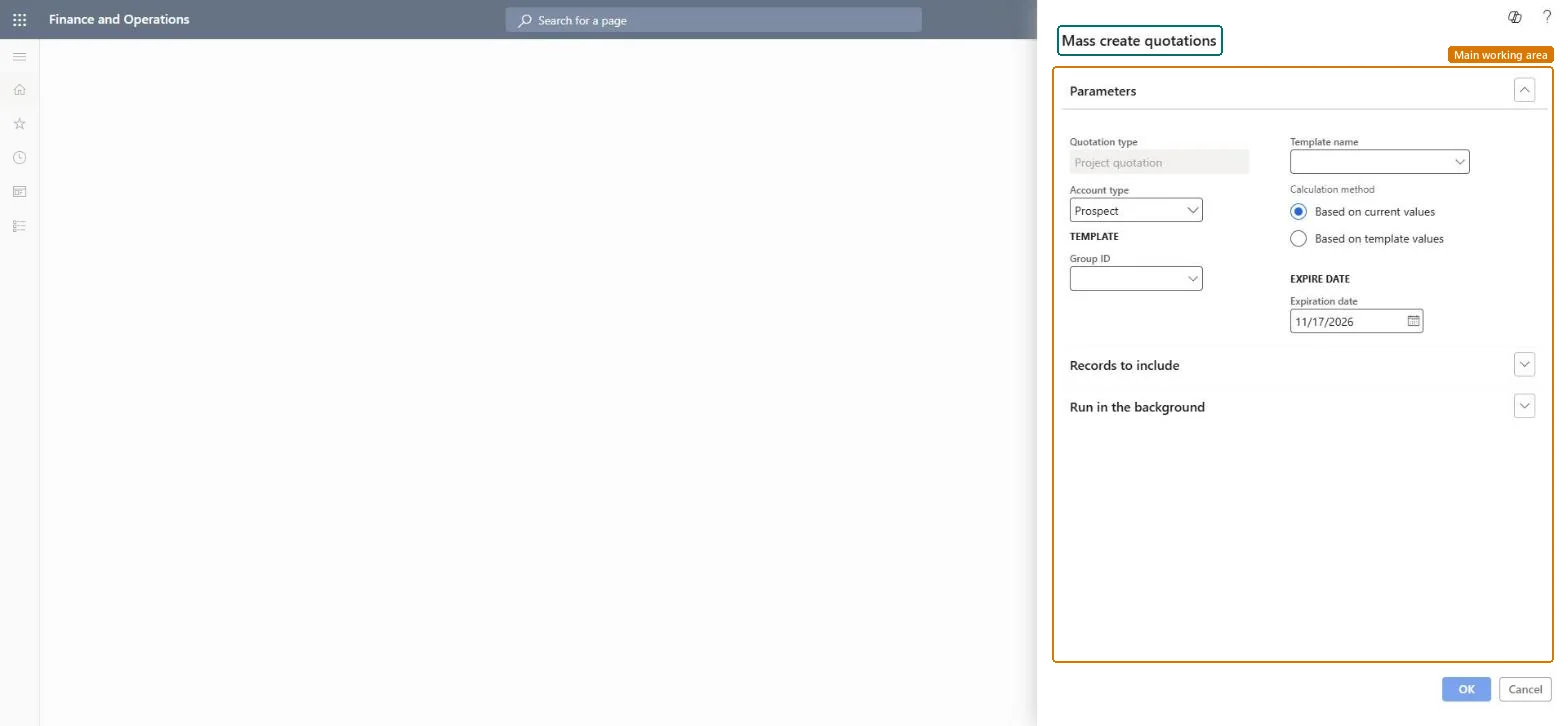
A periodic job that creates many similar project quotations from one quotation template, one for each selected customer or prospect contact.
What you do here
Use it for campaigns, when the same offer goes to many customers, instead of creating each quotation by hand.
Example
For its 2027 support campaign, BEAT creates quotations from template SUPPORT-STD in group CAMPAIGN for 35 customers in segment SME, at current prices and expiring 12/15/2026; each quotation offers 40.00 support hours at 110.00 = 4,400.00.
The page in Dynamics 365. page title tab to open what to set or check
About the examples: Examples and screenshots in this guide use BEAT, a demo company in a Dynamics 365 test environment. Use your own company's codes and values instead of copying them.
When to run it
When to run it
When the same offer goes to many customers or prospects.
How often
Per campaign.
Batch settings
Run in the background when the filter selects many customers.
What the output shows
One quotation per selected customer or contact, with the template lines, prices and expiration date.
Test the template on one customer first, then run for the full list with current prices.A test run shows price or line errors before dozens of quotations exist.
On the live system, Project manager, Sales representative, Sales clerk, Rental manager and Rental coordinator agent use this page.
Checked in Dynamics 365
Solution architect
5Design impact
Shared or per company
Per company: quotations are created in the legal entity you run it in. Microsoft data model
Can it be undone
Reversible: Unsent quotations can be deleted.
If you change it later
Creates a new project quotation for each selected customer or contact. Microsoft Learn
Technical architect
6Technical
Menu item
action:SalesQuotationMassCreate_ProjChecked in Dynamics 365
Form
SysOperationTemplateFormChecked in Dynamics 365
Roles to set it up and use it
To use itProject manager ProjProjectManagerSales representative TradeSalesRepresentativeSales clerk TradeSalesClerkRental manager RentalManagerRental coordinator agent RentalCoordinatorAgentGive people one of these roles. On this system, 7 roles can run this page.Checked in Dynamics 365
Load order: Mass create quotations has no data entity in Data management: it is a periodic job and keeps no records of its own. Migrate quotation templates as quotations with ProjQuotationHeaderEntity and run the campaign in the target system.Load first: ProjQuotationHeaderEntityMicrosoft data model
Checked in a working Dynamics 365 system, version 10.0.49: the menu item, form, table and security, the page.
To cite this step: PM-JOB-240, Create campaign quotations from a template. Beyond ERP Atlas Hub, 2026-11-11. https://www.beyonderp.cloud/atlas/step/PM-JOB-240