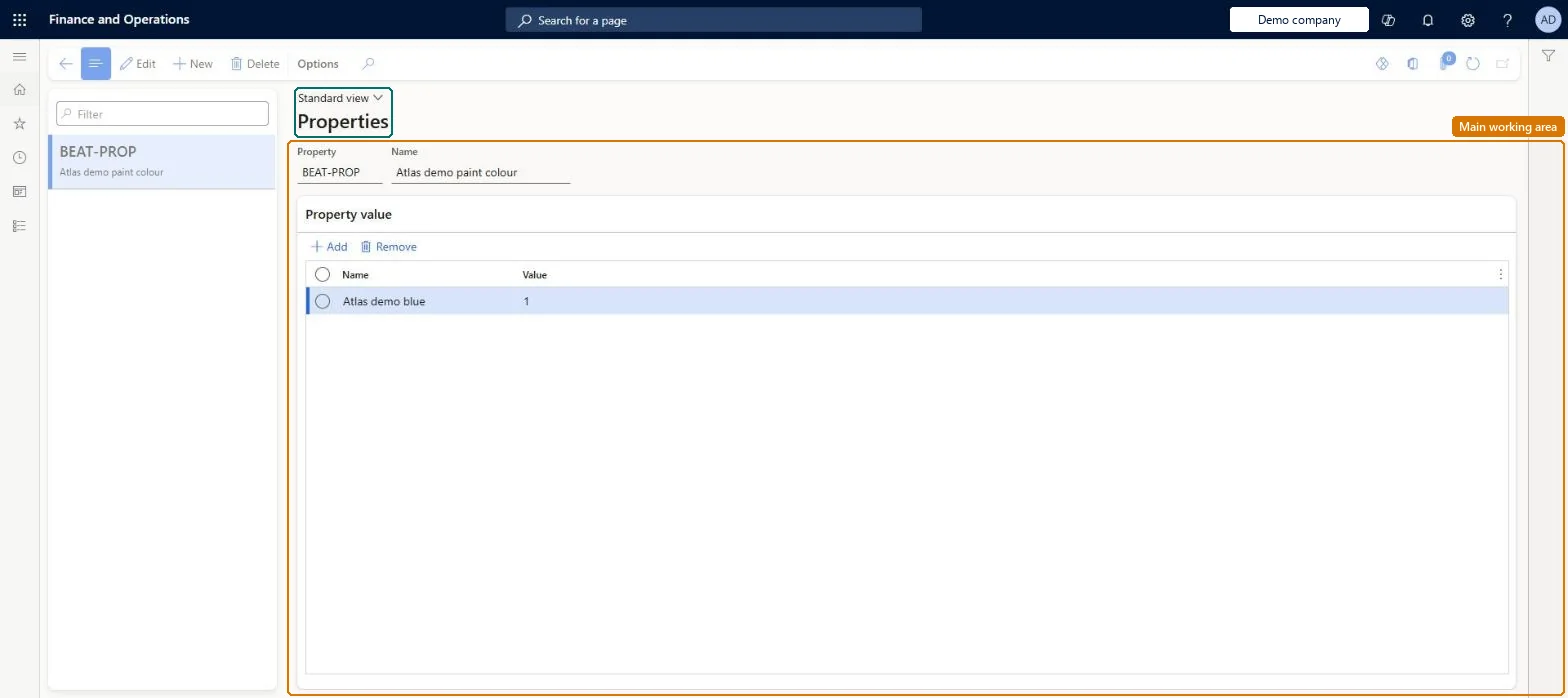
Setup step on the Properties page · Production control
Set up Properties
Use this page to create property codes (and their values) and then assign them to periods in working time templates and calendars, so that only operations carrying the same property, or none, are scheduled in those periods.
Production supervisor, Project manager, Process engineer and 1 more role
Business process
Develop production processes
Menu item
WrkCtrProperty
Main table
WrkCtrProperty
Data entity
WorkingTimeSchedulingPropertyEntity
Setup steps
1 on this page
Show what matters for
SETUP GUIDEHow to set it up8 sections. Choose a role to highlight what matters to you.
Everyone
1What it is and why
What it is
A setup page where you define properties: attributes you attach to resources and to working-time periods so that scheduling can group or sequence productions that share them.
What you do here
Use this page to create property codes (and their values) and then assign them to periods in working time templates and calendars, so that only operations carrying the same property, or none, are scheduled in those periods.
Example
For example, a paint shop groups the productions that need the same spray-gun colour so that set-up time is kept to a minimum.
The page in Dynamics 365. page title tab to open what to set or check
About the examples: Examples and screenshots in this guide use BEAT, a demo company in a Dynamics 365 test environment. Use your own company's codes and values instead of copying them.
Setup steps on this page
Set up Properties
Use this page to create property codes (and their values) and then assign them to periods in working time templates and calendars, so that only operations carrying the same property, or none, are scheduled in those periods.
How to use it
Go to Production control > Setup > Routes > Properties.
Select New, or select a property in the list pane.
Enter the Property and its Name.
On the Property value FastTab, select Add and enter the Name and Value of each value the property can take.
Select Edit to change a property, or Delete to remove it.
Defining properties on working time periods but leaving Finite property set to No on the resources. Scheduling then ignores the properties for those resources.
Reversible: Properties are attached to working time templates and calendars; after changing them, rerun the tasks that depend on calendars, such as master planning and production scheduling.
Technical architect
6Technical
Menu item
WrkCtrPropertyChecked in Dynamics 365
Form
WrkCtrPropertyChecked in Dynamics 365
Table
WrkCtrPropertyShown as “PROPERTIES” in Record infoChecked in Dynamics 365
Data entities
WorkingTimeSchedulingPropertyEntityWorking times scheduling properties Microsoft data model
Who can open it
PrivilegesMaintain resource properties WrkCtrPropertyMaintainView resource properties WrkCtrPropertyViewDutiesInquire into resource management reference data WrkCtrResourceManagementRefDataInquireMaintain resource master WrkCtrResourcesMasterMaintain4 security rolesProduction supervisor ProdProductionSupervisorProject manager ProjProjectManagerProcess engineer RouteProcessEngineerProcess engineering manager RouteProcessEngineeringManagerChecked in Dynamics 365
Roles to set it up and use it
To set it up or change itProduction supervisor ProdProductionSupervisorProcess engineer RouteProcessEngineerProject manager ProjProjectManagerTo use itProcess engineering manager RouteProcessEngineeringManagerGive people one of these roles. On this system, 4 roles can open this page.Checked in Dynamics 365
WorkingTimeSchedulingPropertyEntity (Working times scheduling properties): loaded for each company, in Microsoft's default template 410 - Production control.Load order: Microsoft's default template 410 - Production control loads Working times scheduling properties at execution unit 1, level 410, sequence 10. Lower levels load first, and entities at the same level load in sequence order.Load first: the default templates at lower levels (System setup to Transportation management)Microsoft Learn