BeyondERP.Newsletter
Menu

Setup step on the Tax regions page · Payroll

Set up Tax regions

Use this page to create a tax region for each city or town where workers live or work, so the regions can be assigned to workers.

Used by
Compensation and benefits manager, Payroll administrator, Payroll manager
Business process
Manage compensation and benefits
Menu item
PayrollTaxRegion
Main table
PayrollTaxRegion
Data entity
PayrollTaxRegionEntity
Setup steps
1 on this page
Show what matters for
SETUP GUIDEHow to set it up8 sections. Choose a role to highlight what matters to you.
Everyone

1What it is and why

What it isA setup page where you create tax regions, the geographic areas in which a specific set of payroll taxes applies.
What you do hereUse this page to create a tax region for each city or town where workers live or work, so the regions can be assigned to workers.
ExampleFor example, you can enter only a ZIP/postal code and pick the right city if several regions match.
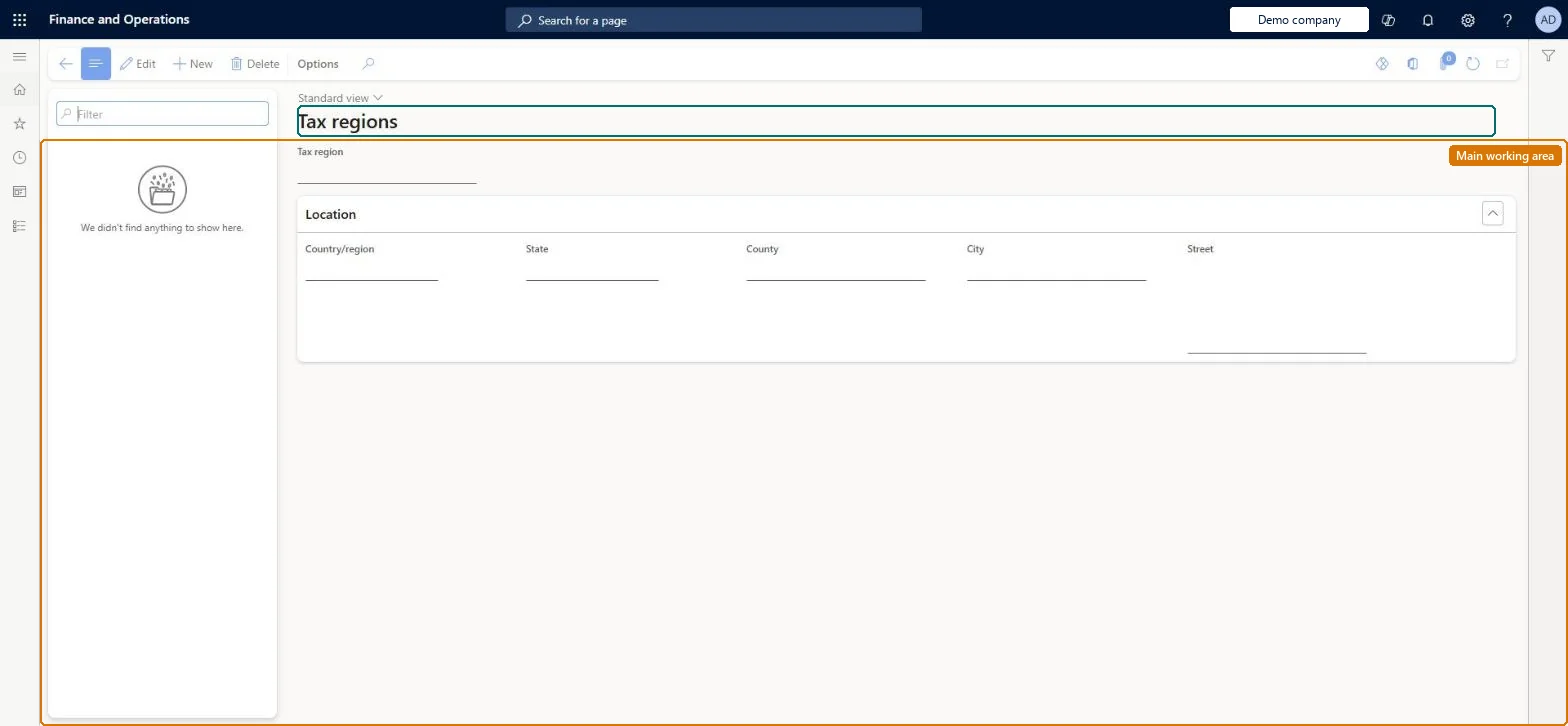
Tax regions page in Dynamics 365
The page in Dynamics 365. page title tab to open what to set or check
Functional consultant · Solution architect

2Where it fits

Business processManage compensation and benefits
Menu pathPayroll › Setup › Taxes › Tax regions
Used next byWorker tax regions (worker payroll setup) Microsoft Learn Tax codes Microsoft Learn
Related pagesEmployer tax regions Microsoft Learn
In this process Set up Tax groups · Set up Employer tax regions
End user · Functional consultant

3How to do it

About the examples: Examples and screenshots in this guide use BEAT, a demo company in a Dynamics 365 test environment. Use your own company's codes and values instead of copying them.

Setup steps on this page

Set up Tax regions

Use this page to create a tax region for each city or town where workers live or work, so the regions can be assigned to workers.

Steps from Microsoft

  1. Go to Payroll > Setup > Taxes > Tax regions.
  2. Select New.
  3. Enter any part of the location, such as the state or ZIP/postal code.
  4. If the Multiple tax regions page opens, select the correct city.
  5. In Name or description, start with the state name so regions sort by state.

Source: Microsoft Learn

Fields on the page

FieldWhat it means
Name or descriptionThe tax region name; starting it with the state name keeps regions in the same state together.Microsoft Learn

Test checklist

  1. Run Update tax data before creating regions.
  2. Create a region by entering only a ZIP/postal code and pick the right city on Multiple tax regions.
  3. Assign the region to a worker and as the default tax region for the worker's position.
  4. Generate a pay statement and check the expected state and local tax lines appear.

Source: Microsoft Learn

Functional consultant

4Setup decisions

Setup stepRecommended value and whyDecision, common mistake and test
Set up Tax regionsOne tax region per city or town where workers live or work, named with the state first (for example WA - Seattle)Tax regions correspond to cities or towns, and putting the state first sorts regions in the same state together.Creating regions without knowing the county, state and ZIP/postal code, so the wrong city is picked when the Multiple tax regions page opens.
Solution architect

5Design impact

Can it be undoneHard to reverse: Once regions are assigned to workers and used as default tax regions on positions, changing them means updating worker tax regions and tax codes.
Technical architect

6Technical

Menu itemPayrollTaxRegion Checked in Dynamics 365
FormPayrollTaxRegion Checked in Dynamics 365
TablePayrollTaxRegionShown as “TAX REGION” in Record infoKey field: LogisticsLocation_DescriptionChecked in Dynamics 365
Data entitiesPayrollTaxRegionEntityTax region Microsoft data model
Who can open itPrivilegesMaintain payroll tax regions PayrollTaxRegionMaintainView payroll tax regions PayrollTaxRegionViewDutiesInquire into payroll master data PayrollMasterDataInquireSet up payroll master data PayrollMasterDataMaintain
3 security rolesCompensation and benefits manager HcmCompensationAndBenefitsManagerPayroll administrator HcmPayrollAdministratorPayroll manager HcmPayrollManager
Checked in Dynamics 365
Roles to set it up and use itTo set it up or change itPayroll administrator HcmPayrollAdministratorCompensation and benefits manager HcmCompensationAndBenefitsManagerTo use itPayroll manager HcmPayrollManagerGive people one of these roles. On this system, 3 roles can open this page.Checked in Dynamics 365
Developer

7Developer

Open it by URLhttps://<your-environment>/?mi=PayrollTaxRegion
Integrate withPayrollTaxRegionEntity data entity Microsoft data model
Data migrationPayrollTaxRegionEntity (Tax region): shared by all companies.Microsoft Learn
Everyone

8Sources

To cite this step: PAY-SETUP-120, Set up Tax regions. Beyond ERP Atlas Hub, 2026-11-11. https://www.beyonderp.cloud/atlas/step/PAY-SETUP-120