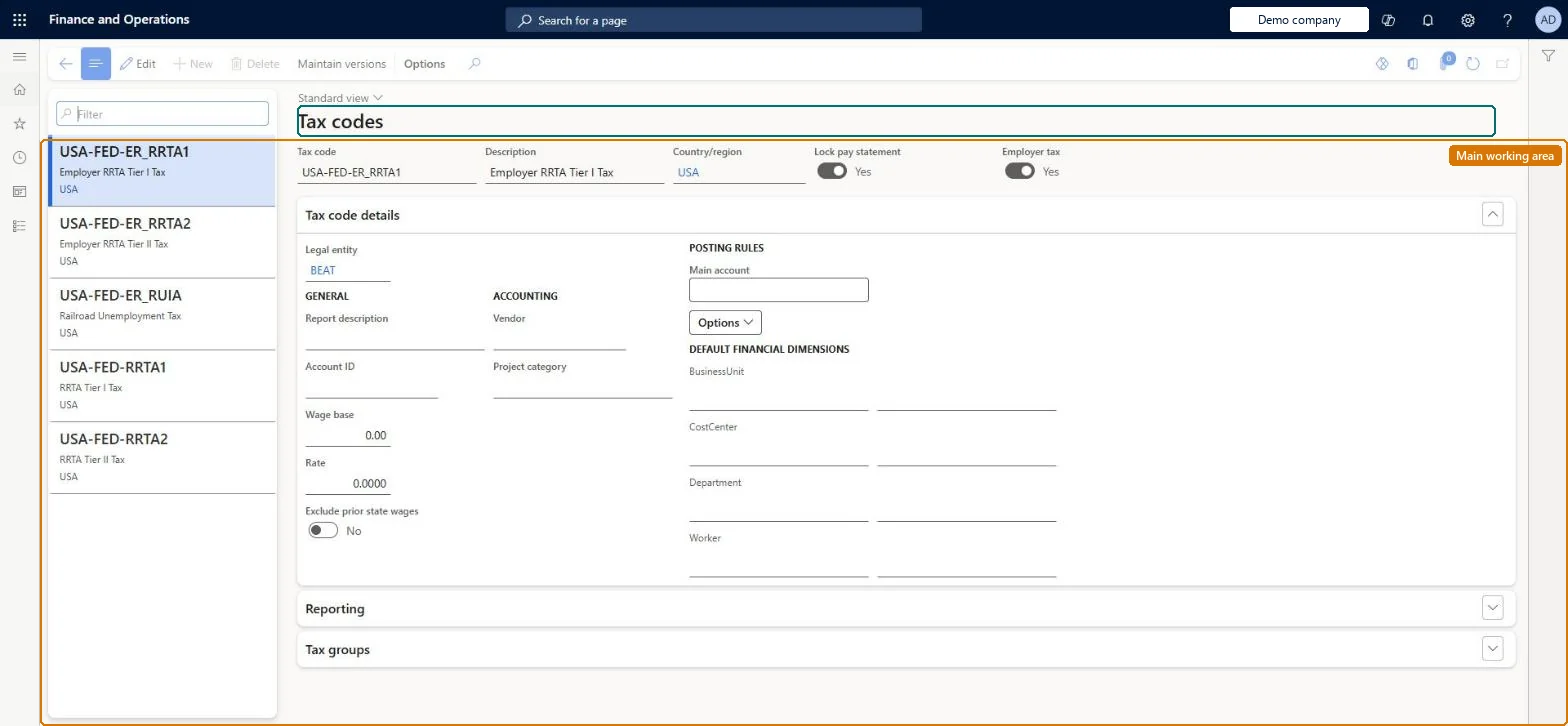
Use this page to enter how your organisation uses each supplied tax code, such as the account ID, wage base, rate, vendor and main account, for each legal entity.
Compensation and benefits manager, Payroll administrator, Payroll manager
Business process
Manage compensation and benefits
Menu item
PayrollTaxCode
Main table
PayrollTaxCode
Data entity
PayrollTaxGroupEntity
Setup steps
1 on this page
Show what matters for
SETUP GUIDEHow to set it up8 sections. Choose a role to highlight what matters to you.
Everyone
1What it is and why
What it is
A setup page that shows the supplied payroll tax codes and the version of each code's settings that is active for the selected legal entity.
What you do here
Use this page to enter how your organisation uses each supplied tax code, such as the account ID, wage base, rate, vendor and main account, for each legal entity.
Example
For example, for a state unemployment tax with a 2.5 percent rate you enter 0.025 in the Rate field.
The page in Dynamics 365. page title tab to open what to set or check
About the examples: Examples and screenshots in this guide use BEAT, a demo company in a Dynamics 365 test environment. Use your own company's codes and values instead of copying them.
Setup steps on this page
Set up Tax codes
Use this page to enter how your organisation uses each supplied tax code, such as the account ID, wage base, rate, vendor and main account, for each legal entity.
How to use it
Go to Payroll > Setup > Taxes > Tax codes.
Use the Filter box in the list pane to find a tax code and select it.
Review the Tax code, Description, Country/region, Lock pay statement and Employer tax fields.
Select Edit and update the Tax code details, such as Report description, Wage base, Rate, Vendor and the Main account under Posting rules.
Expand Reporting and Tax groups to see more settings.
Select Maintain versions to manage versions of the tax code.
Source: Checked in Dynamics 365
Fields on the page
Field
What it means
Table column
Lock pay statement
Built-in setting that prevents tax lines for the code being changed on pay statements.Microsoft Learn
IsPayStatementLineLocked
Employer tax
Built-in setting that shows whether the tax is paid by the employer or withheld from the employee.Microsoft Learn
IsEmployerTax
Report description
Optional text that replaces the tax code description on reports such as pay statements.Microsoft Learn
ReportDescription
Account ID
The legal entity's account number with the taxing authority.Microsoft Learn
AccountNumber
Wage base
The wage base set by the taxing authority, if any.Microsoft Learn
WageBase
Rate
The rate the legal entity pays, entered as a decimal.Microsoft Learn
Rate
Vendor
The tax agency, used to create invoices for calculated tax amounts automatically.Microsoft Learn
VendAccountNum
Main account
The ledger account the tax is posted to for this tax code and legal entity.Microsoft Learn
LedgerDimension
Test checklist
Run Payroll > Setup > Taxes > Update tax data and check system tax groups such as SIT and SCHL exist.
Open the state unemployment tax code and enter Account ID, Wage base, Rate, Main account and Vendor.
Generate a pay statement for a worker in that state and check the employer tax line uses the rate.
Post payroll and generate vendor invoices; check an invoice is created for the tax vendor.
Run Update tax data first, then for each legal entity review every tax code on both the General and Accounting tabs: Account ID, Wage base and Rate as the taxing authority specifies, Main account, and Vendor if invoices should be created automaticallyTax codes are delivered by Update tax data but many fields are blank, and Microsoft recommends reviewing all settings, including the Accounting tab, for each legal entity that uses the code.
Reversible: You can keep several versions of a tax code's data; only one version is active for a legal entity at a time, so a correction is made as a new version.
If you change it later
You can keep several versions of a tax code's data, but only one is active for a legal entity at a time, and each legal entity that uses the code needs its own setup. Microsoft Learn
Technical architect
6Technical
Menu item
PayrollTaxCodeChecked in Dynamics 365
Form
PayrollTaxCodeChecked in Dynamics 365
Table
PayrollTaxCodeShown as “TAX CODE” in Record infoKey field: Code, CountryRegionIdChecked in Dynamics 365
PrivilegesMaintain payroll tax codes PayrollTaxCodeMaintainView payroll tax codes PayrollTaxCodeViewDutiesInquire into payroll master data PayrollMasterDataInquireSet up payroll master data PayrollMasterDataMaintain3 security rolesCompensation and benefits manager HcmCompensationAndBenefitsManagerPayroll administrator HcmPayrollAdministratorPayroll manager HcmPayrollManagerChecked in Dynamics 365
Roles to set it up and use it
To set it up or change itPayroll administrator HcmPayrollAdministratorCompensation and benefits manager HcmCompensationAndBenefitsManagerTo use itPayroll manager HcmPayrollManagerGive people one of these roles. On this system, 3 roles can open this page.Checked in Dynamics 365
Actions on the page
(Action Pane without tabs): Maintain versionsChecked in Dynamics 365