Compensation and benefits manager, Payroll administrator, Payroll manager
Business process
Manage compensation and benefits
Menu item
PayrollTaxGroup
Main table
PayrollTaxGroup
Data entity
PayrollTaxGroupEntity
Setup steps
1 on this page
Show what matters for
PAGE GUIDEWhat the page does and how to use it8 sections. Choose a role to highlight what matters to you.
Everyone
1What it is and why
What it is
A setup page where you maintain tax groups, which collect payroll tax codes so they can be sorted, selected and maintained together.
What you do here
Use this page to review the system-defined tax groups and, if needed, create your own groups so that tax codes sharing accounting data or posting requirements can be updated at once.
Example
For example, if the tax vendor changes, you change the vendor once on the tax group for all its tax codes.
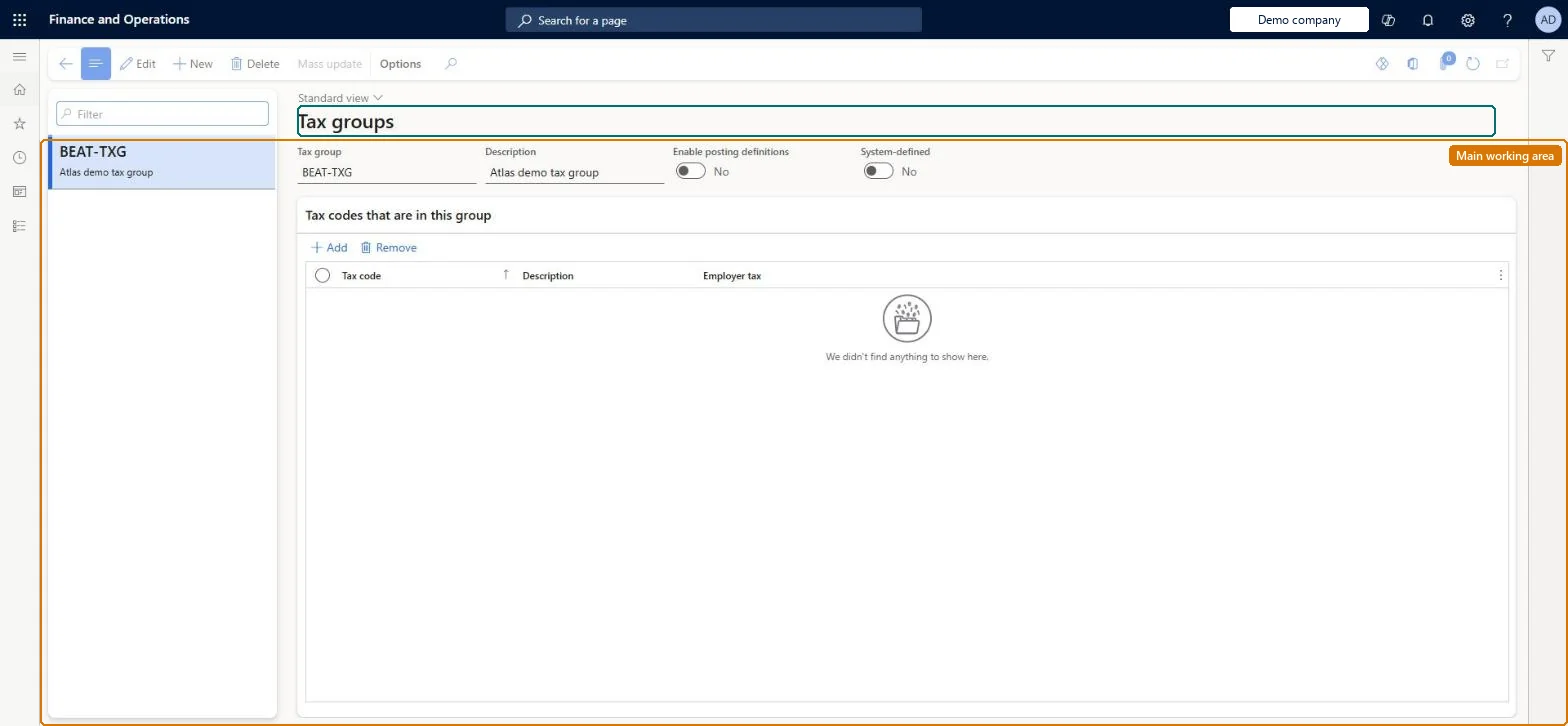
The page in Dynamics 365. page title tab to open what to set or check
About the examples: Examples and screenshots in this guide use BEAT, a demo company in a Dynamics 365 test environment. Use your own company's codes and values instead of copying them.
Setup steps on this page
Set up Tax groups
Use this page to review the system-defined tax groups and, if needed, create your own groups so that tax codes sharing accounting data or posting requirements can be updated at once.
How to use it
Go to Payroll > Setup > Taxes > Tax groups.
Use the Filter box in the list pane to find a tax group and select it.
Select New to create a tax group and enter the Tax group and Description.
Set Enable posting definitions as needed.
In Tax codes that are in this group, select Add to add tax codes or Remove to remove one.
Select Delete to remove a selected tax group.
Source: Checked in Dynamics 365
Test checklist
Create a tax group containing tax codes that share the same vendor and enable it for posting definitions.
Change the vendor through the group and check every tax code in the group shows the new vendor.
Assign the group to a transaction posting definition and post a pay statement; check the posting uses it.
Use the system-defined tax groups; add your own groups only for tax codes that share accounting data, and enable only one group per tax code for posting definitionsSystem-defined groups are created and updated by Update tax data and may be all you need. Custom groups let you change the vendor or accounting for several codes at once, but a tax code can be in only one group enabled for posting definitions.
Putting a tax code in two groups that are both enabled for posting definitions: only one of its groups may be enabled.
Solution architect
5Design impact
If you change it later
A tax code can belong to several tax groups, but only one of those groups may be enabled for posting definitions. Microsoft Learn
Technical architect
6Technical
Menu item
PayrollTaxGroupChecked in Dynamics 365
Form
PayrollTaxGroupChecked in Dynamics 365
Table
PayrollTaxGroupShown as “TAX GROUP” in Record infoKey field: GroupIdChecked in Dynamics 365
PrivilegesMaintain payroll tax groups PayrollTaxGroupMaintainView payroll tax groups PayrollTaxGroupViewDutiesInquire into payroll master data PayrollMasterDataInquireSet up payroll master data PayrollMasterDataMaintain3 security rolesCompensation and benefits manager HcmCompensationAndBenefitsManagerPayroll administrator HcmPayrollAdministratorPayroll manager HcmPayrollManagerChecked in Dynamics 365
Roles to set it up and use it
To set it up or change itPayroll administrator HcmPayrollAdministratorCompensation and benefits manager HcmCompensationAndBenefitsManagerTo use itPayroll manager HcmPayrollManagerGive people one of these roles. On this system, 3 roles can open this page.Checked in Dynamics 365
Actions on the page
(Action Pane without tabs): Mass updateChecked in Dynamics 365