Use this page to create an earning code for every type of earning, such as hourly pay by shift, salary, premiums, leave, benefit accruals and retroactive pay.
Compensation and benefits manager, Payroll administrator, Payroll manager
Business process
Manage compensation and benefits
Menu item
PayrollEarningCode
Main table
PayrollEarningCode
Data entity
PayrollEarningCodeEntity
Setup steps
1 on this page
Show what matters for
SETUP GUIDEHow to set it up8 sections. Choose a role to highlight what matters to you.
Everyone
1What it is and why
What it is
A setup page where you create earning codes, which uniquely identify each type of earning workers receive and carry its accounting, tax, reporting and gross-up settings.
What you do here
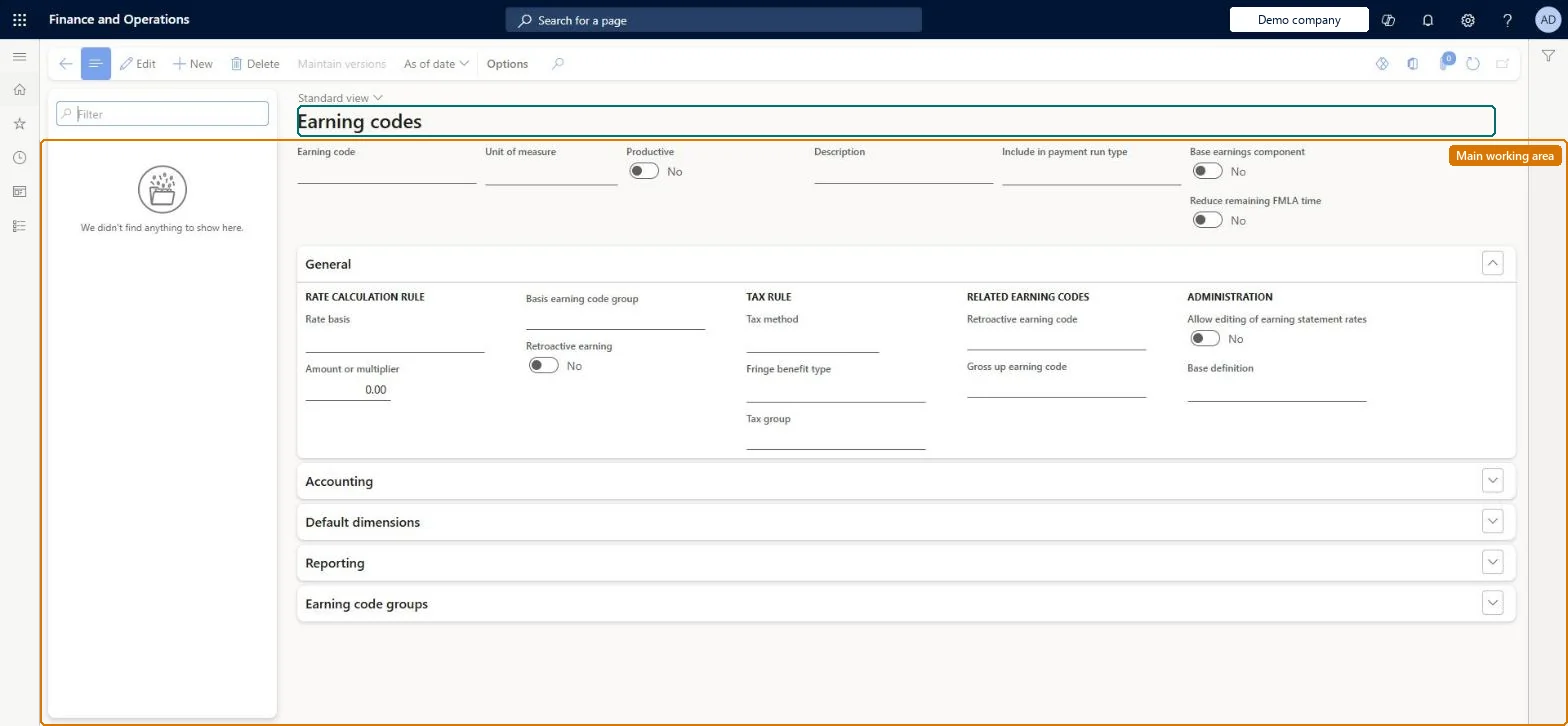
Use this page to create an earning code for every type of earning, such as hourly pay by shift, salary, premiums, leave, benefit accruals and retroactive pay.
Example
For example, a double-time earning code uses rate basis Hourly with a multiplier of 2.
The page in Dynamics 365. page title tab to open what to set or check
About the examples: Examples and screenshots in this guide use BEAT, a demo company in a Dynamics 365 test environment. Use your own company's codes and values instead of copying them.
Setup steps on this page
Set up Earning codes
Use this page to create an earning code for every type of earning, such as hourly pay by shift, salary, premiums, leave, benefit accruals and retroactive pay.
Steps from Microsoft
Go to Payroll > Setup > Earnings > Earning codes.
Select New and enter the earning code, unit of measure and description.
Select the payment run type and whether the code is productive or a base earnings component.
On the General tab, set the rate basis, amount or multiplier and tax method.
On the Accounting tab, select the legal entity and set dimensions and posting rules.
On the Reporting tab, set the Form W-2 control data.
Include in payment run type = Primary and additional for regular pay codes; one earning code per type of earning (per shift, per salary plan, per leave type, per accrual plan, plus a matching retro code)A Primary code can be used in only one payment run per pay period, which blocks a same-period correction run; Primary and additional can be used more than once.
Hard to reverse: Codes are shared across legal entities and used by many Payroll setups. Gross up, Automatic and Retroactive codes lock tax method, rate basis and unit fields to fixed values. The main account from posting rules can't be changed on earning lines.
If you change it later
Earning codes are used across many Payroll setups, so creating or changing one means checking and updating every place it should be used. Microsoft Learn
Technical architect
6Technical
Menu item
PayrollEarningCodeChecked in Dynamics 365
Form
PayrollEarningCodeChecked in Dynamics 365
Table
PayrollEarningCodeShown as “EARNING CODE” in Record infoKey field: EarningCodeChecked in Dynamics 365
PrivilegesMaintain earning codes PayrollEarningCodeMaintainView earning codes PayrollEarningCodeViewDutiesInquire into payroll master data PayrollMasterDataInquireSet up payroll master data PayrollMasterDataMaintain3 security rolesCompensation and benefits manager HcmCompensationAndBenefitsManagerPayroll administrator HcmPayrollAdministratorPayroll manager HcmPayrollManagerChecked in Dynamics 365
Roles to set it up and use it
To set it up or change itPayroll administrator HcmPayrollAdministratorCompensation and benefits manager HcmCompensationAndBenefitsManagerTo use itPayroll manager HcmPayrollManagerGive people one of these roles. On this system, 3 roles can open this page.Checked in Dynamics 365
Actions on the page
(Action Pane without tabs): Maintain versions, As of dateChecked in Dynamics 365