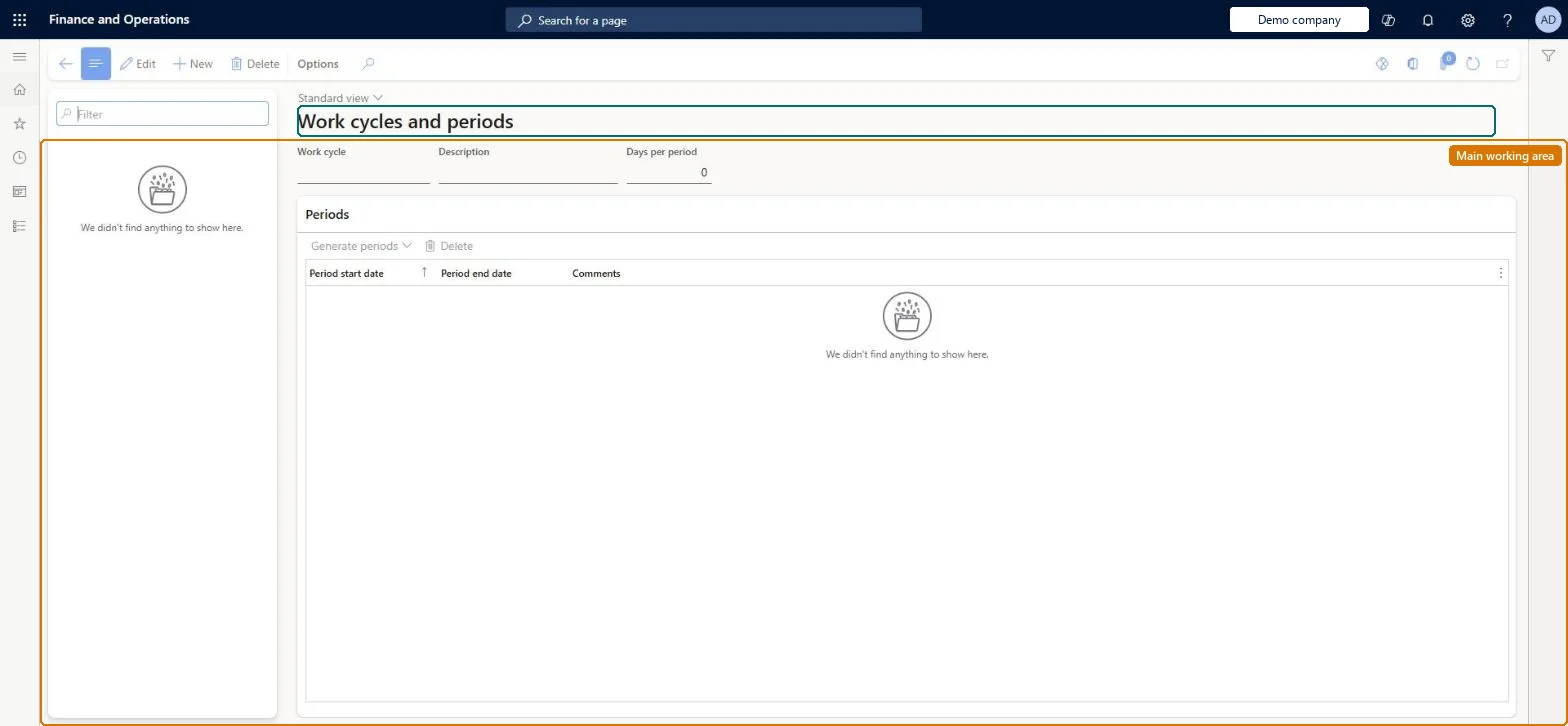
Setup step on the Work cycles and periods page · Payroll
Set up Work cycles and periods
Use this page to set up the work periods that earnings such as FLSA regular-rate overtime premiums are based on, then assign the work cycles to positions.
Compensation and benefits manager, Payroll administrator, Payroll manager
Business process
Manage compensation and benefits
Menu item
PayrollWorkPeriodCycles
Main table
PayrollWorkCycle
Data entity
PayrollWorkCycleEntity
Setup steps
1 on this page
Show what matters for
SETUP GUIDEHow to set it up8 sections. Choose a role to highlight what matters to you.
Everyone
1What it is and why
What it is
A setup page where you create work cycles, which set the length of work periods, and generate the work periods for each cycle.
What you do here
Use this page to set up the work periods that earnings such as FLSA regular-rate overtime premiums are based on, then assign the work cycles to positions.
Example
For example, a cycle named FLSA standard with 7 days per period that starts on Monday.
The page in Dynamics 365. page title tab to open what to set or check
About the examples: Examples and screenshots in this guide use BEAT, a demo company in a Dynamics 365 test environment. Use your own company's codes and values instead of copying them.
Setup steps on this page
Set up Work cycles and periods
Use this page to set up the work periods that earnings such as FLSA regular-rate overtime premiums are based on, then assign the work cycles to positions.
Steps from Microsoft
Go to Payroll > Setup > Work cycles and periods.
Select New and enter a work cycle name and description.
Enter the days per period (7, 14 or 28 for FLSA).
Generate work periods, usually for one year.
Assign the work cycle to non-exempt positions when they are set up for payroll.
One 7-day work cycle (for example FLSA standard, starting on Monday); add 14- or 28-day cycles only for positions that need themMost organizations use only seven-day work periods, and for FLSA compliance the days per period must be 7, 14 or 28.
Running out of work periods: overtime premiums can only be processed for work periods that exist, so generate the next year before the current periods are used up.Test: FLSA overtime uses the work period
Solution architect
5Design impact
Can it be undone
One-way: Warning: a work cycle's name and number of days can't be changed after it is created. Work periods can't have gaps, so only the last periods in the list can be deleted.
If you change it later
A work cycle's name and length are fixed once created, and overtime premiums can be processed only for work periods that exist in the system. Microsoft Learn
Technical architect
6Technical
Menu item
PayrollWorkPeriodCyclesChecked in Dynamics 365
Form
PayrollWorkCycleChecked in Dynamics 365
Table
PayrollWorkCycleShown as “WORK CYCLE” in Record infoKey field: WorkCycleIdChecked in Dynamics 365
PrivilegesMaintain work cycles and periods PayrollWorkCycleMaintainView work cycles and periods PayrollWorkCycleViewDutiesInquire into payroll master data PayrollMasterDataInquireSet up payroll master data PayrollMasterDataMaintainInquire into payroll position and worker setup PayrollPositionWorkerSetupInquireSet up payroll positions and workers PayrollPositionWorkerSetupMaintain3 security rolesCompensation and benefits manager HcmCompensationAndBenefitsManagerPayroll administrator HcmPayrollAdministratorPayroll manager HcmPayrollManagerChecked in Dynamics 365
Roles to set it up and use it
To set it up or change itPayroll administrator HcmPayrollAdministratorCompensation and benefits manager HcmCompensationAndBenefitsManagerTo use itPayroll manager HcmPayrollManagerGive people one of these roles. On this system, 3 roles can open this page.Checked in Dynamics 365
Checked in a working Dynamics 365 system, version 10.0.49: the menu item, form, table and security, the page.
To cite this step: PAY-SETUP-040, Set up Work cycles and periods. Beyond ERP Atlas Hub, 2026-11-11. https://www.beyonderp.cloud/atlas/step/PAY-SETUP-040