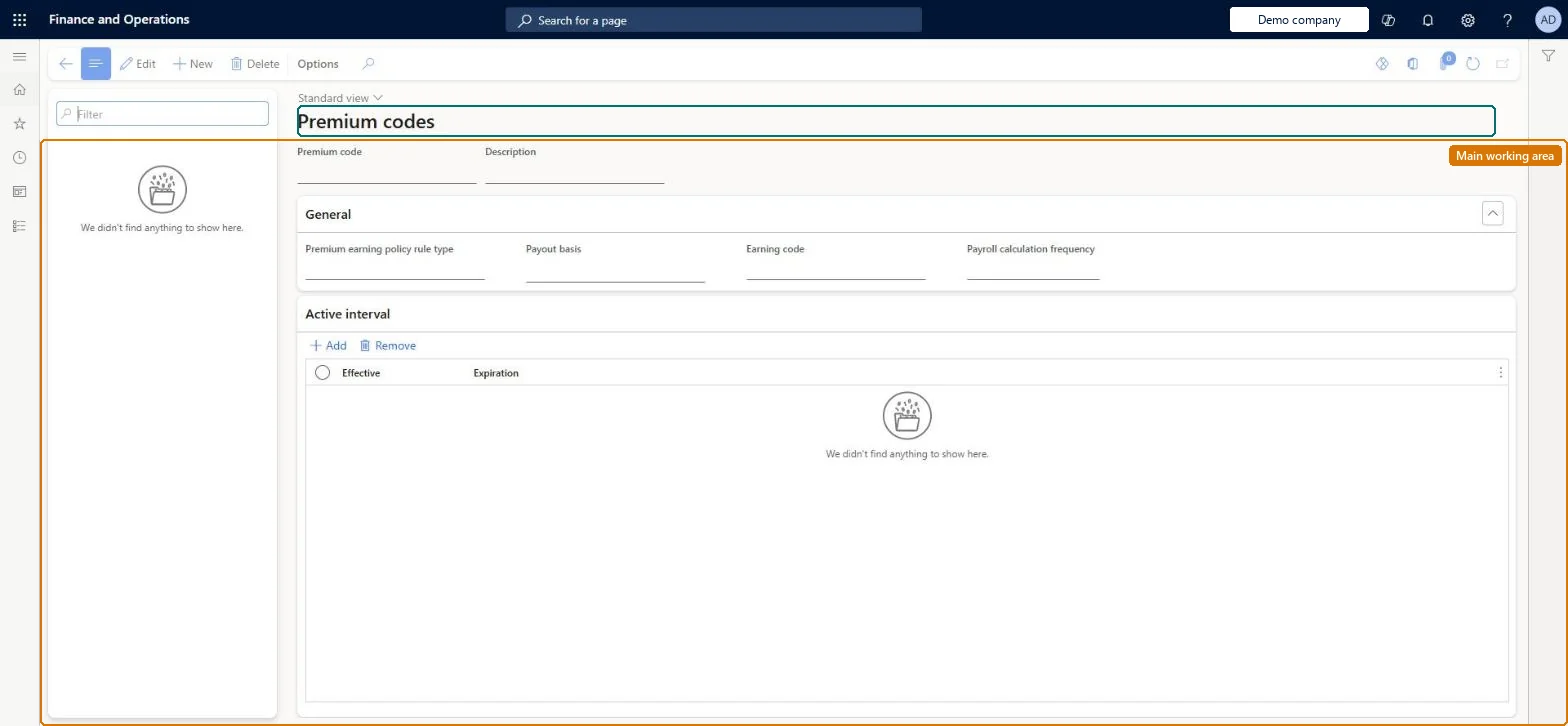
A setup page where you create premium codes, which hold the information needed to generate premium earnings such as shift differentials and certification premiums.
Compensation and benefits manager, Payroll administrator, Payroll manager
Business process
Manage compensation and benefits
Menu item
PayrollPremiumEarningCode
Main table
PayrollPremiumEarningCode
Data entity
PayrollPremiumEarningCodeEntity
Setup steps
1 on this page
Show what matters for
PAGE GUIDEWhat the page does and how to use it8 sections. Choose a role to highlight what matters to you.
Everyone
1What it is and why
What it is
A setup page where you create premium codes, which hold the information needed to generate premium earnings such as shift differentials and certification premiums.
What you do here
Use this page to link a premium earning policy rule type to the earning code that calculates the premium, and to set the payout basis, frequency and active dates.
Example
For example, a premium code named Certification premium pays workers who hold advanced certifications.
The page in Dynamics 365. page title tab to open what to set or check
About the examples: Examples and screenshots in this guide use BEAT, a demo company in a Dynamics 365 test environment. Use your own company's codes and values instead of copying them.
Setup steps on this page
Set up Premium codes
Use this page to link a premium earning policy rule type to the earning code that calculates the premium, and to set the payout basis, frequency and active dates.
Steps from Microsoft
Go to Payroll > Setup > Earnings > Premium codes.
Select New and enter a name and description, ideally matching the policy rule type.
On the General FastTab, select the payroll calculation frequency and policy rule type.
Select the payout basis and the earning code that pays the premium.
Under Active interval, select New and enter the first and last dates.
Payout basis = Earnings statement for premiums based on earning codes; same name and description as the policy rule typeThe paying earning code aggregates hours and earnings, so Earning line would create the aggregate line once per code in the basis group.
Choosing Earning line as payout basis for an earnings-based premium, which significantly overstates earnings.Test: Payout basis does not overstate
Solution architect
5Design impact
Can it be undone
Hard to reverse: Settings can be changed, but changing active interval dates automatically expires other intervals for the code that overlap. Premium earnings already generated stay on the earnings statements until you regenerate them with Replace premium earnings. Microsoft Learn
If you change it later
Adding or changing an active interval automatically expires any overlapping interval for the same premium code. Microsoft Learn
Technical architect
6Technical
Menu item
PayrollPremiumEarningCodeChecked in Dynamics 365
Form
PayrollPremiumEarningCodeChecked in Dynamics 365
Table
PayrollPremiumEarningCodeShown as “PREMIUM CODE” in Record infoKey field: PremiumEarningCodeChecked in Dynamics 365
PrivilegesMaintain premium earnings setup PayrollPremiumEarningSetupMaintainView premium earnings setup PayrollPremiumEarningSetupViewDutiesInquire into payroll master data PayrollMasterDataInquireSet up payroll master data PayrollMasterDataMaintain3 security rolesCompensation and benefits manager HcmCompensationAndBenefitsManagerPayroll administrator HcmPayrollAdministratorPayroll manager HcmPayrollManagerChecked in Dynamics 365
Roles to set it up and use it
To set it up or change itPayroll administrator HcmPayrollAdministratorCompensation and benefits manager HcmCompensationAndBenefitsManagerTo use itPayroll manager HcmPayrollManagerGive people one of these roles. On this system, 3 roles can open this page.Checked in Dynamics 365