SETUP GUIDEHow to set it up8 sections. Choose a role to highlight what matters to you.
Everyone
1What it is and why
What it is
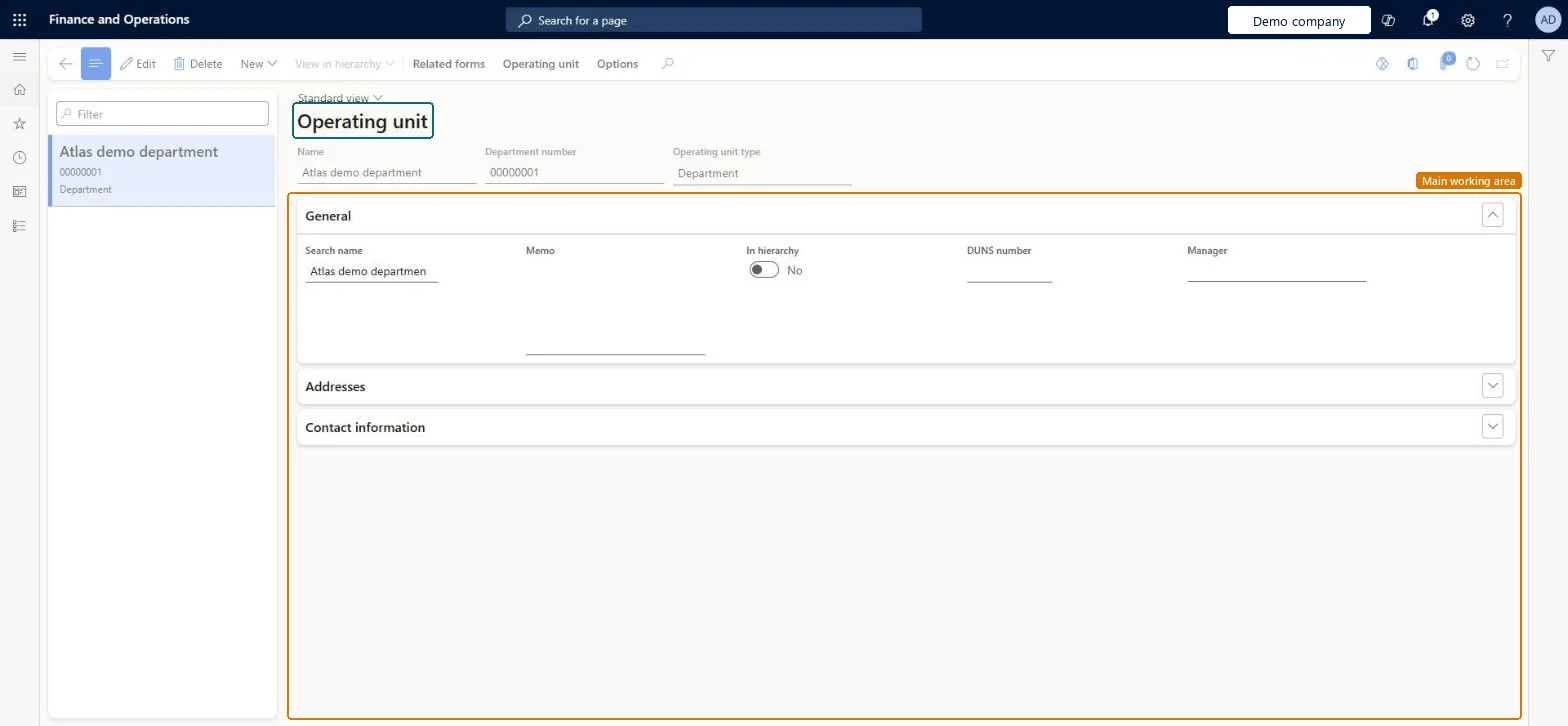
A list page of operating units, the organizations that divide control of economic resources and operational processes, such as cost centers, business units, value streams and departments.
What you do here
Use this page to create operating units and record their general details, addresses and contact information.
Example
For example, regional offices that don't need their own ledger can be set up as operating units of the main legal entity instead of separate legal entities.
The page in Dynamics 365. page title tab to open what to set or check
About the examples: Examples and screenshots in this guide use BEAT, a demo company in a Dynamics 365 test environment. Use your own company's codes and values instead of copying them.
Step by step, with screenshots
Set up Operating units1 screen
Use this page to create operating units and record their general details, addresses and contact information.
Screen 1
Create a department
Go to Organization administration > Organizations > Operating units
Select New
In Create a new operating unit, select Department and then OK
Enter the name
Select Save
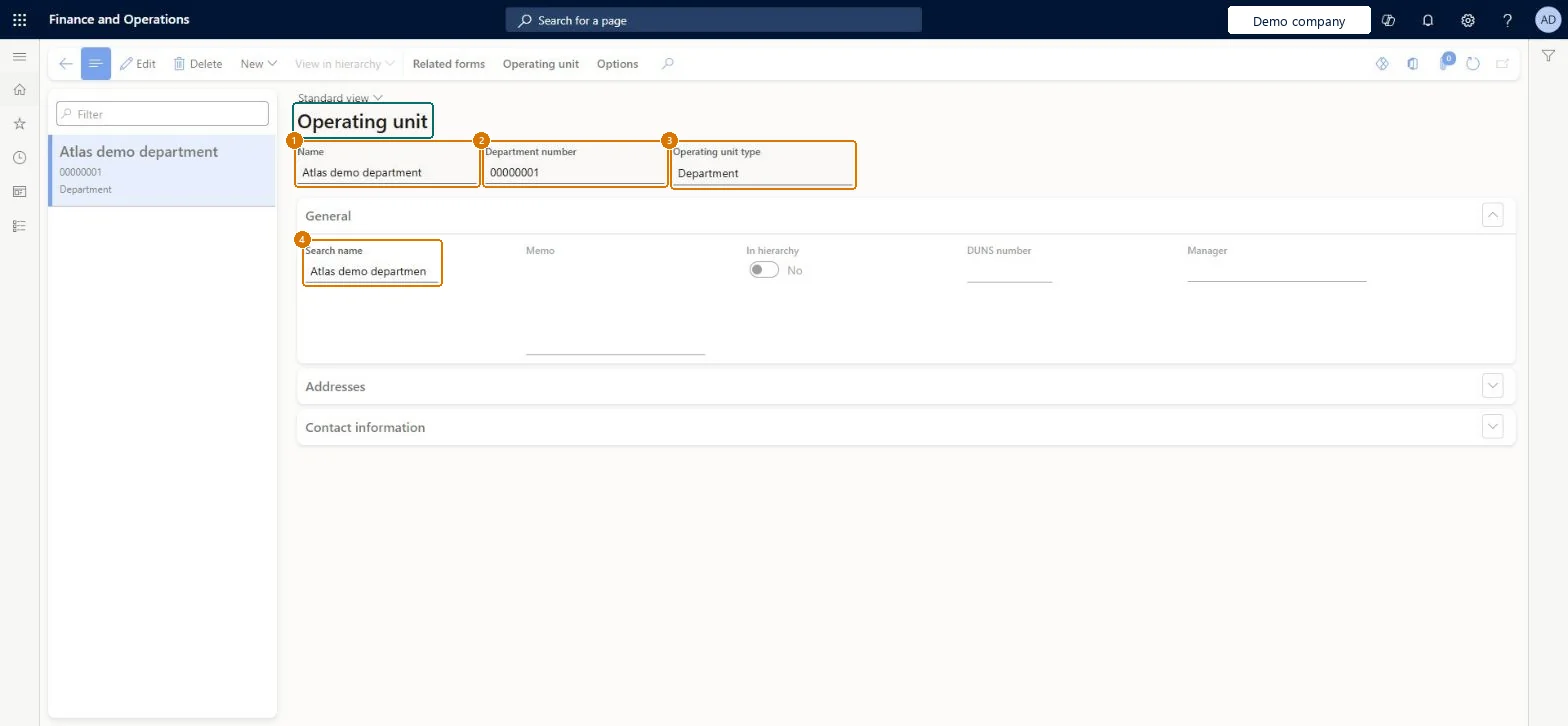
1Name
Department
2Department number
00000001 (from the number sequence)
3Operating unit type
Department
4Search name
Department
Show the full screen page title tab to open what to set or check
Steps from Microsoft
Go to Organization administration > Organizations > Operating units.
Select New.
Select the type of operating unit to create.
In the Name field, enter a name.
In the General section, enter details such as the identification number, DUNS number and manager.
In the Addresses and Contact information sections, add addresses and contact details.
Create an operating unit (not a legal entity) for internal organizations that share the parent legal entity's ledger and fiscal calendar; pick the type by purpose: cost center, business unit, department, value stream or retail channel.An operating unit can't have its own ledger information, so units that don't need their own ledger or fiscal calendar are modeled as operating units under the legal entity.
Adding operating units to a hierarchy before the design is agreed: after an operating unit is added to a hierarchy, it can't be deleted.
Solution architect
5Design impact
Can it be undone
One-way: Warning: After an operating unit is added to an organization hierarchy, it can't be deleted.
If you change it later
Once an operating unit is added to an organization hierarchy, it can't be deleted. Microsoft Learn
Technical architect
6Technical
Menu item
OMOperatingUnitChecked in Dynamics 365
Form
OMOperatingUnitChecked in Dynamics 365
Data entities
OMOperatingUnitContactEntityOperating unit contacts Checked in Dynamics 365OMBusinessUnitEntityBusiness unit Checked in Dynamics 365RetailCallCenterEntityCall center channel Microsoft data model OMCostCenterEntityCost center Checked in Dynamics 365OMDepartmentV2EntityDepartment V2 Checked in Dynamics 365RetailStoreEntityStores Microsoft data model
Roles to set it up and use it
To set it up or change itInformation technology manager SysServerITManagerProduction manager ProdProductionManagerAccounting manager LedgerAccountingManagerRental manager RentalManagerBudget manager BudgetBudgetManagerTo use itHuman resource assistant HcmHumanResourceAssistantRental purchasing manager RentalPurchasingManagerRental sales manager RentalSalesManagerRental coordinator agent RentalCoordinatorAgentRental clerk RentalClerkGive people one of these roles. On this system, 13 roles can open this page.Checked in Dynamics 365
Actions on the page
Operating unit: RegistrationOptions: Personalize, Page options, ShareChecked in Dynamics 365
Developer
7Developer
Open it by URL
https://<your-environment>/?mi=OMOperatingUnit
Integrate with
OMOperatingUnitContactEntity data entity Checked in Dynamics 365
Checked in a working Dynamics 365 system, version 10.0.49: the menu item, form, table and security, the page, the demo records and the values in the screenshots.
To cite this step: OA-ORG-020, Set up Operating units. Beyond ERP Atlas Hub, 2026-11-11. https://www.beyonderp.cloud/atlas/step/OA-ORG-020