SETUP GUIDEHow to set it up8 sections. Choose a role to highlight what matters to you.
Everyone
1What it is and why
What it is
A setup page where you assign an organization hierarchy to an Electronic reporting format to limit which legal entities its cross-company data sources return.
What you do here
Use this page to restrict a format that reads data across companies to only the legal entities in the chosen hierarchy.
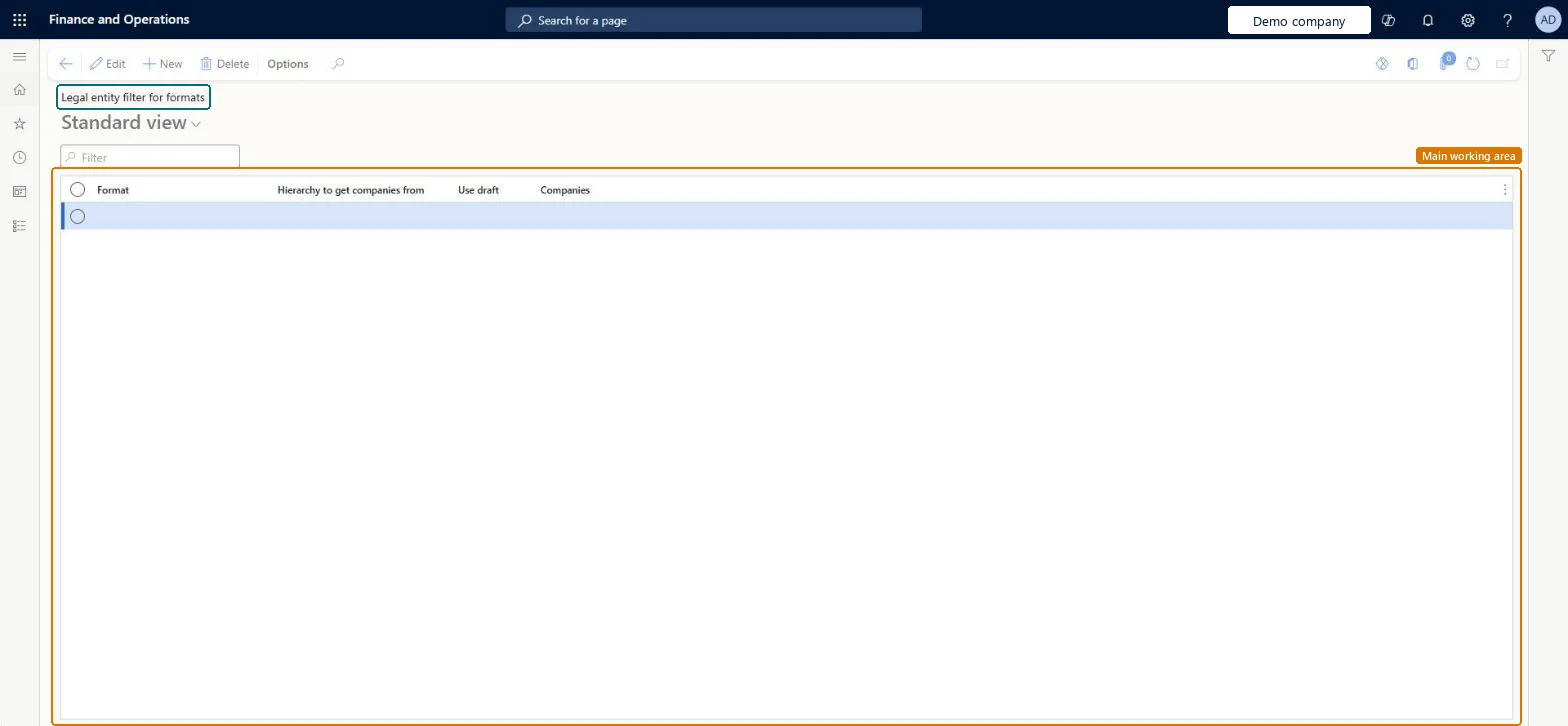
The page in Dynamics 365. page title tab to open what to set or check
About the examples: Examples and screenshots in this guide use BEAT, a demo company in a Dynamics 365 test environment. Use your own company's codes and values instead of copying them.
Setup steps on this page
Set up Legal entity filter for formats
Use this page to restrict a format that reads data across companies to only the legal entities in the chosen hierarchy.
How to use it
Go to Organization administration > Electronic reporting > Legal entity filter for formats.
Select New to add a line.
Choose the Format.
Choose the Hierarchy to get companies from and set Use draft if needed.
Review the Companies column.
Select Edit to change an existing line, or Delete to remove one.
Source: Checked in Dynamics 365
Fields on the page
Field
What it means
Table column
Use draft
Uses the legal entities in the draft version of the hierarchy instead of the last published version.Microsoft Learn
UseDraftOMHierarchy
Test checklist
Grant the Maintain legal entity filters for format privilege to the tester.
Assign a hierarchy with two legal entities to a format that uses a cross-company data source.
Run the format and check only those two legal entities' data is in the output.
Check the company filter in the query dialog: the result is the intersection of the hierarchy and the user's selection.
Assign a hierarchy that holds only the legal entities the format may read, with Use draft off so the last published version sets the scope.With Use draft off, the legal entities in the last published version of the hierarchy define the scope; with it on, a draft version, if any, is used instead.
Deleting or replacing the assigned hierarchy: when the hierarchy no longer exists, the format reads data from all companies again.
Solution architect
5Design impact
Can it be undone
Reversible: The hierarchy and Use draft option can be changed at any time; the scope applies to the next format run.
If you change it later
If the assigned hierarchy no longer exists, the format goes back to reading data from all companies. Microsoft Learn
Technical architect
6Technical
Menu item
ERFormatMappingLegalEntityFilterTableChecked in Dynamics 365
Form
ERFormatMappingLegalEntityFilterTableChecked in Dynamics 365
Table
ERFormatMappingLegalEntityFilterTableShown as “Legal entity filter for formats” in Record infoChecked in Dynamics 365
Who can open it
PrivilegesMaintain legal entity filters for formats ERMaintainFormatMappingLegalEntityFiltersDutiesManage legal entity filters for formats ERManageFormatMappingLegalEntityFilters1 security roleElectronic reporting functional consultant ERFunctionalConsultantChecked in Dynamics 365
Roles to set it up and use it
To set it up or change itElectronic reporting functional consultant ERFunctionalConsultantGive people one of these roles. On this system, 1 role can open this page.Checked in Dynamics 365
Actions on the page
Options: Personalize, Page options, ShareChecked in Dynamics 365
Checked in a working Dynamics 365 system, version 10.0.49: the menu item, form, table and security, the page.
To cite this step: OA-ER-050, Set up Legal entity filter for formats. Beyond ERP Atlas Hub, 2026-11-11. https://www.beyonderp.cloud/atlas/step/OA-ER-050