Setup step on the Batch attributes page · Inventory management
Set up Batch attributes
Use this page to record batch characteristics with value ranges and targets, so you can search on them when you reserve batches for sales or production orders.
Product design manager, Materials manager, Production manager and 4 more roles
Business process
Maintain inventory levels
Menu item
PdsBatchAttrib
Main table
PdsBatchAttrib
Data entity
PdsItemBatchAttributeEntity
Setup steps
1 on this page
Show what matters for
SETUP GUIDEHow to set it up8 sections. Choose a role to highlight what matters to you.
Everyone
1What it is and why
What it is
A setup page where you create batch attributes, which are characteristics of the raw materials and finished products that make up inventory batches.
What you do here
Use this page to record batch characteristics with value ranges and targets, so you can search on them when you reserve batches for sales or production orders.
Example
For example, in the cheese industry, milk can have attributes such as fat content, and the cheese made from it can have attributes such as moisture and age.
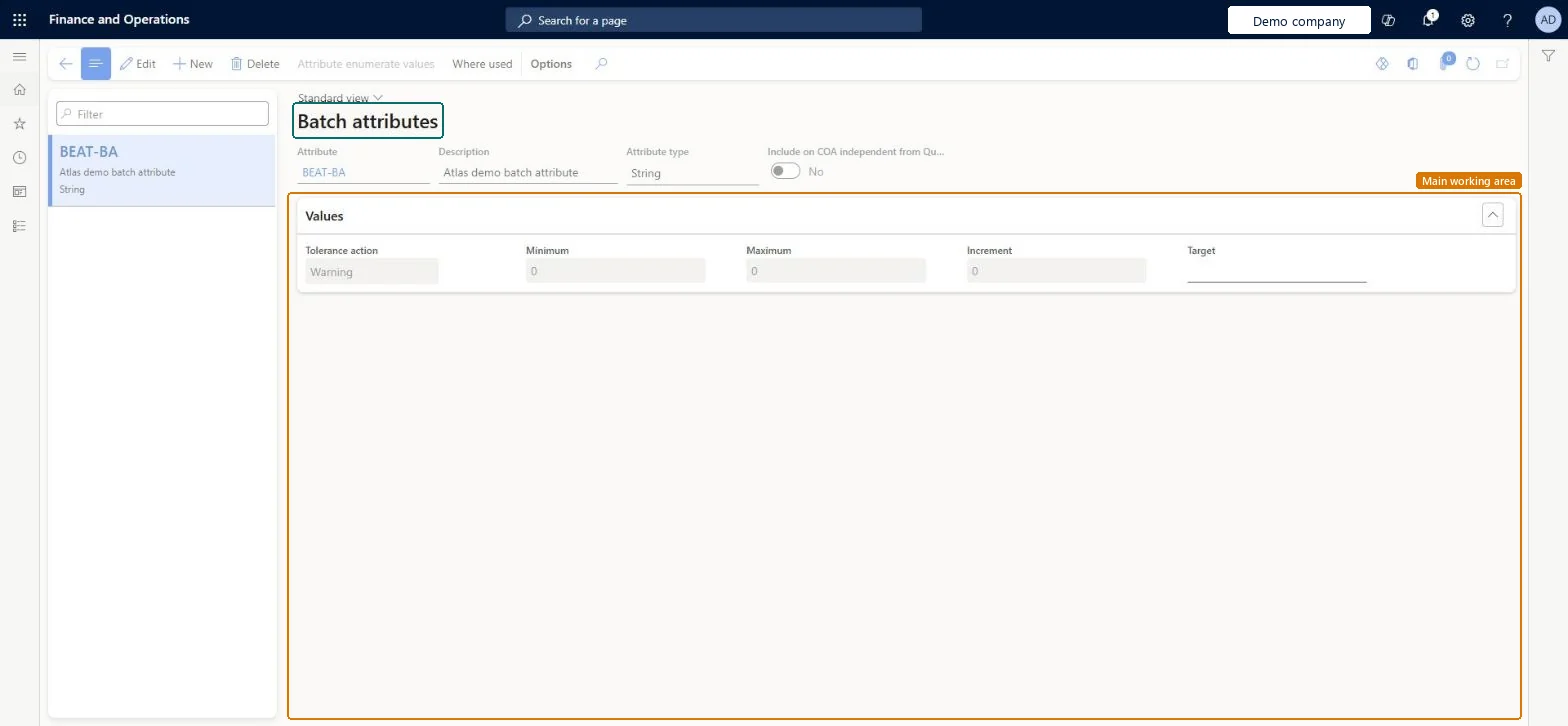
The page in Dynamics 365. page title tab to open what to set or check
About the examples: Examples and screenshots in this guide use BEAT, a demo company in a Dynamics 365 test environment. Use your own company's codes and values instead of copying them.
Step by step, with screenshots
Set up Batch attributes1 screen
Use this page to record batch characteristics with value ranges and targets, so you can search on them when you reserve batches for sales or production orders.
Screen 1
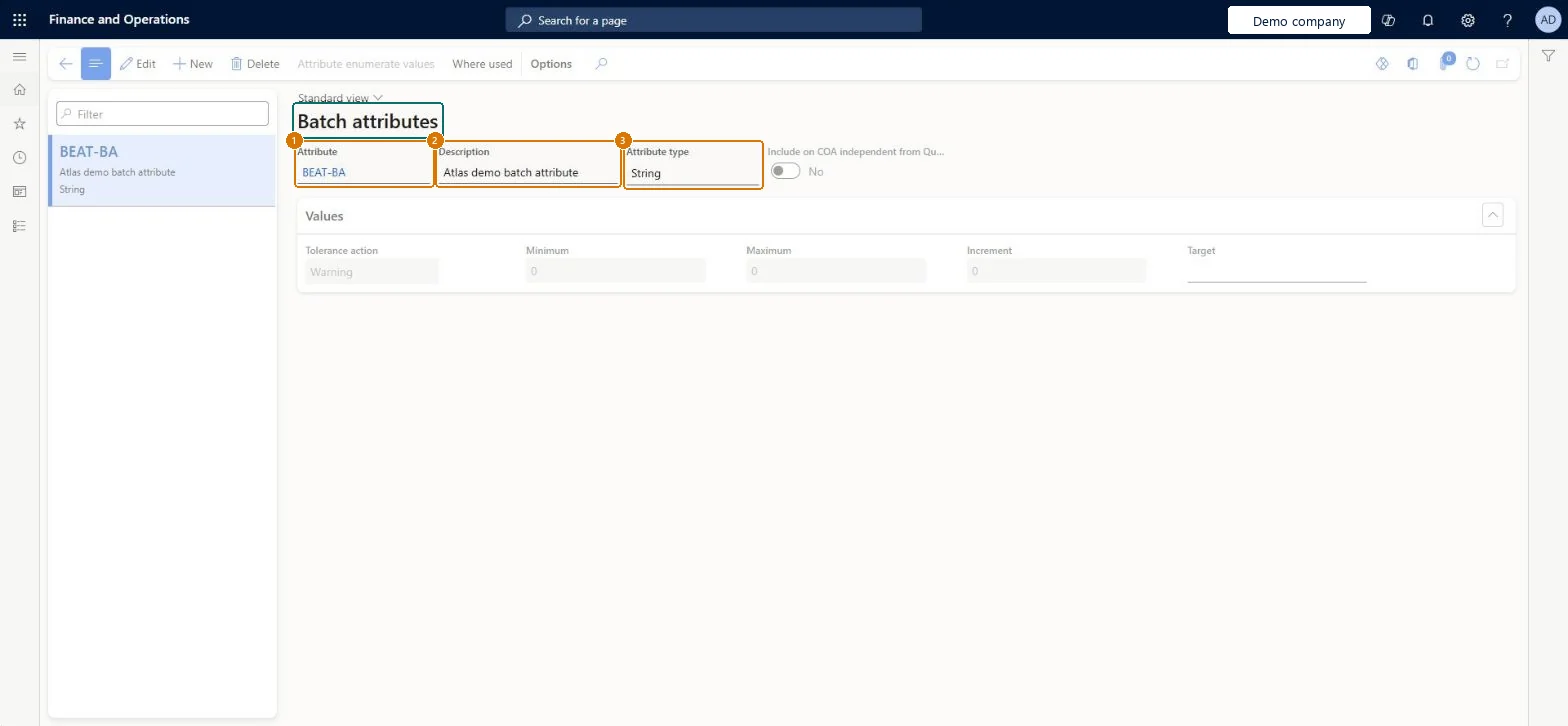
Create a batch attribute
Go to Inventory management > Setup > Batch > Batch attributes
Select New
Enter the attribute code and description
Choose the attribute type (String here; Integer or Real let you set a minimum, maximum, increment and target)
Select Save
1Attribute
BEAT-BA
2Description
Batch attribute
3Attribute type
String
Show the full screen page title tab to open what to set or check
Steps from Microsoft
Go to Inventory management > Setup > Batch > Batch attributes.
Select New.
Enter the Attribute and a Description.
In the Attribute type field, select a type, such as Fraction.
Create a Fraction attribute with Minimum, Maximum, Increment and Target.
Assign it to a released product whose tracking dimension group has Batch number active.
Receive a batch and enter a value on the Inventory batch attributes page, including one value outside the range, and check the warning or error appears as set on the product.
Create a sales order and reserve by batch attribute; check only batches that meet the attribute value are offered.
Use Integer or Fraction for measured characteristics (for example fat content or potency) with Minimum, Maximum and Target set; use Enumeration only for fixed listsMinimum and maximum ranges and tolerance actions (warning or error) are only available for Integer and Fraction attributes, and the target is the optimal value used for all types. Batch balancing also models the active ingredient as a batch attribute with a minimum, maximum and target.
Choosing Enumeration and then trying to set a Target before the enumeration list is filled in, or setting an Increment that doesn't fit the range. When batches are merged, integer and fraction values are averaged and rounded to the nearest increment.
Hard to reverse: Once the attribute is assigned to products and values are recorded on the Inventory batch attributes page, batch reservations and quality checks rely on those values. Changing the type or range later means reviewing every product and batch that uses it.
Technical architect
6Technical
Menu item
PdsBatchAttribChecked in Dynamics 365
Form
PdsBatchAttribChecked in Dynamics 365
Table
PdsBatchAttribShown as “Batch attributes” in Record infoChecked in Dynamics 365
PrivilegesMaintain batch attributes PdsBatchAttribMaintainView batch attributes PdsBatchAttribViewDutiesInquire into logistic policies InventLogisticPoliciesInquireEnable the logistic process InventLogisticProcessEnable7 security rolesProduct design manager BOMProductDesignManagerMaterials manager InventMaterialsManagerProduction manager ProdProductionManagerProduction supervisor ProdProductionSupervisorProcess engineer RouteProcessEngineerProcess engineering manager RouteProcessEngineeringManagerWarehouse manager WMSWarehouseManagerChecked in Dynamics 365
Roles to set it up and use it
To set it up or change itWarehouse manager WMSWarehouseManagerMaterials manager InventMaterialsManagerProduction manager ProdProductionManagerTo use itProduction supervisor ProdProductionSupervisorProcess engineer RouteProcessEngineerProduct design manager BOMProductDesignManagerProcess engineering manager RouteProcessEngineeringManagerGive people one of these roles. On this system, 7 roles can open this page.Checked in Dynamics 365
PdsItemBatchAttributeEntity (Batch attributes): loaded for each company, in Microsoft's default template 310 - Product information management.Load order: Microsoft's default template 310 - Product information management loads Batch attributes at execution unit 1, level 30, sequence 10. Lower levels load first, and entities at the same level load in sequence order.Load first: the default templates at lower levels (System setup to General ledger)Microsoft Learn
Checked in a working Dynamics 365 system, version 10.0.49: the menu item, form, table and security, the page, the demo records and the values in the screenshots.
To cite this step: IM-SETUP-460, Set up Batch attributes. Beyond ERP Atlas Hub, 2026-11-11. https://www.beyonderp.cloud/atlas/step/IM-SETUP-460