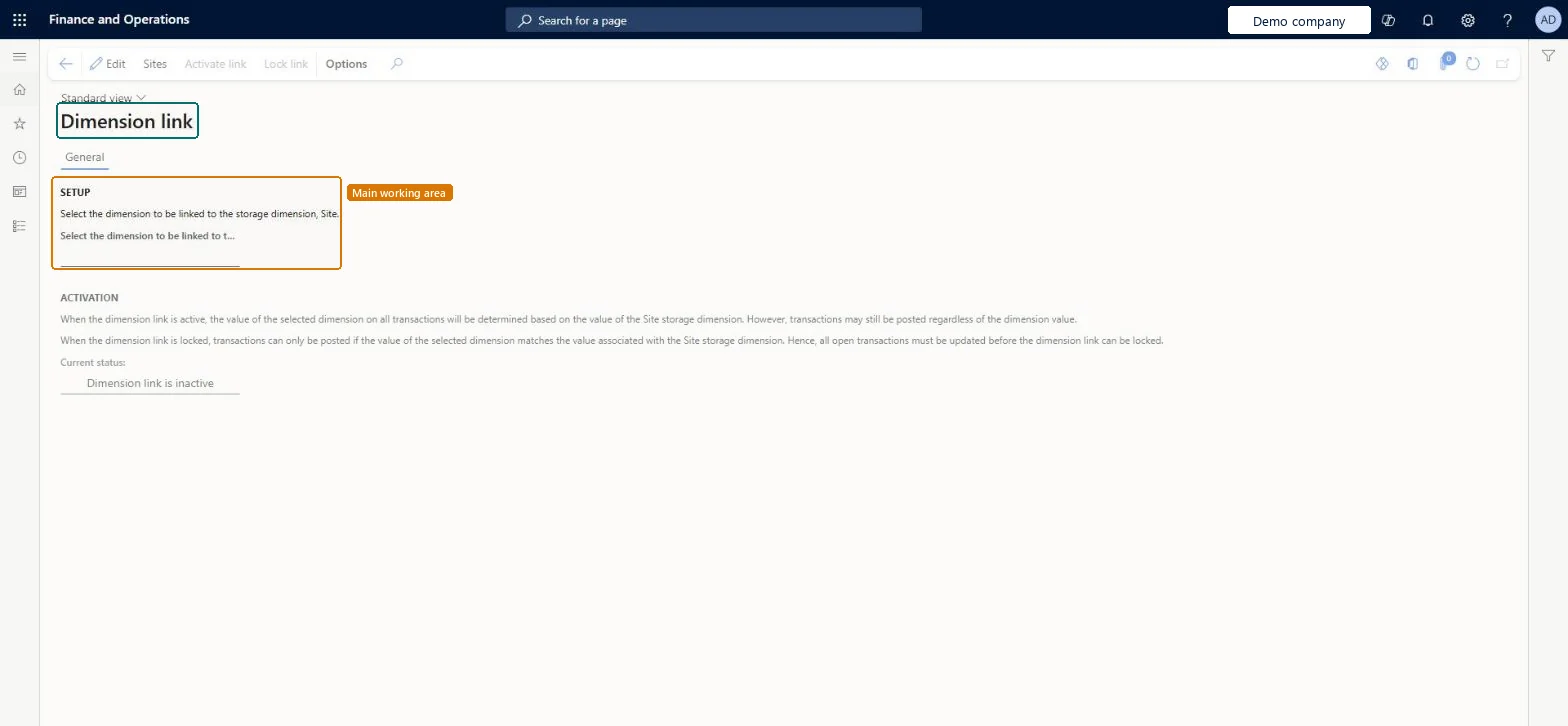
About the examples: Examples and screenshots in this guide use BEAT, a demo company in a Dynamics 365 test environment. Use your own company's codes and values instead of copying them.
Setup steps on this page
Set up Dimension link
Use this page to calculate profit and loss figures for each site by giving each site a financial dimension value.
Steps from Microsoft
Go to Inventory management > Setup > Posting > Dimension link.
Select Edit.
Select the financial dimension to link to the Site dimension.
Select Sites, and for each site choose the financial dimension value on the Financial dimensions FastTab.
Select Save.
Back on the Dimension link page, select Activate link and then OK.
When you're ready, select Lock link to enforce matching values.
Assign a dimension value to every site, Activate link, and Lock link only when site P&L must always match the siteActivating copies the site's value onto new transactions but still allows changes; locking enforces the match on posting and stops the site value being changed.
Hard to reverse: Lock updates all open transactions to the site value; unlocking doesn't restore earlier values.
If you change it later
When the link is locked, transactions can post only if the linked dimension value matches the site's value, and the site's value can't be changed until the link is unlocked. Microsoft Learn
Technical architect
6Technical
Menu item
InventSiteDimensionLinkChecked in Dynamics 365
Form
InventSiteDimensionLinkChecked in Dynamics 365
Table
InventParametersShown as “Inventory parameters” in Record infoChecked in Dynamics 365
Data entities
CostOperationalSiteFinancialDimensionLinkPolicyEntitySite dimension link policies Microsoft data model InventInventoryManagementParametersEntityInventory parameters Microsoft data model
Who can open it
PrivilegesMaintain dimension link to site InventSiteDimensionLinkMaintainView dimension link to site InventSiteDimensionLinkViewDutiesInquire into general ledger policies LedgerGeneralLedgerPoliciesInquireEnable general ledger process LedgerGeneralLedgerProcessEnableInquire into general ledger policies RentalLedgerGeneralLedgerPolicieInquireEnable general ledger process RentalLedgerGeneralLedgerProcessEnable12 security rolesAuditor AuditPolicyManagerChief financial officer CompanyChiefFinancialOfficerInventory accountant InventCostAccountantInventory accountant clerk InventCostCostClerkAccountant LedgerAccountantAccounting manager LedgerAccountingManagerAccounting supervisor LedgerAccountingSupervisorFinancial controller LedgerFinancialControllerRental coordinator agent RentalCoordinatorAgentRental manager RentalManagerRental purchasing manager RentalPurchasingManagerRental sales manager RentalSalesManagerChecked in Dynamics 365
Roles to set it up and use it
To set it up or change itRental sales manager RentalSalesManagerRental manager RentalManagerAccounting manager LedgerAccountingManagerRental purchasing manager RentalPurchasingManagerAccounting supervisor LedgerAccountingSupervisorTo use itInventory accountant clerk InventCostCostClerkInventory accountant InventCostAccountantRental coordinator agent RentalCoordinatorAgentAuditor AuditPolicyManagerFinancial controller LedgerFinancialControllerGive people one of these roles. On this system, 12 roles can open this page.Checked in Dynamics 365
Actions on the page
Options: Personalize, Page options, ShareChecked in Dynamics 365
CostOperationalSiteFinancialDimensionLinkPolicyEntity data entity Microsoft data model
Data migration
CostOperationalSiteFinancialDimensionLinkPolicyEntity (Site dimension link policies): loaded for each company, in Microsoft's default template 300 - Inventory.InventInventoryManagementParametersEntity (Inventory parameters): loaded for each company, in Microsoft's default template 300 - Inventory.Load order: Microsoft's default template 300 - Inventory loads Site dimension link policies at execution unit 1, level 300, sequence 90. Lower levels load first, and entities at the same level load in sequence order.Load first: the default templates at lower levels (System setup to Budgeting)Microsoft Learn