About the examples: Examples and screenshots in this guide use BEAT, a demo company in a Dynamics 365 test environment. Use your own company's codes and values instead of copying them.
Step by step, with screenshots
Set up Order entry deadlines1 screen
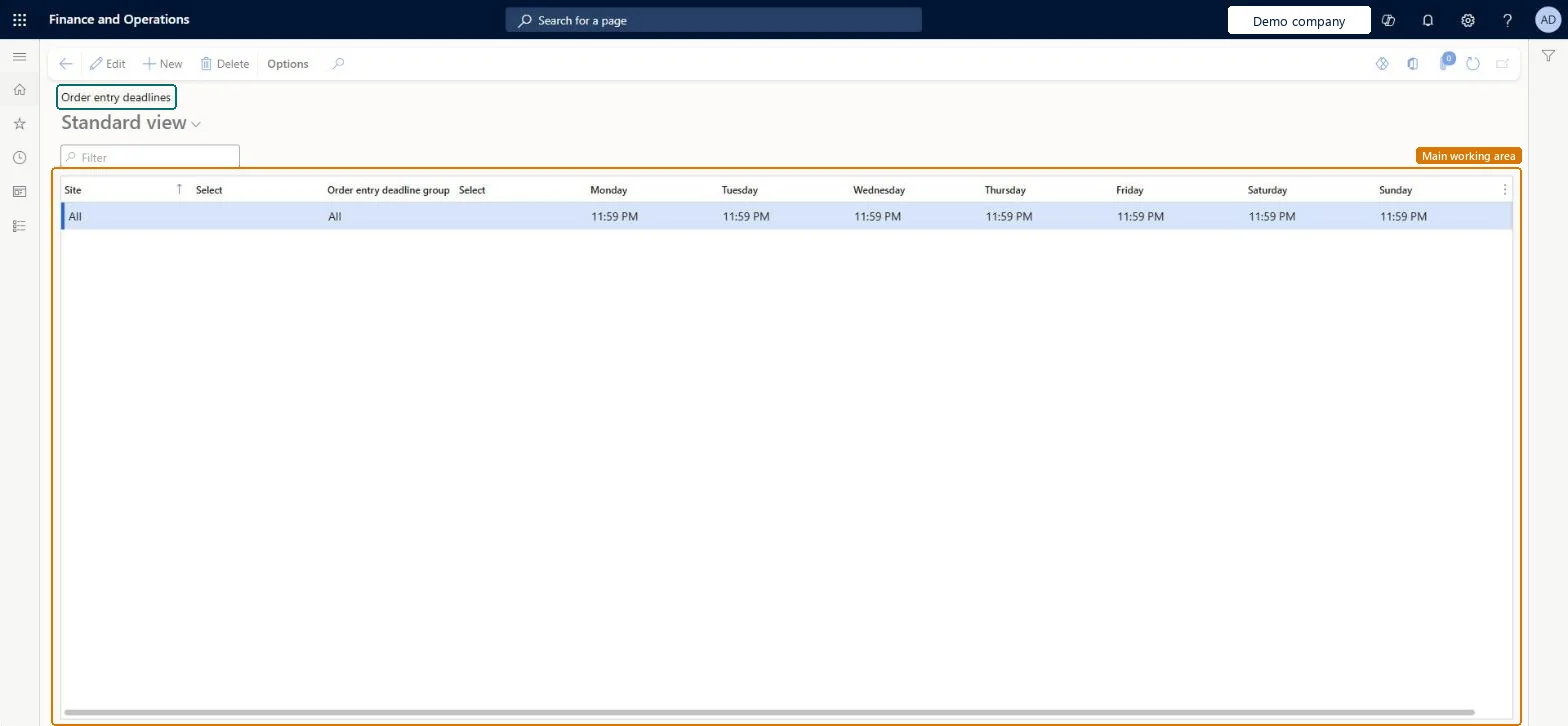
Use this page to feed order promising, so customers know whether an order placed before a set time ships the same day or the next business day.
Screen 1
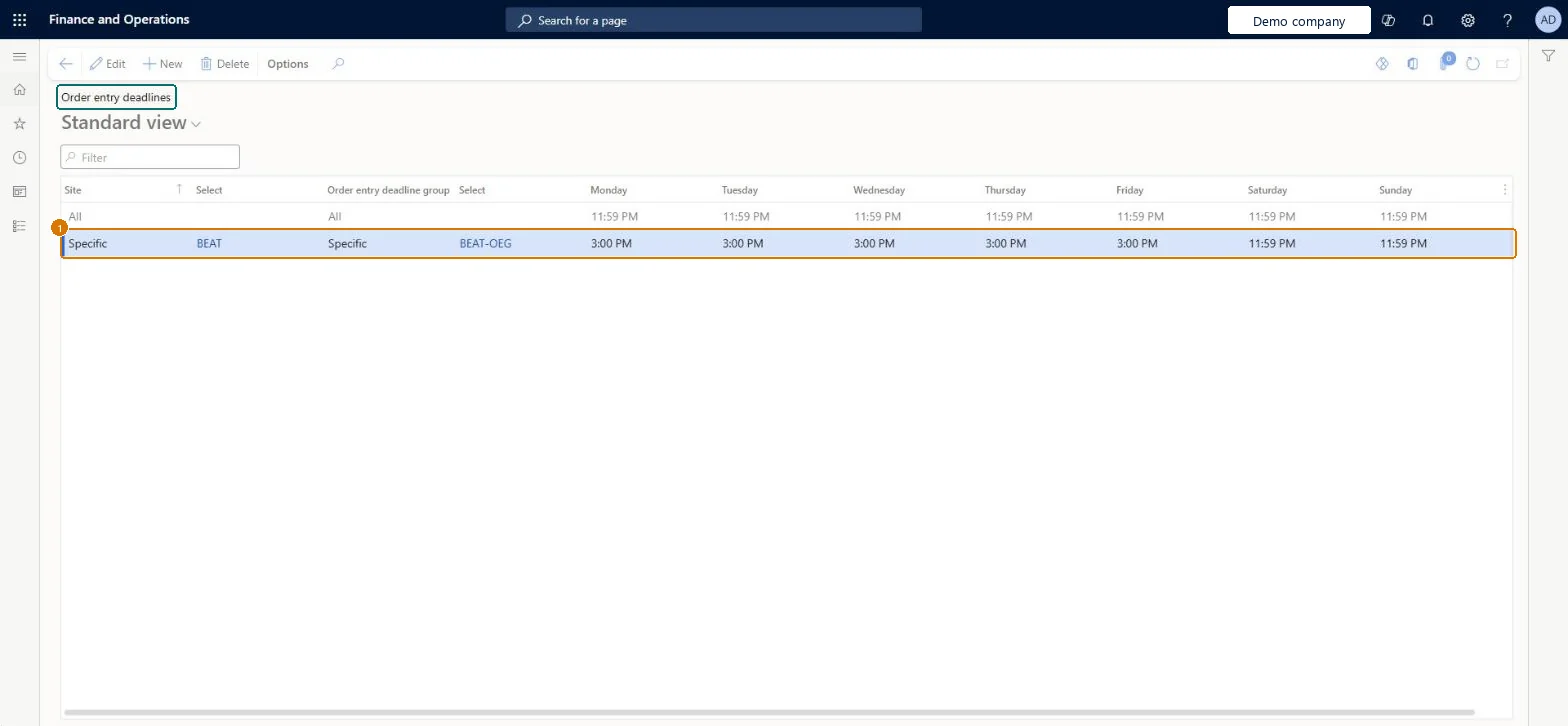
Set order entry deadlines for a site and customer group
Go to Inventory management > Setup > Distribution > Order entry deadlines
Make sure the site and the order entry deadline group exist (here demo site BEAT and group BEAT-OEG)
Select New
Set Site to Specific and select the site
Set Order entry deadline group to Specific and select the group
Enter the cut-off time for each day of the week
Select Save
Turn on the site and order group combination on Activate order entry deadline combinations so the line is used
Site
Specific, BEAT
Order entry deadline group
Specific, BEAT-OEG
Monday to Friday
3:00 PM
Saturday and Sunday
11:59 PM
Show the full screen page title tab to open what to set or check
How to use it
Go to Inventory management > Setup > Distribution > Order entry deadlines.
Select New to add a row.
Select the Site and the Order entry deadline group.
Enter the time for each day from Monday to Sunday.
Replace the default 23:59 with the real cut-off for each day, based on warehouse capacity and carrier pick-up timesLearn says the default times are 23:59 and should be changed to match actual ship or receipt deadlines, because the deadline decides whether an order counts as received today or the next day.
Entering times in the head office time zone. Deadlines are set in each site's time zone and converted to the user's time zone on Available ship and receipt dates.
Reversible: Deadlines are used when dates are checked for orders; changing them affects later checks only.
Technical architect
6Technical
Menu item
InventOrderEntryDeadlineTableChecked in Dynamics 365
Form
InventOrderEntryDeadlineTableChecked in Dynamics 365
Table
InventOrderEntryDeadlineTableShown as “Order entry deadlines” in Record infoKey field: SiteCode, InventSiteId, DeadlineGroupCode, DeadlineGroupIdChecked in Dynamics 365
PrivilegesMaintain order entry deadline information InventOrderEntryDeadlineMaintainView order entry deadline information InventOrderEntryDeadlineViewDutiesInquire into logistic policies InventLogisticPoliciesInquireInquire into quotation to sales order policies RentalSalesQuotationToSlsOrdPoliciesInquireEnable quotation to sales order process RentalSalesQuotationToSlsOrdProcessEnableMaintain sales order entry deadlines SalesOrderEntryDeadlineMaintainInquire into quotation to sales order policies SalesQuotationToSalesOrderPolInquireEnable quotation to sales order process SalesQuotationToSalesOrderProcessEnable11 security rolesProduct design manager BOMProductDesignManagerAccounts receivable manager CustInvoiceAccountsReceivableManagerProduction supervisor ProdProductionSupervisorRental coordinator agent RentalCoordinatorAgentRental manager RentalManagerRental representative RentalRepresentativeRental sales manager RentalSalesManagerRetail service RetailServiceProcess engineer RouteProcessEngineerProcess engineering manager RouteProcessEngineeringManagerSales manager TradeSalesManagerChecked in Dynamics 365
Roles to set it up and use it
To set it up or change itSales manager TradeSalesManagerRetail service RetailServiceRental sales manager RentalSalesManagerRental manager RentalManagerRental coordinator agent RentalCoordinatorAgentTo use itProduction supervisor ProdProductionSupervisorProcess engineer RouteProcessEngineerProduct design manager BOMProductDesignManagerProcess engineering manager RouteProcessEngineeringManagerRental representative RentalRepresentativeGive people one of these roles. On this system, 11 roles can open this page.Checked in Dynamics 365
Actions on the page
Options: Personalize, Page options, ShareChecked in Dynamics 365
Checked in a working Dynamics 365 system, version 10.0.49: the menu item, form, table and security, the page, the demo records and the values in the screenshots.
To cite this step: IM-SETUP-130, Set up Order entry deadlines. Beyond ERP Atlas Hub, 2026-11-11. https://www.beyonderp.cloud/atlas/step/IM-SETUP-130