| What it is | A setup page where you enter how many days it takes to transport goods between warehouses. |
|---|---|
| What you do here | Use this page to set the transport lead time between a shipping and a receiving warehouse, optionally per mode of delivery. |
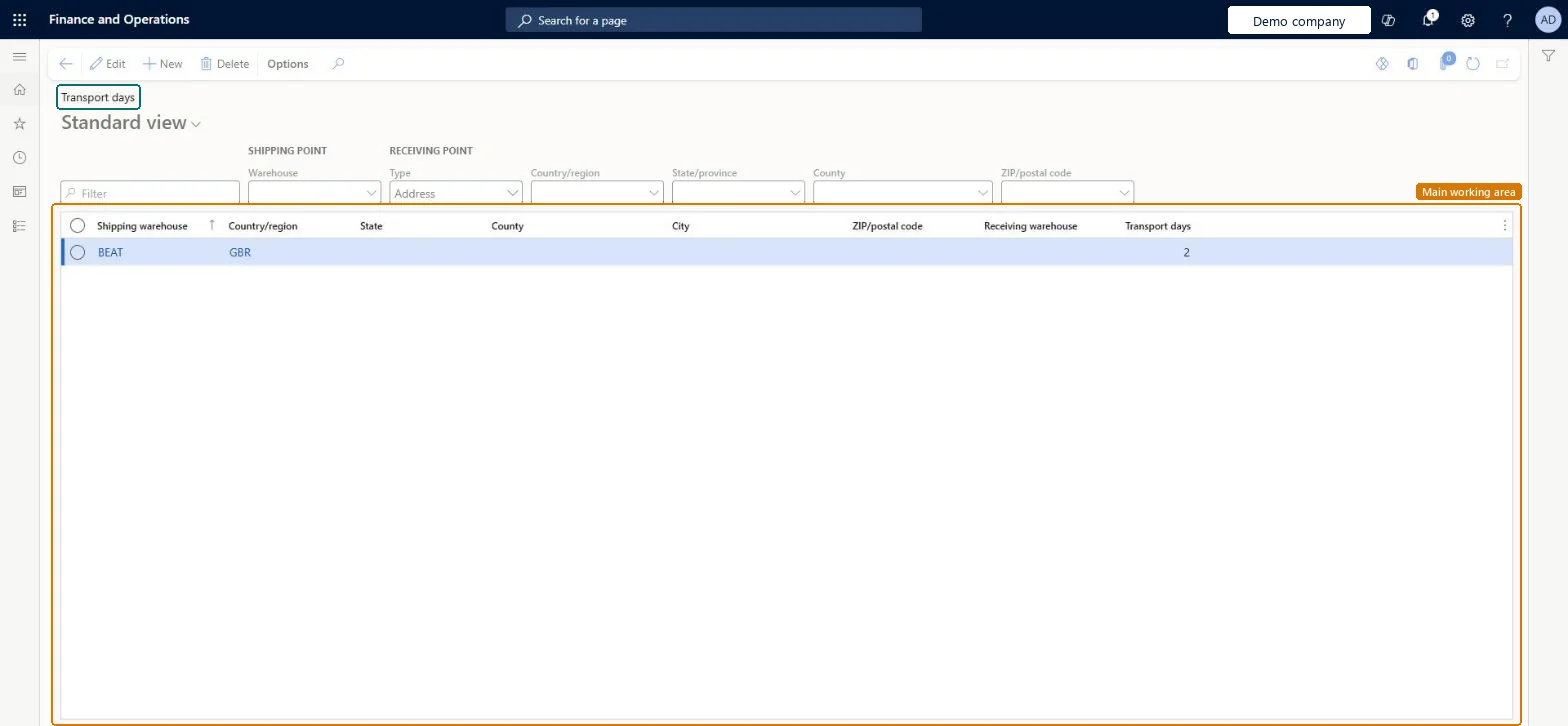
Setup step on the Transport days page · Inventory management
Use this page to set the transport lead time between a shipping and a receiving warehouse, optionally per mode of delivery.
CustVendTransportPoint2PointCustVendTransportPointLineInventDestinationAddressTransportationTimeEntity| What it is | A setup page where you enter how many days it takes to transport goods between warehouses. |
|---|---|
| What you do here | Use this page to set the transport lead time between a shipping and a receiving warehouse, optionally per mode of delivery. |
| Business process | Maintain inventory levels |
|---|---|
| Menu path | Inventory management › Setup › Distribution › Transport days |
| Used next by | Order promising Microsoft Learn |
| Related pages | Fallback warehouse for site Microsoft Learn |
| In this process | Set up Quarantine zones · Set up Measuring devices |
About the examples: Examples and screenshots in this guide use BEAT, a demo company in a Dynamics 365 test environment. Use your own company's codes and values instead of copying them.
Use this page to set the transport lead time between a shipping and a receiving warehouse, optionally per mode of delivery.
Screen 1
Go to Inventory management > Setup > Distribution > Transport days
| 1Shipping warehouse | BEAT |
|---|---|
| Transport days | 2 |
| Country/region | GBR |
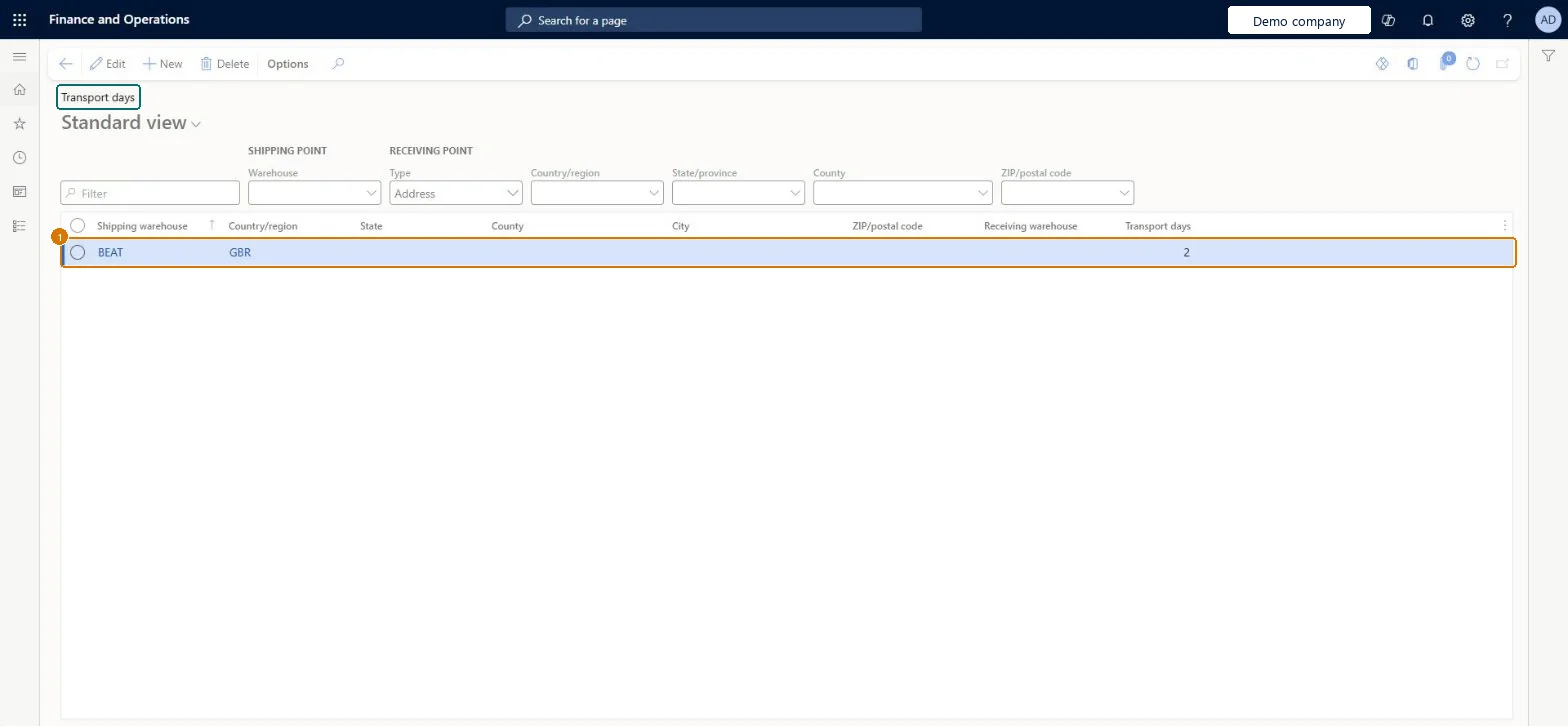
Source: Microsoft Learn
| Field | What it means | Example | Table column |
|---|---|---|---|
| Transport days per mode of delivery | Sets a different transport time for each mode of delivery.Microsoft Learn | ||
| Shipping warehouse | The warehouse that the goods are shipped from.Microsoft Learn | WH01 | FromInventLocation |
| Transport days | The number of days it takes to transport goods on this route.Microsoft Learn | 2 | TransportDays |
| Country/region | GBR |
Source: Microsoft Learn
| Shared or per company | Per company: each legal entity has its own records. Microsoft data model |
|---|---|
| Can it be undone | Reversible: Transport days can be changed at any time; they are read when delivery dates are calculated for new transfer orders. |
| Menu item | CustVendTransportPoint2Point Checked in Dynamics 365 |
|---|---|
| Form | CustVendTransportPoint2Point Checked in Dynamics 365 |
| Table | CustVendTransportPointLineShown as “Transport points” in Record infoChecked in Dynamics 365 |
| Data entities | InventDestinationAddressTransportationTimeEntityDestination address transportation time Microsoft data model InventDestinationWarehouseTransportationTimeEntityDestination warehouse transportation time Microsoft data model |
| Roles to set it up and use it | To set it up or change itWarehouse manager WMSWarehouseManagerSales manager TradeSalesManagerPurchasing manager TradePurchasingManagerRetail service RetailServiceRental sales manager RentalSalesManagerTo use itMaterials manager InventMaterialsManagerProduction supervisor ProdProductionSupervisorField Service Integration User FieldServiceIntegrationUserWarehouse planner WHSWarehousePlannerProcess engineering manager RouteProcessEngineeringManagerGive people one of these roles. On this system, 16 roles can open this page.Checked in Dynamics 365 |
| Actions on the page | Options: Personalize, Page options, ShareChecked in Dynamics 365 |
| Open it by URL | https://<your-environment>/?mi=CustVendTransportPoint2Point |
|---|---|
| Integrate with | InventDestinationAddressTransportationTimeEntity data entity Microsoft data model |
| Data migration | InventDestinationAddressTransportationTimeEntity (Destination address transportation time): loaded for each company.InventDestinationWarehouseTransportationTimeEntity (Destination warehouse transportation time): loaded for each company.Microsoft Learn |
| Table definition | CustVendTransportPointLine columns and relations Microsoft data model |
To cite this step: IM-SETUP-090, Set up Transport days. Beyond ERP Atlas Hub, 2026-11-11. https://www.beyonderp.cloud/atlas/step/IM-SETUP-090