About the examples: Examples and screenshots in this guide use BEAT, a demo company in a Dynamics 365 test environment. Use your own company's codes and values instead of copying them.
Step by step, with screenshots
Set up Item quality groups1 screen
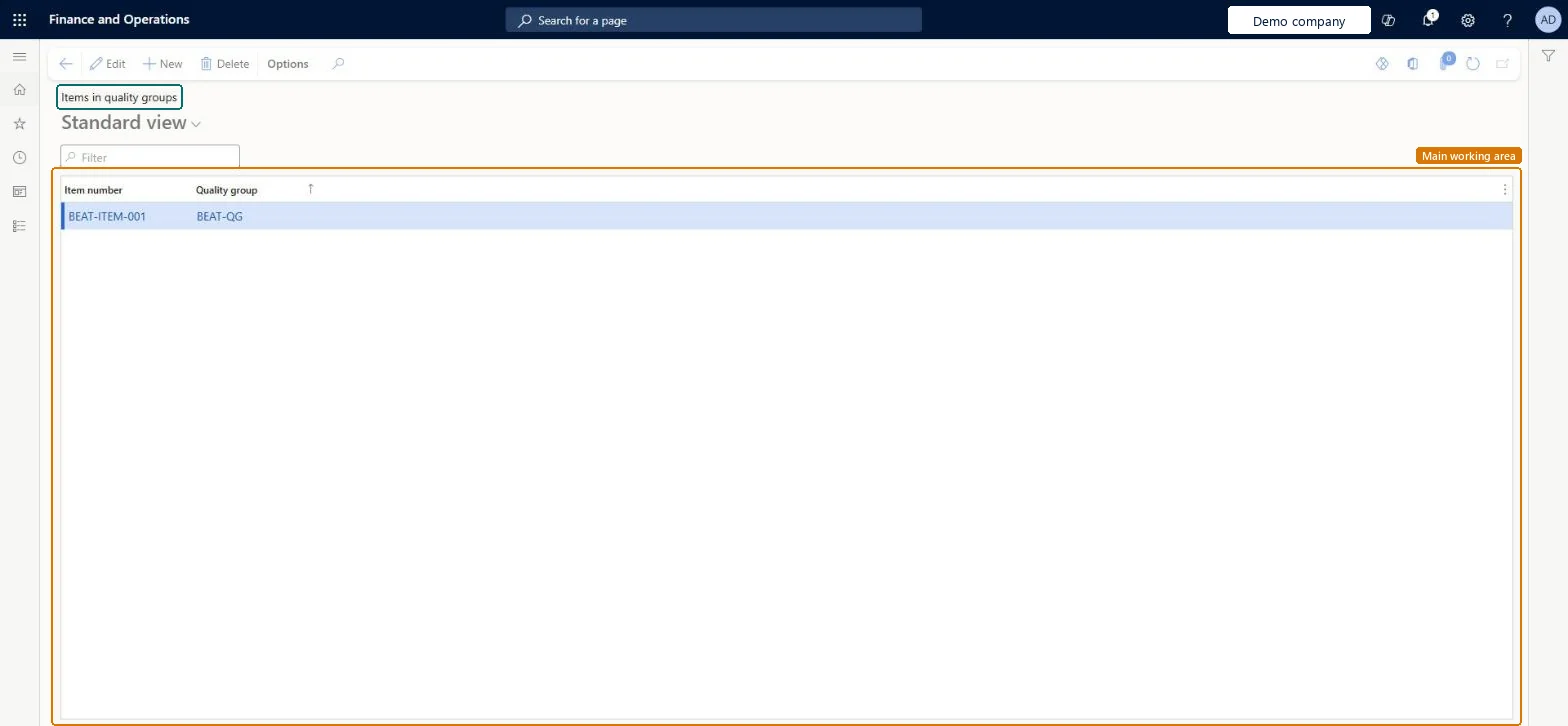
Use this page to assign an item to each quality group whose testing rules should apply to it.
Screen 1
Assign an item to a quality group
Go to Inventory management > Setup > Quality control > Item quality groups
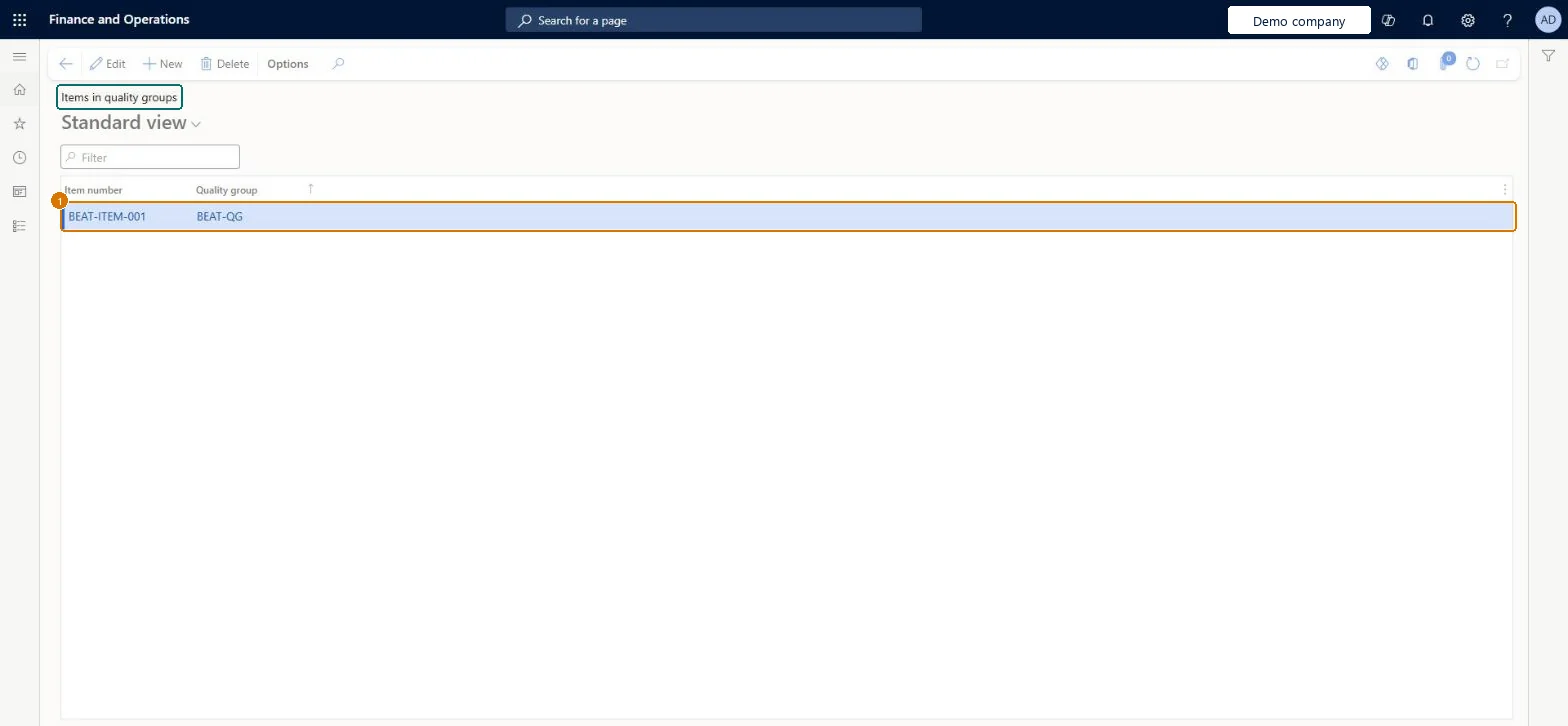
Make sure the item and the quality group exist (here demo item BEAT-ITEM-001 and quality group BEAT-QG, created on Quality groups)
Select New
Select the item number
Select the quality group whose testing rules should apply to the item
Select Save
1Item number
BEAT-ITEM-001
Quality group
BEAT-QG
Show the full screen page title tab to open what to set or check
Steps from Microsoft
Go to Inventory management > Setup > Quality control > Item quality groups.
On the Action Pane, select New.
In the Item number field, select the item.
In the Quality group field, select the quality group to assign.
One row per item and quality group whose testing rules apply; add new items to existing groups rather than creating new rulesAn item can belong to several quality groups (for example incoming and pre-shipment), and associations by group then apply to it.
Releasing a new item without linking it to its quality group, so no quality orders are generated for it.
Number sequences
Reference
Shared or per company
Note
Item number
Per company
New records on this page take their Item number from the ItemId reference; BEAT uses number sequence Inve_3. Checked in Dynamics 365
PrivilegesMaintain item quality groups InventTestItemQualityGroupMaintainView item quality groups InventTestItemQualityGroupViewDutiesInquire into quality control policies InventQualityControlPoliciesInquireEnable quality control process InventQualityControlProcessEnable2 security rolesQuality control manager InventQualityControlManagerWarehouse planner WHSWarehousePlannerChecked in Dynamics 365
Roles to set it up and use it
To set it up or change itQuality control manager InventQualityControlManagerTo use itWarehouse planner WHSWarehousePlannerGive people one of these roles. On this system, 2 roles can open this page.Checked in Dynamics 365
Actions on the page
Options: Personalize, Page options, ShareChecked in Dynamics 365
InventQualityGroupItemAssignmentEntity (Item quality groups): loaded for each company, in Microsoft's default template 395 - Quality management.Load order: Microsoft's default template 395 - Quality management loads Item quality groups at execution unit 1, level 395, sequence 10. Lower levels load first, and entities at the same level load in sequence order.Load first: Quality groups, the default templates at lower levels (System setup to Sales and marketing)Microsoft Learn
Checked in a working Dynamics 365 system, version 10.0.49: the menu item, form, table and security, the page, the demo records and the values in the screenshots.