SETUP GUIDEHow to set it up8 sections. Choose a role to highlight what matters to you.
Everyone
1What it is and why
What it is
An inquiry page that generates statistics about employment applications, grouped by categories such as recruitment project, correspondence action, gender, recruitment media, reason code and application status.
What you do here
Use this page to count applications over a date range and break them down by the categories you choose, shown in a grid or a graph.
Example
For example, BEAT sets From date 1 January and To date 30 June, Period Total, and moves Media into the selected criteria: JobsOnline brought 64 applications, Herald Jobs 11 and the employment agency 7, so the newspaper budget is cut for the second half.
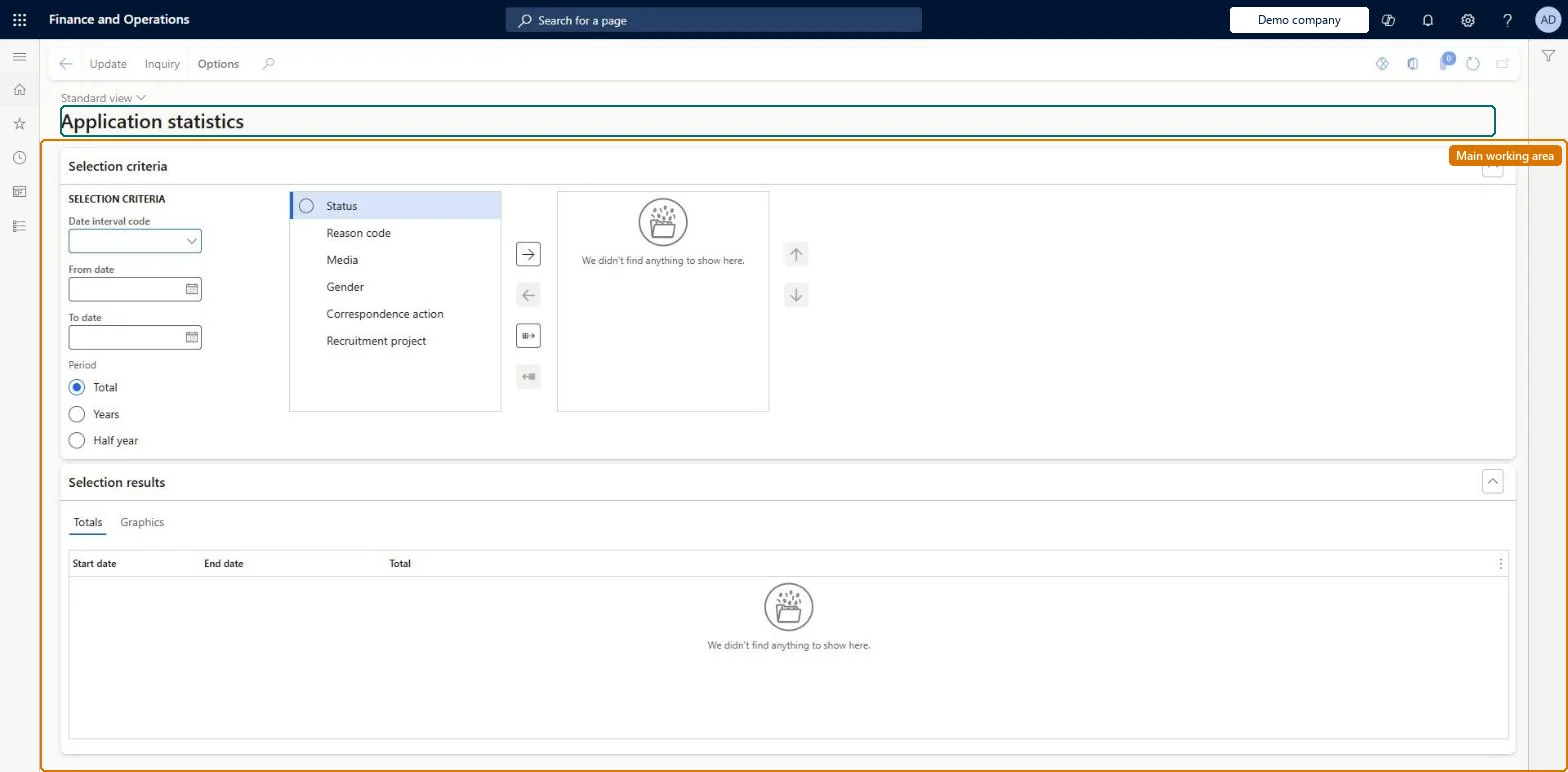
The page in Dynamics 365. page title tab to open what to set or check
About the examples: Examples and screenshots in this guide use BEAT, a demo company in a Dynamics 365 test environment. Use your own company's codes and values instead of copying them.
Setup steps on this page
Compare recruiting channels
Count applications by media, status or project over a period.
How to use it
Go to Human resources > Recruitment > Applications > Application statistics.
Under Selection criteria, set the Date interval code or the From date and To date, and choose a Period of Total, Years or Half year.
Select criteria such as Status, Reason code, Media, Gender, Correspondence action or Recruitment project and use the arrow buttons to move them into the selected list.
Select Update to refresh the results.
Review the Start date, End date and Total columns on the Totals tab, or open the Graphics tab.
Set the date range first (From date and To date, or a Date interval code), then move one criterion such as Media into the selected list and select Update.Applications carry their media, status and recruitment project, so the counts show which channel and which project bring applications.
Recruiters and HR managers use it: the live security grants it to the Human resource manager and Recruiter roles. No Feature management feature is needed for this page.
Per company: the applications counted belong to the legal entity you are signed in to. Data management lists the Applications entity as not shared. Checked in Dynamics 365
Can it be undone
Nothing to undo: The page calculates counts and changes no application.
If you change it later
The statistics count applications as they are recorded: the media, status and recruitment project on each application decide where it is counted. Microsoft Learn
Technical architect
6Technical
Menu item
HRMApplicationStatChecked in Dynamics 365
Form
HRMApplicationStatChecked in Dynamics 365
Table
CCTmpStatisticsShown as “STATISTICS” in Record infoChecked in Dynamics 365
Who can open it
PrivilegesView application statistics HRMApplicationStatViewDutiesInquire into recruitment process HcmRecruitmentProcessInquire2 security rolesHuman resource manager HcmHumanResourceManagerRecruiter HcmRecruiterChecked in Dynamics 365
Roles to set it up and use it
To use itHuman resource manager HcmHumanResourceManagerRecruiter HcmRecruiterGive people one of these roles. On this system, 2 roles can open this page.Checked in Dynamics 365
Actions on the page
(Action Pane without tabs): Update, InquiryChecked in Dynamics 365
Developer
7Developer
Open it by URL
https://<your-environment>/?mi=HRMApplicationStat
Data migration
Load order: Application statistics has no data entity in Data management, so it can't be loaded from a file or a configuration template. It calculates counts from the applications into a temporary table; load the applications and run the statistics in each environment.Microsoft Learn