PAGE GUIDEWhat the page does and how to use it8 sections. Choose a role to highlight what matters to you.
Everyone
1What it is and why
What it is
A setup page that holds the list of advertising media, such as newspapers, websites and employment agencies, that you use to recruit new workers.
What you do here
Use this page to record each advertising medium with its media type and, optionally, the vendor you pay, so that you can attach media to recruitment projects and compare how effective each medium is.
Example
For example, BEAT records the media Herald Jobs (media type Newspaper, vendor account 1004) and JobsOnline (media type Internet); its 2 recruitment projects for sales staff list both as media lines, and Application statistics later shows 18 applications came through JobsOnline and 4 through Herald Jobs.
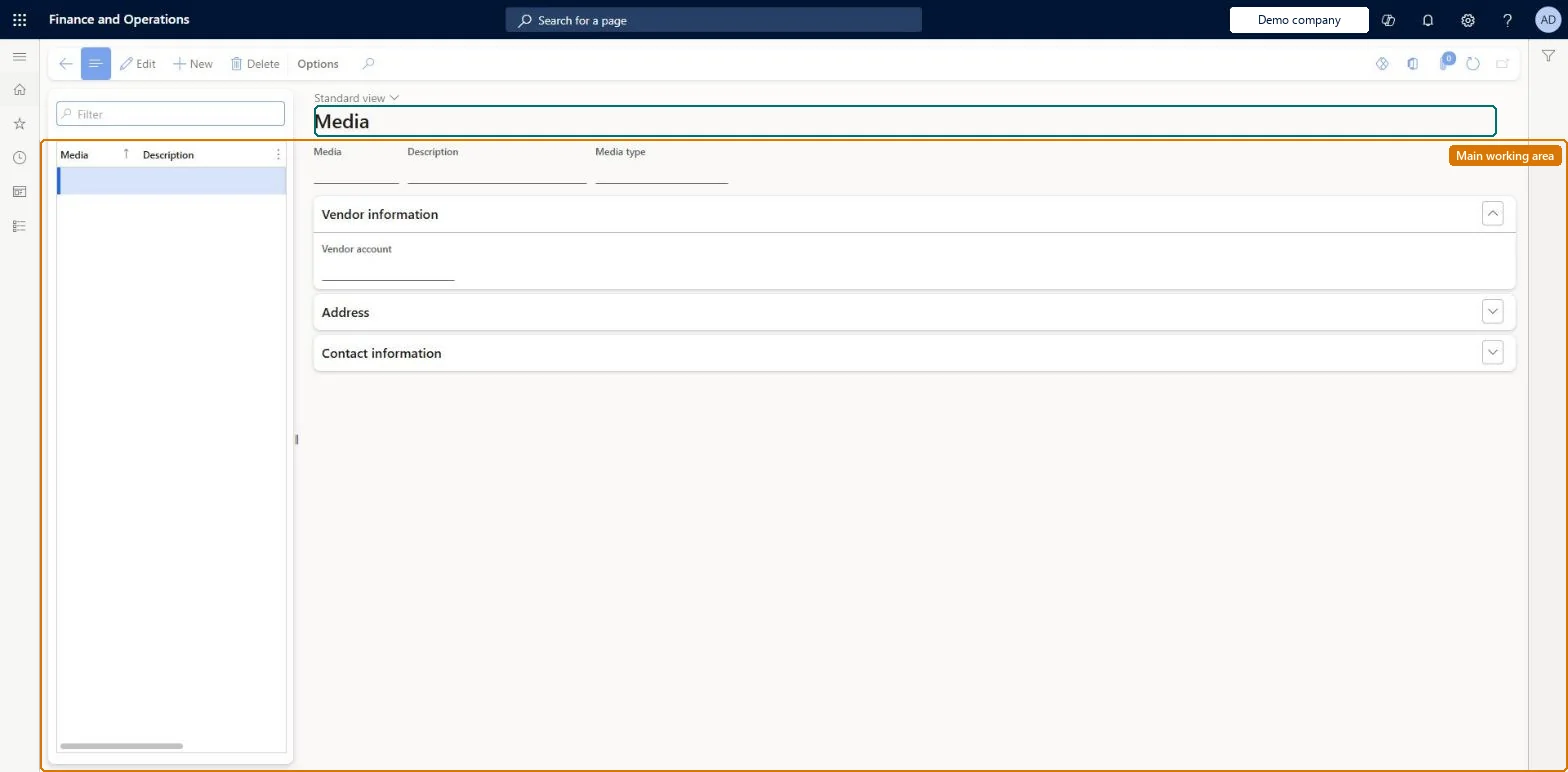
The page in Dynamics 365. page title tab to open what to set or check
About the examples: Examples and screenshots in this guide use BEAT, a demo company in a Dynamics 365 test environment. Use your own company's codes and values instead of copying them.
Setup steps on this page
Set up Media
Use this page to record each advertising medium with its media type and, optionally, the vendor you pay, so that you can attach media to recruitment projects and compare how effective each medium is.
Steps from Microsoft
Go to Human resources > Recruitment > Recruitment projects > Media.
Use the Filter box to find a medium in the Media and Description list.
Select New and enter the Media, Description and Media type fields.
On the Vendor information FastTab, enter the Vendor account, then expand Address and Contact information as needed.
Select Edit to change a selected medium, or Delete to remove it.
One medium per advertising outlet, each with its media type and, when you pay the outlet, its vendor account.Recruiters record the media used to advertise an opening on the recruitment project, and each application records the media that recruited the applicant, so outlets can be compared.
Recruiters and HR managers use it: the live security grants it to the Human resource manager and Recruiter roles. No Feature management feature is needed for this page.
Per company: media belong to the legal entity you are signed in to. Data management lists the Media entity as not shared. Checked in Dynamics 365
If you change it later
Media are picked on the Media lines of recruitment projects and on applications (the media that recruited the applicant), so renaming or retiring a medium changes what recruiters can pick and how applications are counted by media. Microsoft Learn
Technical architect
6Technical
Menu item
HRMMediaChecked in Dynamics 365
Form
HRMMediaChecked in Dynamics 365
Table
HRMMediaShown as “MEDIA” in Record infoKey field: hrmMediaIdChecked in Dynamics 365
Data entities
HcmMediaEntityMedia Checked in Dynamics 365
Who can open it
PrivilegesManage media HRMMediaMaintainView media HRMMediaViewDutiesEnable recruitment process HcmRecruitmentProcessEnableInquire into recruitment process HcmRecruitmentProcessInquire2 security rolesHuman resource manager HcmHumanResourceManagerRecruiter HcmRecruiterChecked in Dynamics 365
Roles to set it up and use it
To set it up or change itRecruiter HcmRecruiterTo use itHuman resource manager HcmHumanResourceManagerGive people one of these roles. On this system, 2 roles can open this page.Checked in Dynamics 365
Developer
7Developer
Open it by URL
https://<your-environment>/?mi=HRMMedia
Integrate with
HcmMediaEntity data entity Checked in Dynamics 365
Data migration
HcmMediaEntity Media: one row per medium, per company.Load order: Load with the Personnel management setup template, where Media types come before Media; load Media before the recruitment projects and applications that use them.Load first: HcmMediaTypeEntity, VendVendorV2EntityMicrosoft Learn