SETUP GUIDEHow to set it up8 sections. Choose a role to highlight what matters to you.
Everyone
1What it is and why
What it is
An inquiry page that generates statistics about course participants, grouped by the categories you choose.
What you do here
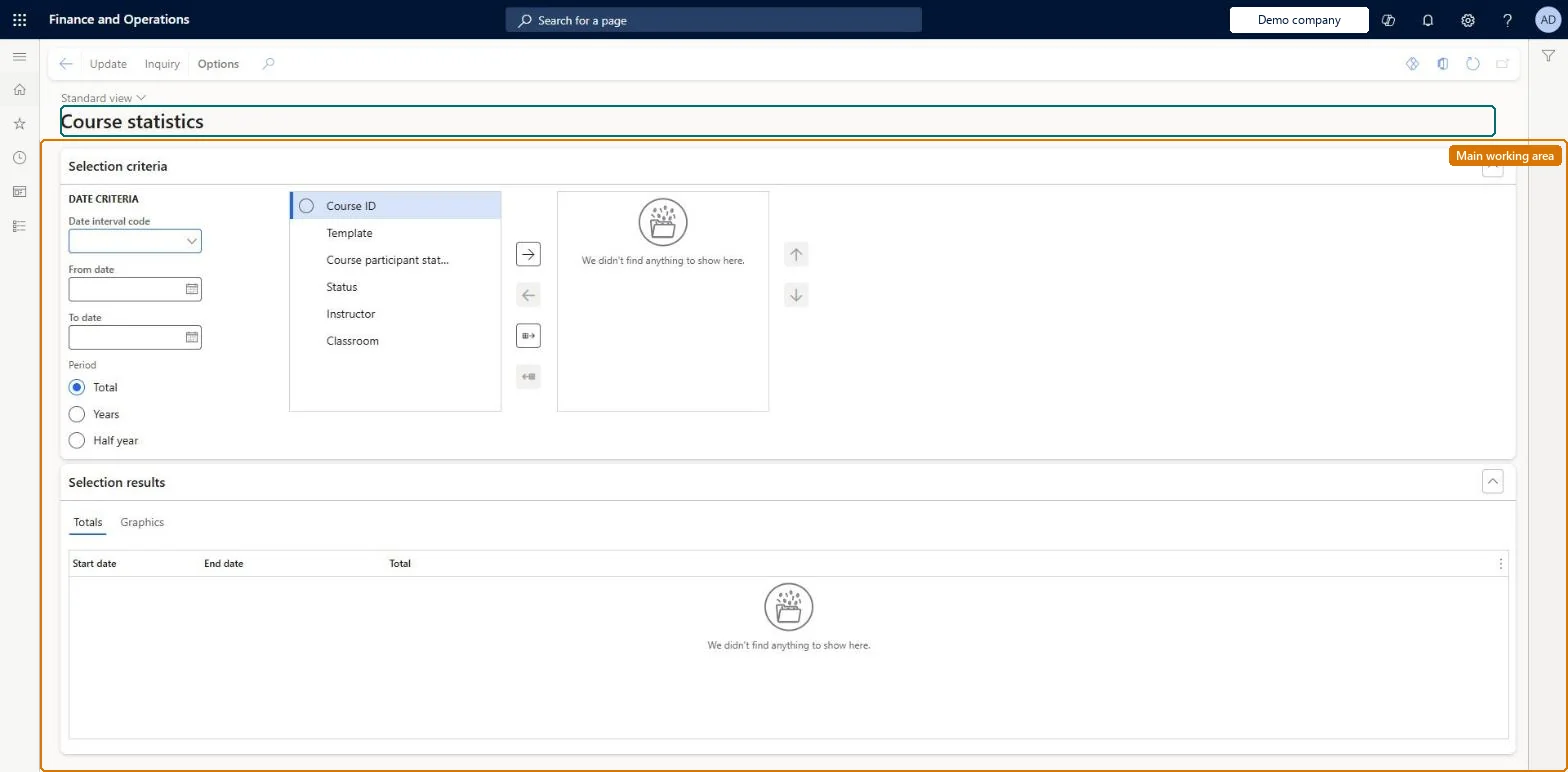
Use this page to count course participants for a period, grouped by selected categories and optionally split by month, quarter, half year or year, as a grid or a graph.
Example
For example, HR sets the period 1 January to 31 December 2026 with Period Half year, selects Course ID and Course participant status, and selects Update; the Totals tab shows 64 participants in the first half and 87 in the second.
The page in Dynamics 365. page title tab to open what to set or check
About the examples: Examples and screenshots in this guide use BEAT, a demo company in a Dynamics 365 test environment. Use your own company's codes and values instead of copying them.
Setup steps on this page
Count course participation per period
See how many workers took part in courses per period and grouping.
How to use it
Go to Human resources > Courses > Course statistics.
Under Selection criteria, set the Date interval code or the From date and To date, and choose a Period of Total, Years or Half year.
Select criteria such as Course ID, Template, Course participant status, Status, Instructor or Classroom and use the arrow buttons to move them into the selected list.
Select Update to refresh the results.
Review the Start date, End date and Total columns on the Totals tab, or open the Graphics tab.
Source: Checked in Dynamics 365
Fields on the page
Field
What it means
Example
Table column
Date interval code
A predefined period for which the statistics are calculated.Microsoft Learn
Set the period first (Date interval code or From date and To date), then the Period split, then the groupings, and select Update.The totals are counted for the selected period and groupings only, so the period decides what is counted.
Courses are kept by HR and the Training manager role; employees register in Employee self service and managers follow their reports' courses in Manager self service. No Feature management feature is needed for this page.
Per company: course participants are not shared in Data management, so the statistics count the participants of the legal entity you are signed in to. Checked in Dynamics 365
Can it be undone
Nothing to undo: The page calculates statistics and changes no course data.
If you change it later
The statistics are calculated when you select Update, from the course participants of the selected period; they aren't stored records, so select Update again after registrations change. Checked in Dynamics 365
Technical architect
6Technical
Menu item
HRMCourseStatChecked in Dynamics 365
Form
HRMCourseStatChecked in Dynamics 365
Table
CCTmpStatisticsShown as “STATISTICS” in Record infoChecked in Dynamics 365
Who can open it
PrivilegesView course statistics HRMCourseStatViewDutiesInquire into training process HcmTrainingProcessInquire2 security rolesHuman resource manager HcmHumanResourceManagerTraining manager HcmTrainingManagerChecked in Dynamics 365
Roles to set it up and use it
To use itHuman resource manager HcmHumanResourceManagerTraining manager HcmTrainingManagerGive people one of these roles. On this system, 2 roles can open this page.Checked in Dynamics 365
Actions on the page
(Action Pane without tabs): Update, InquiryChecked in Dynamics 365
Developer
7Developer
Open it by URL
https://<your-environment>/?mi=HRMCourseStat
Data migration
Load order: Course statistics has no data entity in Data management, so it can't be loaded from a file or a configuration template. It calculates counts from course participants at run time; load courses and participants with the Employee development template and calculate the statistics in each environment.Microsoft Learn