PAGE GUIDEWhat the page does and how to use it8 sections. Choose a role to highlight what matters to you.
Everyone
1What it is and why
What it is
The main page where you create and maintain training courses, either virtual or in-person, that you offer to workers.
What you do here
Use this page to define a course, its setup type, status, cost, registration deadline, participant limits, location and classroom, and to register and manage participants.
Example
For example, BEAT creates the in-person course Excel for finance from the template Office skills for 14 May 2026 at 09:00, with minimum 6 and maximum 12 participants, classroom R2 and a cost per participant; it stays in Draft until 1 April, then opens for registration and can no longer be deleted once the first worker registers.
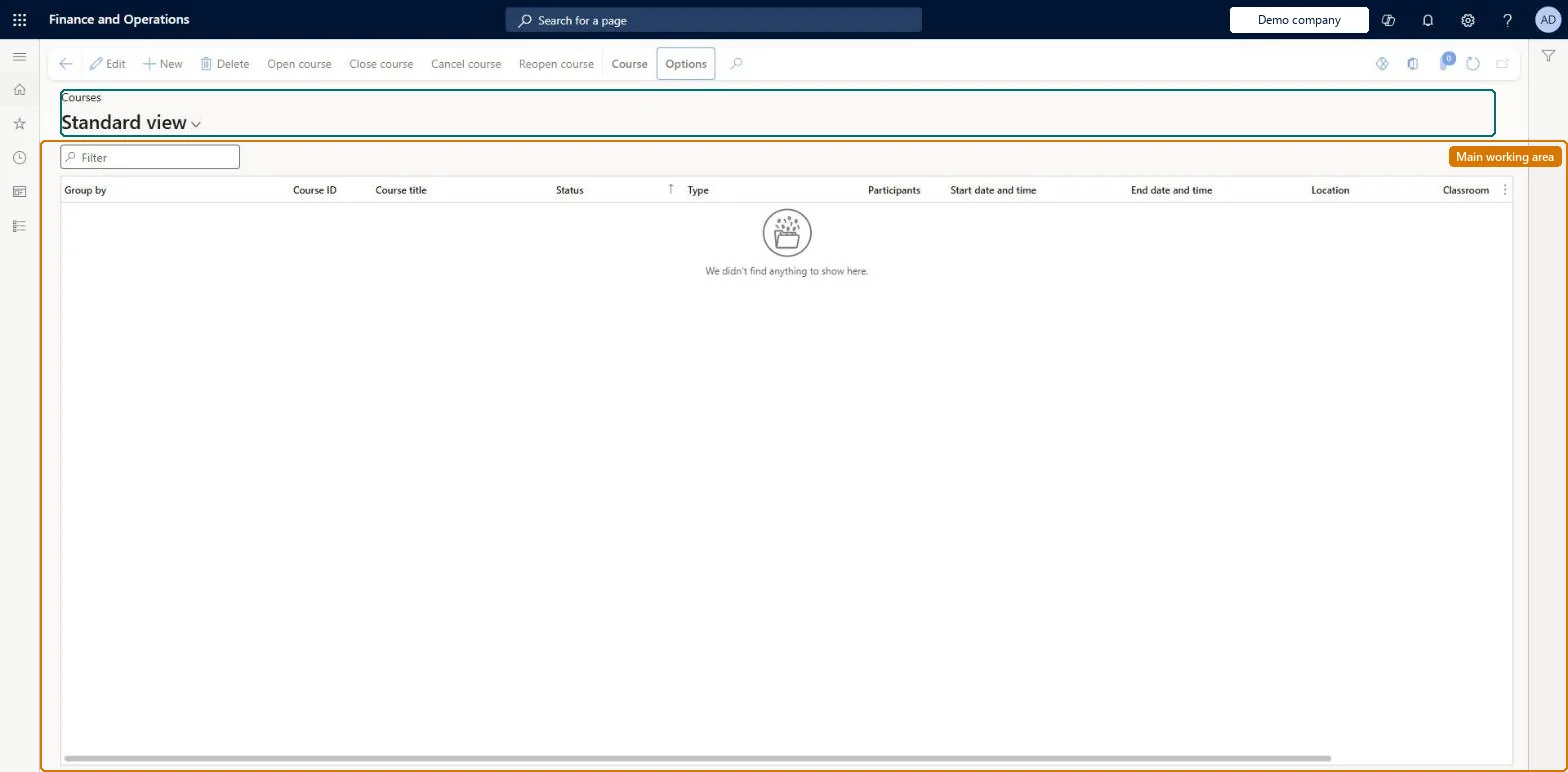
The page in Dynamics 365. page title tab to open what to set or check
About the examples: Examples and screenshots in this guide use BEAT, a demo company in a Dynamics 365 test environment. Use your own company's codes and values instead of copying them.
Setup steps on this page
Create courses in Draft and open them for registration
Complete each course before workers can register for it.
Steps from Microsoft
Go to Human resources > Courses > Courses.
Select New.
Select In-person, or set the Virtual option to Yes (requires the Course enhancements feature).
Complete the page, including start date and time and the minimum and maximum number of participants.
Use the Cost section if the course has a cost.
Save the course as a draft, then change the status to Open when workers can register.
Create each course from a course template with setup type, dates, minimum and maximum participants and cost; keep it in Draft until it is complete, then set it to Open.Draft lets you change course information; participants can be registered only while the course is Open, and once someone registers the course can't be deleted.
Course enhancements (Must be on for virtual courses)Enable skill mapping after completing the virtual course (Optional)
Licence or add-in
Courses are kept by HR and the Training manager role; employees register in Employee self service and managers follow their reports' courses in Manager self service. In-person courses need no feature; virtual courses need Course enhancements.
Per company: Data management lists the Courses V2 entity as not shared, so the records belong to the legal entity you are signed in to. Checked in Dynamics 365
Can it be undone
Hard to reverse: You can delete a course only if no one has registered for it. After the first registration, take a course out of use by changing its status to Closed or Canceled; both can be reopened. Microsoft Learn
If you change it later
A course can be deleted only while no one has registered for it. Microsoft Learn
Technical architect
6Technical
Menu item
HRMCourseListPageChecked in Dynamics 365
Form
HRMCourseTableV2Checked in Dynamics 365
Table
HRMCourseTableShown as “COURSES” in Record infoKey field: hrmCourseIdChecked in Dynamics 365
Data entities
HcmCourseV2EntityCourses V2 Checked in Dynamics 365HcmVirtualCourseEntityVirtual courses Checked in Dynamics 365
Who can open it
PrivilegesMaintain courses HRMCourseListMaintainView courses from the Courses list page HRMCourseListViewDutiesEnable training process HcmTrainingProcessEnableInquire into training process HcmTrainingProcessInquire2 security rolesHuman resource manager HcmHumanResourceManagerTraining manager HcmTrainingManagerChecked in Dynamics 365
Roles to set it up and use it
To set it up or change itTraining manager HcmTrainingManagerTo use itHuman resource manager HcmHumanResourceManagerGive people one of these roles. On this system, 2 roles can open this page.Checked in Dynamics 365
Actions on the page
Course(Action Pane without tabs): Open course, Close course, Cancel course, Reopen courseChecked in Dynamics 365
Developer
7Developer
Open it by URL
https://<your-environment>/?mi=HRMCourseListPage
Integrate with
HcmCourseV2Entity data entity Checked in Dynamics 365
Data migration
HcmCourseV2Entity Courses V2: the course record. Per company.HcmVirtualCourseEntity Virtual courses.Load order: Load with the Employee development template: classroom groups, course groups and course locations first, then course instructors, course types and classrooms, then Courses V2; course participants after courses.Load first: HcmCourseTypeEntity, HcmCourseLocationEntity, HcmCourseRoomEntity, HCMCourseInstructorEntityMicrosoft Learn