BeyondERP.Newsletter
Menu

Setup step on the Positions by department report page · Human resources

Review positions per department

Check every position sits in the right department before budgeting or after a reorganization.

Business process
Develop people strategy
Menu item
HRMPositionsByDepartment
Setup steps
1 on this page
Show what matters for
SETUP GUIDEHow to set it up8 sections. Choose a role to highlight what matters to you.
Everyone

1What it is and why

What it isA report that prints the positions of each department, grouped under the department set on the position.
What you do hereUse this page to print or view the positions in each department.
ExampleFor example, before the 2027 headcount budget BEAT prints the report for the Sales and Accounting departments and finds 9 positions under Sales, one of which (000312) belongs to Accounting and has the wrong department.
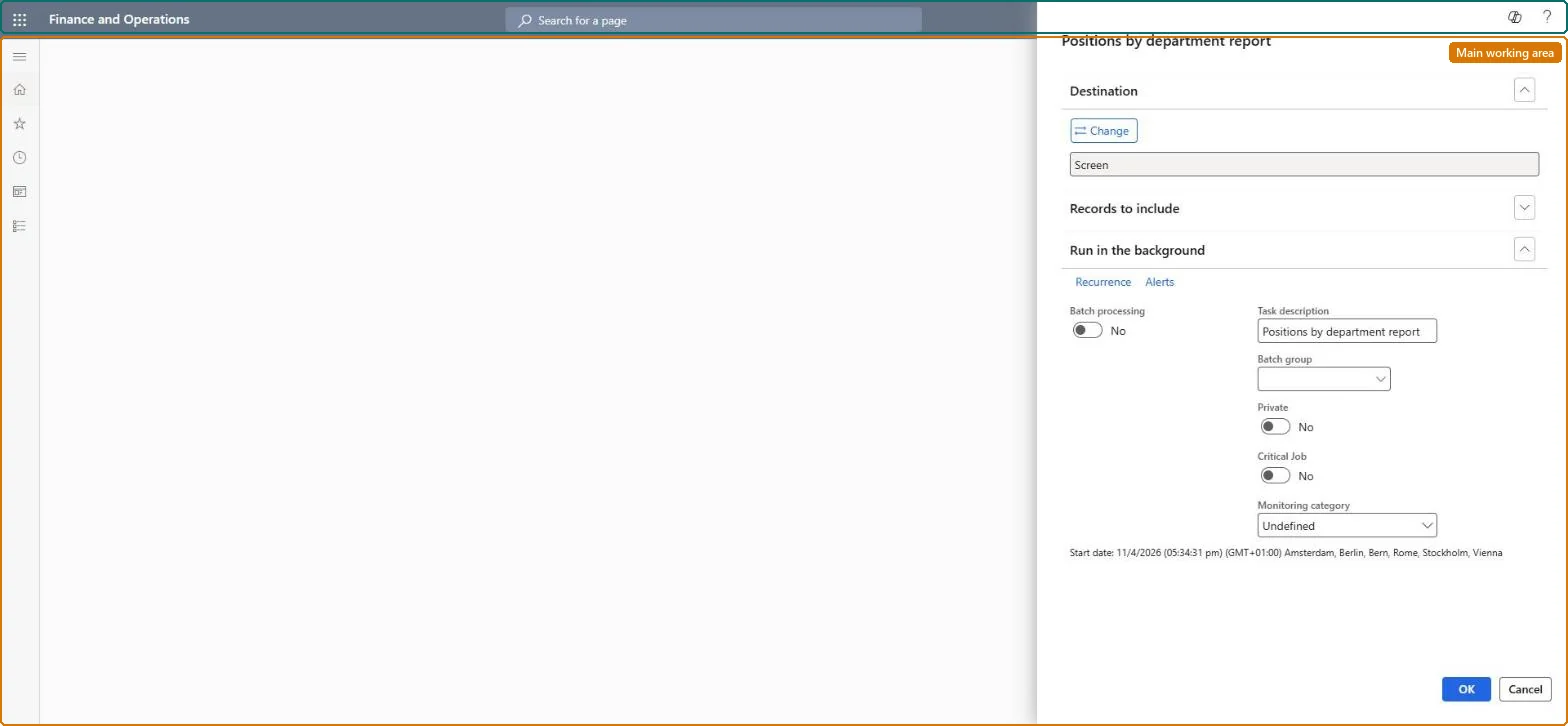
Positions by department report page in Dynamics 365
The page in Dynamics 365. page title tab to open what to set or check
Functional consultant · Solution architect

2Where it fits

Business processDevelop people strategy
Menu pathHuman resources › Positions › Positions by department report
Set up firstDepartments Microsoft Learn
Used next byAll positions (correct the department) Microsoft Learn
Related pagesPeople by department report Microsoft Learn
In this process Add hierarchy types for matrix routing · Create departments
End user · Functional consultant

3How to do it

About the examples: Examples and screenshots in this guide use BEAT, a demo company in a Dynamics 365 test environment. Use your own company's codes and values instead of copying them.

When to run it

When to run itWhen you review the organization structure, for example before budgeting headcount or after a reorganization moves positions between departments.
How oftenOn demand, when department or position data changes.
What the output showsA list of positions grouped by department. A position under the wrong heading usually means the Department field on the position is wrong; a department with no positions has no positions linked to it yet.

Source: Microsoft Learn

Setup steps on this page

Review positions per department

Check every position sits in the right department before budgeting or after a reorganization.

Steps from Microsoft

  1. Go to Human resources > Positions > Positions by department report.
  2. Before you run it, make sure each position has the right department, because the report groups positions by the department set on the position.
  3. In Records to include, filter on one department or a range of departments when you only need part of the organization.
  4. Send the report to Screen for a quick look, or use Destination to save a file you can share with department heads.
  5. Read the positions under each department and look for positions listed under the wrong department or missing from it.

Source: Microsoft Learn

Common errors and fixes

MessageWhat to do
A position prints under the wrong departmentThe report groups by the Department field on the position. Correct the department on the position and run the report again. Microsoft Learn
A department prints no positionsNo position names that department, or the Records to include filter excludes it. Check the filter and the positions' departments. Microsoft Learn

Test checklist

  1. Set the department of two positions to Sales.
  2. Run the report filtered on Sales.
  3. Check both positions print under Sales and the count matches All positions filtered on Sales.

Source: Microsoft Learn

Functional consultant

4Setup decisions

Setup stepRecommended value and whyDecision, common mistake and test
Review positions per departmentRun it per department before headcount budgeting and after each reorganization, and fix each position printed under the wrong heading.Positions exist in a department, and budgeting, reporting and benefit rules by department read that field.Who owns the department of a position?Reading a missing position as vacant: a position that prints under another department has the wrong Department, not no worker.Test: Positions print by department

Feature management and licence

Licence or add-inOn BEAT the page is run by Human resource manager, Human resource assistant, Compensation and benefits manager, Recruiter and Payroll administrator; the full list is under the page's security roles. No Feature management feature is needed for this page.

Microsoft Learn

Solution architect

5Design impact

Shared or per companyShared data: positions and departments are shared by all companies (Data management lists Positions V2 and Operating unit as shared), so the report prints the same positions from any legal entity. Checked in Dynamics 365
Can it be undoneNothing to undo: The report reads data and changes nothing.
If you change it laterThe report reads each position's department as it stands; a position moved to another department prints under the new one when the report is run again. Microsoft Learn
Technical architect

6Technical

Menu itemHRMPositionsByDepartment Checked in Dynamics 365
FormSysOperationTemplateForm Checked in Dynamics 365
Roles to set it up and use itTo use itHuman resource manager HcmHumanResourceManagerHuman resource assistant HcmHumanResourceAssistantCompensation and benefits manager HcmCompensationAndBenefitsManagerRecruiter HcmRecruiterPayroll administrator HcmPayrollAdministratorGive people one of these roles. On this system, 10 roles can run this page.Checked in Dynamics 365
Developer

7Developer

Open it by URLhttps://<your-environment>/?mi=HRMPositionsByDepartment
Data migrationLoad order: The Positions by department report has no data entity in Data management, so it can't be loaded from a file or a configuration template. It prints position records; load positions with the Jobs and positions template and run the report in each environment.Microsoft Learn
Everyone

8Sources

To cite this step: HR-RORG-080, Review positions per department. Beyond ERP Atlas Hub, 2026-11-11. https://www.beyonderp.cloud/atlas/step/HR-RORG-080