Chief executive officer, Chief financial officer, Compensation and benefits manager and 7 more roles
Business process
Develop people strategy
Menu item
DirViewReportingRelationships
Main table
HcmPosition
Data entity
HcmPositionV2Entity
Setup steps
1 on this page
Show what matters for
SETUP GUIDEHow to set it up8 sections. Choose a role to highlight what matters to you.
Everyone
1What it is and why
What it is
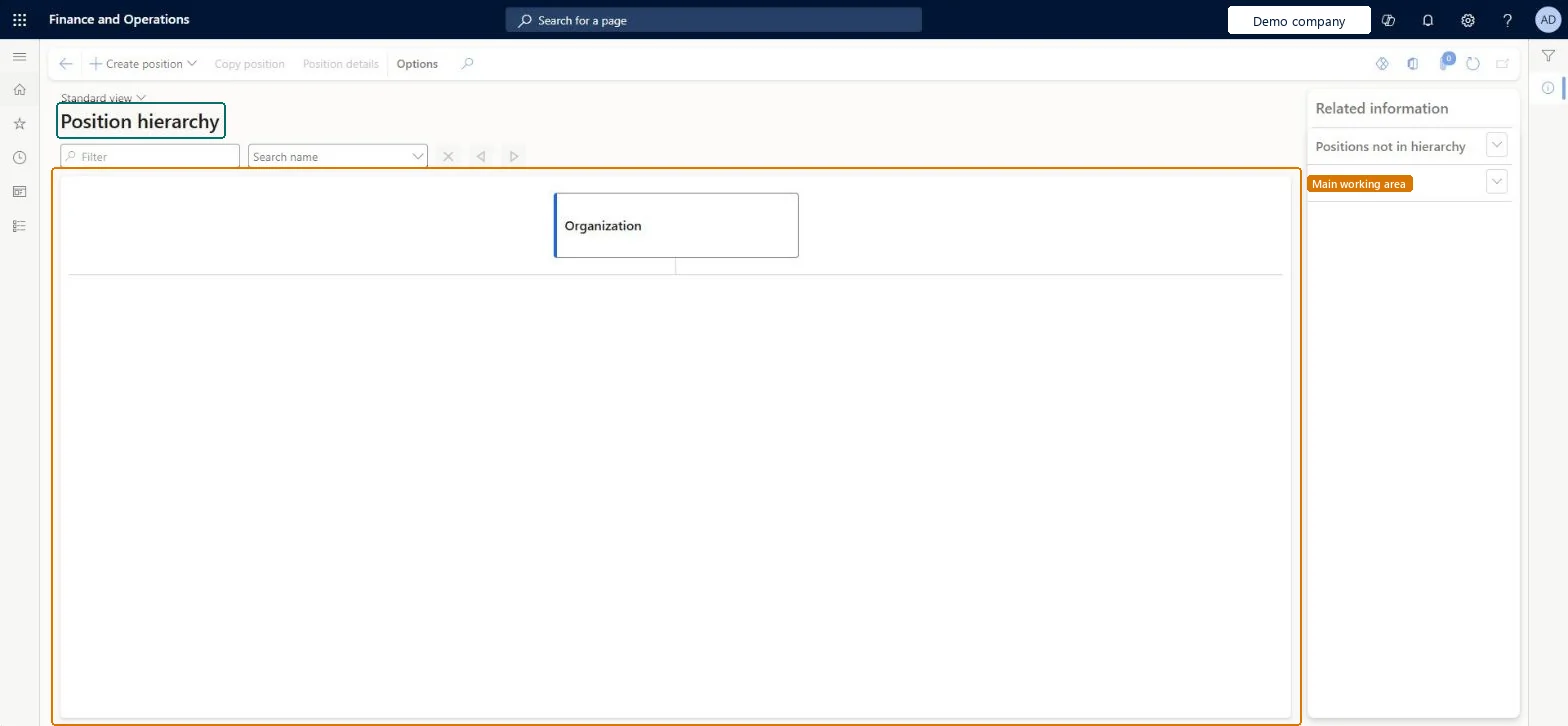
A page that shows the reporting structure of positions, with a view for each position hierarchy type.
What you do here
Use this page to see which position reports to which, and to find a position by its ID or by the worker assigned to it.
Example
For example, in BEAT's Line hierarchy position 000220 (Kim Akers) sits under 000300 (Sanjay Patel); switching to the Widget hierarchy shows 000220 under the General Manager position 000110, and searching for Kim Akers finds the same node.
The page in Dynamics 365. page title tab to open what to set or check
About the examples: Examples and screenshots in this guide use BEAT, a demo company in a Dynamics 365 test environment. Use your own company's codes and values instead of copying them.
Setup steps on this page
Check the reporting structure
Confirm every position sits under the right manager before workflows and checklists use it.
Steps from Microsoft
Go to Human resources > Positions > Position hierarchy.
Use the Filter box or the Search name list to find a position.
Select Create position to add a position to the hierarchy.
Select a position, then select Copy position or Position details.
Open Positions not in hierarchy or Position detail in the Related information pane.
It has no Reports to position, or its duration has expired; inactive positions no longer show as Positions not in hierarchy. Set the reports-to position, or check the position's duration. Microsoft Learn
A matrix relationship doesn't show
Relationships lines show in the view of their own hierarchy type. Switch the hierarchy type on the page. Microsoft Learn
Test checklist
Open Position hierarchy and search for a position by its position ID; check it shows under the expected parent.
Search by the name of the worker assigned to a position; check the same node is found.
Switch to a custom hierarchy type and check positions added on the Relationships FastTab appear in that view.
Pick the hierarchy type first (Line, then each custom type), then search by position ID or worker name.The reports-to position decides each worker's manager across the system, and custom types route configurable-hierarchy workflows.
On BEAT the page is viewed by Human resource manager, Human resource assistant, Compensation and benefits manager, Recruiter and Payroll administrator; the full list is under the page's security roles. No Feature management feature is needed for this page.
Shared: the hierarchy is built from positions, which are not per company; Data management lists Positions V2 and Position hierarchies as shared. Checked in Dynamics 365
Can it be undone
Reversible: The page displays the structure; changes are made on the positions.
If you change it later
The hierarchy shows each position's Reports to position and, per custom hierarchy type, its Relationships lines. Changing a reports-to position changes who the worker's manager is in Manager self service, workflow routing and checklist tasks. Microsoft Learn
Technical architect
6Technical
Menu item
DirViewReportingRelationshipsChecked in Dynamics 365
Form
HcmPositionHierarchyViewChecked in Dynamics 365
Table
HcmPositionShown as “POSITIONS” in Record infoKey field: PositionIdChecked in Dynamics 365
Data entities
HcmPositionV2EntityPositions V2 Microsoft data model HcmPositionHierarchyEntityPosition hierarchies (The reports-to lines the hierarchy is drawn from.) Microsoft data model
Who can open it
PrivilegesView reporting relationships HcmReportingRelationshipsViewDutiesInquire into jobs and positions HcmJobPositionInquireInquire into organizational process HcmOrganizationalProcessInquireReview organizational information HcmOrganizationalReview10 security rolesChief executive officer CompanyChiefExecutiveOfficerChief financial officer CompanyChiefFinancialOfficerCompensation and benefits manager HcmCompensationAndBenefitsManagerHuman resource assistant HcmHumanResourceAssistantHuman resource manager HcmHumanResourceManagerPayroll administrator HcmPayrollAdministratorPayroll manager HcmPayrollManagerRecruiter HcmRecruiterTraining manager HcmTrainingManagerAccounting manager LedgerAccountingManagerChecked in Dynamics 365
Roles to set it up and use it
To use itHuman resource manager HcmHumanResourceManagerHuman resource assistant HcmHumanResourceAssistantCompensation and benefits manager HcmCompensationAndBenefitsManagerRecruiter HcmRecruiterPayroll administrator HcmPayrollAdministratorGive people one of these roles. On this system, 10 roles can open this page.Checked in Dynamics 365
Actions on the page
(Action Pane without tabs): Create position, Copy position, Position detailsChecked in Dynamics 365
HcmPositionHierarchyEntity Position hierarchies: each position's reports-to position per hierarchy type. Shared by all companies.Load order: Load Position hierarchies after Positions V2, as in the Jobs and positions template; both positions on a line must exist first.Load first: HcmPositionV2Entity, HcmPositionHierarchyTypeEntityMicrosoft Learn