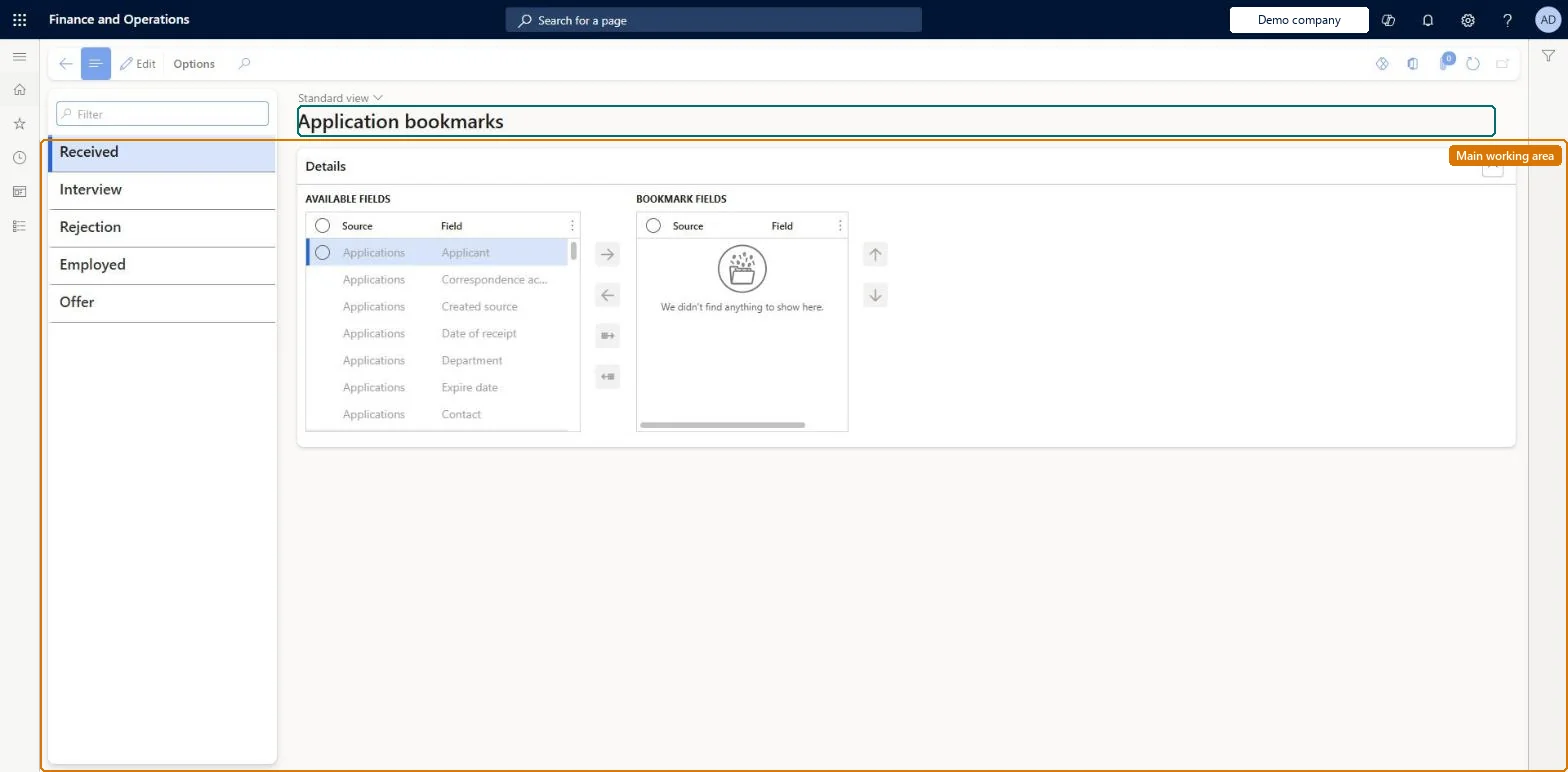
A setup page where you choose, for each correspondence action, which fields from applications, applicants, interviews and recruitment projects can be inserted as bookmarks into letters and emails to applicants.
PAGE GUIDEWhat the page does and how to use it8 sections. Choose a role to highlight what matters to you.
Everyone
1What it is and why
What it is
A setup page where you choose, for each correspondence action, which fields from applications, applicants, interviews and recruitment projects can be inserted as bookmarks into letters and emails to applicants.
What you do here
Use this page to make fields available to application email templates and application document templates, so that each message is filled in with the applicant's own details.
Example
For example, BEAT adds 4 bookmark fields to the Interview correspondence action, the applicant's first name, the job, the interview date and the place, so every interview email fills them in for each applicant.
The page in Dynamics 365. page title tab to open what to set or check
About the examples: Examples and screenshots in this guide use BEAT, a demo company in a Dynamics 365 test environment. Use your own company's codes and values instead of copying them.
Setup steps on this page
Set up Application bookmarks
Use this page to make fields available to application email templates and application document templates, so that each message is filled in with the applicant's own details.
Steps from Microsoft
Go to Human resources > Recruitment > Communication > Application bookmarks.
In the left pane, select the correspondence action to set up bookmarks for.
In the Available fields list, select a field and move it into the Bookmark fields list.
Repeat for each field you want to use in templates.
For each correspondence action you send (for example Received, Interview, Rejection, Employed), add the application, applicant, interview and recruitment project fields that the matching letter or email needs.The correspondence action decides which document or email template is used, and bookmarks linked to that action are what let a message carry values from the Application, Applicant, Interview and Recruitment project pages.
Recruiters and HR managers use it: the live security grants it to the Human resource manager and Recruiter roles. No Feature management feature is needed for this page.
Per company: bookmarks belong to the legal entity you are signed in to. Data management lists the Application bookmarks entity as not shared. Checked in Dynamics 365
Can it be undone
Reversible: Bookmarks only decide which field values can be inserted into applicant letters and emails for a correspondence action. Changing them affects messages generated after the change; messages already sent are not changed. Microsoft Learn
If you change it later
Templates for a correspondence action use the bookmark fields linked to that action, so removing a field leaves gaps in the letters and emails generated afterwards. Microsoft Learn
Technical architect
6Technical
Menu item
HRMApplicationWordBookmarkChecked in Dynamics 365
Form
HRMApplicationWordBookmarkChecked in Dynamics 365
Table
HRMApplicationWordBookmaShown as “APPLICATION BOOKMARKS” in Record infoChecked in Dynamics 365
Data entities
HcmApplicationBookmarkEntityApplication bookmarks
Who can open it
PrivilegesMaintain application bookmarks HRMApplicationWordBookmarkMaintainView application bookmarks HRMApplicationWordBookmarkViewDutiesEnable recruitment process HcmRecruitmentProcessEnableInquire into recruitment process HcmRecruitmentProcessInquire2 security rolesHuman resource manager HcmHumanResourceManagerRecruiter HcmRecruiterChecked in Dynamics 365
Roles to set it up and use it
To set it up or change itRecruiter HcmRecruiterTo use itHuman resource manager HcmHumanResourceManagerGive people one of these roles. On this system, 2 roles can open this page.Checked in Dynamics 365
HcmApplicationBookmarkEntity Application bookmarks per correspondence action, per company.Load order: Learn's default Data management templates don't include this recruitment entity, so add it to your own project. Load bookmarks before the application email templates that use them.Microsoft Learn