Compensation and benefits manager, Human resource manager, Payroll administrator and 1 more role
Business process
Manage compensation changes
Menu item
HRMCompEvent
Main table
HRMCompEvent
Data entity
HcmCompensationEventEntity
Setup steps
1 on this page
Show what matters for
SETUP GUIDEHow to set it up8 sections. Choose a role to highlight what matters to you.
Everyone
1What it is and why
What it is
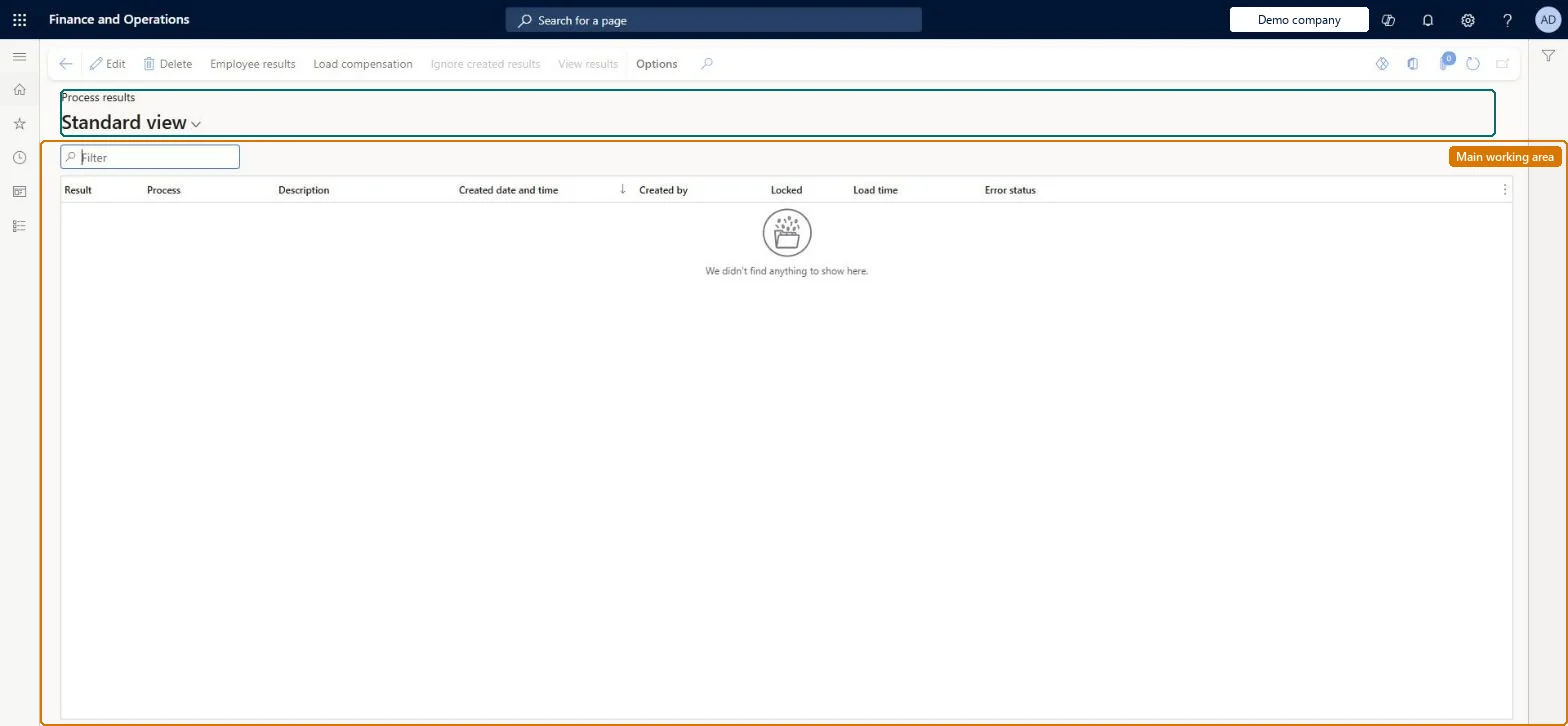
A page that lists each run of a compensation process, with when it ran, who ran it and whether errors occurred, and gives access to the results for each employee.
What you do here
Use this page to review and adjust employee results, approve or ignore employee events, lock a run, and load approved compensation changes to employee records.
Example
For example, after the MERIT2026 run BEAT's compensation manager locks the run while 85 employee events are reviewed, raises one Promotion recommendation to 2,500 EUR, approves 84 events and sets one to Ignore, then unlocks and loads; 84 employees get new lines on their fixed compensation effective 1 March 2026.
The page in Dynamics 365. page title tab to open what to set or check
About the examples: Examples and screenshots in this guide use BEAT, a demo company in a Dynamics 365 test environment. Use your own company's codes and values instead of copying them.
Setup steps on this page
Review, approve and load process results
Check each run's employee events, adjust recommendations, approve and load them to employees' fixed compensation.
Steps from Microsoft
Go to Human resources > Compensation > Process > Process results.
Select the process run, then select Employee results.
Select an employee record and expand the Fixed compensation section.
Adjust the Recommendation fields if needed.
Select Change status and then Approved.
Select Load compensation to load all approved employee events.
Prevents anyone from loading the run's compensation events to employee records.Microsoft Learn
Yes while the review runs
Locked
Employee results
Shows the employees included in the run and their compensation actions.Microsoft Learn
85 employees of run MERIT2026
Recommendation
Editable amounts for actions with recommendations enabled, to adjust an employee's result manually.Microsoft Learn
Promotion 2,500 EUR
Status
Marks an employee event as approved or to be ignored.Microsoft Learn
Approved
Recalculate
Discards changes by marking the event Ignore and creating a new recalculated event.Microsoft Learn
Used on one employee to undo a wrong recommendation
Load compensation
Loads all approved employee events to employees' fixed compensation records.Microsoft Learn
Loads 84 approved events
Common errors and fixes
Message
What to do
Load compensation is unavailable
The run is marked Locked, which disables loading. Clear Locked when the review is finished. Microsoft Learn
An employee's changed recommendation is lost
Recalculate sets the existing employee event to Ignore and creates a new event with recalculated values. Enter the recommendation again on the new event. Microsoft Learn
A dependent action still shows the old amount after a recommendation was changed
When Use previous result is set on the process, dependent actions must be updated by hand. Update the amounts of the dependent actions. Microsoft Learn
Test checklist
Open the latest run and select Employee results.
Change a recommendation for one employee, then select Recalculate and check the old event is Ignore and a new one is created.
Set Locked on the run and check Load compensation is disabled.
Unlock, approve one employee event, load it, and check the new line on the employee's fixed compensation with the transaction date.
Lock the run while it is reviewed, approve only checked events, then unlock and use Load compensation once per cycle.Loading adds the nonzero action lines to the employees' fixed compensation, effective from the transaction date; Locked prevents anyone from loading the run.
Compensation and benefits managers set up and run compensation; Human resource managers and payroll roles can view it. No Feature management feature is needed for this page.
Per company: process results belong to the legal entity you are signed in to. Data management lists the HcmCompensationEventEntity entity as not shared, so each company keeps its own. Checked in Dynamics 365
Can it be undone
Hard to reverse: Before loading, events can be recalculated or ignored; after loading, the new lines sit on each employee's fixed compensation and are corrected there.
If you change it later
Loading approved events adds the new compensation lines to employees' fixed compensation records, effective from the process's transaction date. Microsoft Learn
Technical architect
6Technical
Menu item
HRMCompEventChecked in Dynamics 365
Form
HRMCompEventChecked in Dynamics 365
Table
HRMCompEventShown as “PROCESS RESULTS” in Record infoKey field: EventIdChecked in Dynamics 365
Data entities
HcmCompensationEventEntityProcess results Checked in Dynamics 365HRMCompEventEmplEntityEmployee results (The employee events of a run (Employee results).) HRMCompEventLineFixedEntityCompensation recommend event fixed lines (The fixed compensation action lines of the employee events.)
Who can open it
PrivilegesManage compensation process results HRMCompEventMaintainView compensation process results HRMCompEventViewDutiesInquire into compensation process HcmCompensationInquireEnable compensation process HcmCompensationProcessEnable4 security rolesCompensation and benefits manager HcmCompensationAndBenefitsManagerHuman resource manager HcmHumanResourceManagerPayroll administrator HcmPayrollAdministratorPayroll manager HcmPayrollManagerChecked in Dynamics 365
Roles to set it up and use it
To set it up or change itCompensation and benefits manager HcmCompensationAndBenefitsManagerTo use itHuman resource manager HcmHumanResourceManagerPayroll administrator HcmPayrollAdministratorPayroll manager HcmPayrollManagerGive people one of these roles. On this system, 4 roles can open this page.Checked in Dynamics 365
Actions on the page
(Action Pane without tabs): Employee results, Load compensation, Ignore created results, View resultsChecked in Dynamics 365
Developer
7Developer
Open it by URL
https://<your-environment>/?mi=HRMCompEvent
Integrate with
HcmCompensationEventEntity data entity Checked in Dynamics 365
Data migration
HcmCompensationEventEntity Process results: one record per process run. Loaded for each company.HRMCompEventEmplEntity Employee results: the employee events of a run.Load order: Load with the Compensation management template only when run history must be kept; results are normally produced by running the process in the new system, after the plans and processes exist.Load first: HcmCompensationProcessEventsEntityMicrosoft Learn
Checked in a working Dynamics 365 system, version 10.0.49: the menu item, form, table and security, the page.
To cite this step: HR-RCMP-020, Review, approve and load process results. Beyond ERP Atlas Hub, 2026-11-11. https://www.beyonderp.cloud/atlas/step/HR-RCMP-020