Budget clerk, Budget contributor, Budget manager and 8 more roles
Business process
Develop people strategy
Menu item
HRMCompFixedBudget
Main table
HRMCompFixedBudget
Data entity
HcmCompensationMeritIncreaseTargetEntity
Setup steps
1 on this page
Show what matters for
PAGE GUIDEWhat the page does and how to use it8 sections. Choose a role to highlight what matters to you.
Everyone
1What it is and why
What it is
A page where you set a fixed increase budget for merit increases for each department.
What you do here
Use this page to define, for each department, the merit increase percentage and budget, optionally with different percentages for a labour union or location.
Example
For example, BEAT sets a 2026 merit target of 3% for the Sales department with a noted budget of 120,000 EUR, and a separate 4% line for sales staff in the labor union Retail; a Merit action then gives a union member on 40,000 EUR an increase of 1,600 EUR and a non-member on the same pay 1,200 EUR.
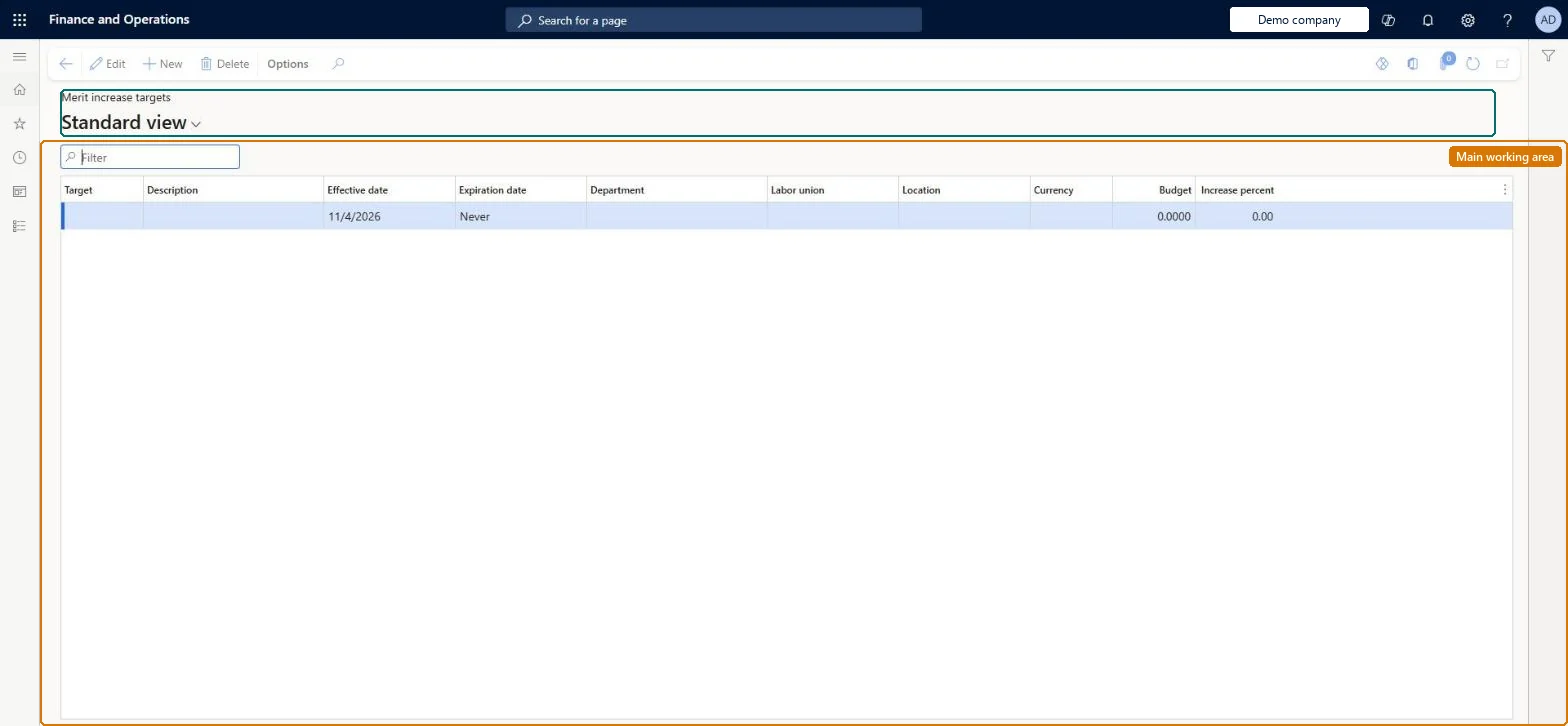
The page in Dynamics 365. page title tab to open what to set or check
About the examples: Examples and screenshots in this guide use BEAT, a demo company in a Dynamics 365 test environment. Use your own company's codes and values instead of copying them.
Setup steps on this page
Set up Merit increase targets
Use this page to define, for each department, the merit increase percentage and budget, optionally with different percentages for a labour union or location.
Steps from Microsoft
Go to Human resources > Compensation > Process > Merit increase targets.
Use the Filter box to find a target.
Select New and enter the Target, Description, Effective date and Expiration date, and the Department, Labor union or Location it applies to.
Enter the Currency, Budget and Increase percent.
Select Save; select Delete to remove a selected target.
Lets employees in a given labour union or location get a different increase percentage.Microsoft Learn
Retail (4% instead of the department's 3%)
Budget / Currency
A currency amount noted for the department's budget.Microsoft Learn
120,000 EUR
Common errors and fixes
Message
What to do
A Merit action calculates no increase for an employee
Merit uses the increase percent of the fixed increase budget for the employee's department, labor union and location. Add a target line that matches the employee's department (and union or location) for the cycle dates. Microsoft Learn
Spending passes the Budget amount without any warning
Budget and Currency only note a currency amount for the budget; the Merit calculation uses the increase percent. Compare the total of Process results with the noted budget before loading. Microsoft Learn
Test checklist
Set a merit increase target of 3% for a department and 4% for one labor union in it.
Run a compensation process with a Merit action for a plan that covers both groups.
Open Process results, Employee results, and check the merit increase is 3% or 4% of the pay rate at cycle end.
One fixed increase budget per department, with extra lines only for a labor union or location that gets a different increase percentage.Merit actions calculate the increase from the employee's pay rate at cycle end and the increase percent in the budget for the employee's department, labor union and location.
Compensation and benefits managers set up and run compensation; Human resource managers and payroll roles can view it. No Feature management feature is needed for this page.
Per company: merit increase targets belong to the legal entity you are signed in to. Data management lists the HcmCompensationMeritIncreaseTargetEntity entity as not shared, so each company keeps its own. Checked in Dynamics 365
Can it be undone
Reversible: Change a target and run the process again; each run creates a new compensation event, and employee records change only when approved events are loaded. Microsoft Learn
If you change it later
Merit actions in compensation processes use the increase percent from this budget, so changes here affect calculated merit increases. Microsoft Learn
Technical architect
6Technical
Menu item
HRMCompFixedBudgetChecked in Dynamics 365
Form
HRMCompFixedBudgetChecked in Dynamics 365
Table
HRMCompFixedBudgetShown as “COMPENSATION MERIT INCREASE TARGET” in Record infoKey field: Unions_UnionID, Department_Name, CompLocation_CompLocationIdChecked in Dynamics 365
Data entities
HcmCompensationMeritIncreaseTargetEntityCompensation merit increase target Checked in Dynamics 365
Who can open it
PrivilegesMaintain merit increase targets HRMCompFixedBudgetMaintainView merit increase targets HRMCompFixedBudgetViewMaintain operating units OMOperatingUnitsMaintainExtView operating units OMOperatingUnitsViewExtDutiesInquire into compensation process HcmCompensationInquireEnable compensation process HcmCompensationProcessEnableInquire into organizational model OMOrganizationsInquireMaintain and configure organizational model OMOrganizationsMaintain11 security rolesBudget clerk BudgetBudgetClerkBudget contributor BudgetBudgetContributorBudget manager BudgetBudgetManagerCompensation and benefits manager HcmCompensationAndBenefitsManagerHuman resource assistant HcmHumanResourceAssistantHuman resource manager HcmHumanResourceManagerPayroll administrator HcmPayrollAdministratorPayroll manager HcmPayrollManagerAccounting manager LedgerAccountingManagerProduction manager ProdProductionManagerInformation technology manager SysServerITManagerChecked in Dynamics 365
Roles to set it up and use it
To set it up or change itCompensation and benefits manager HcmCompensationAndBenefitsManagerBudget manager BudgetBudgetManagerInformation technology manager SysServerITManagerAccounting manager LedgerAccountingManagerProduction manager ProdProductionManagerTo use itHuman resource manager HcmHumanResourceManagerHuman resource assistant HcmHumanResourceAssistantPayroll administrator HcmPayrollAdministratorPayroll manager HcmPayrollManagerBudget contributor BudgetBudgetContributorGive people one of these roles. On this system, 11 roles can open this page.Checked in Dynamics 365
Developer
7Developer
Open it by URL
https://<your-environment>/?mi=HRMCompFixedBudget
Integrate with
HcmCompensationMeritIncreaseTargetEntity data entity Checked in Dynamics 365
Data migration
HcmCompensationMeritIncreaseTargetEntity Compensation merit increase target: one line per department, labor union or location. Loaded for each company.Load order: Load with the Compensation management template, after departments and labor unions exist; it must be in place before a compensation process with a Merit action runs.Load first: OMDepartmentV2Entity, HcmLaborUnionEntityMicrosoft Learn