Process an eligibility event per enrollment period
Human resourcesBenefitsEligibility
HcmBenefitEligibilityListPage
Used by
Compensation and benefits manager, Human resource manager, Payroll administrator
Business process
Manage benefits enrollment
Menu item
HcmBenefitEligibilityListPage
Main table
HcmBenefitEligibility
Data entity
HcmBenefitEligibilityEntity
Setup steps
1 on this page
Show what matters for
SETUP GUIDEHow to set it up8 sections. Choose a role to highlight what matters to you.
Everyone
1What it is and why
What it is
A periodic page listing eligibility events, each of which compares selected workers and benefits against the eligibility rules to work out who can enrol.
What you do here
Use this page to create an eligibility event (for example an open enrollment), add the workers and benefits to evaluate, process it, and review the results.
Example
For example, BEAT creates the event Open enrollment 2027 with Event type Open enrollment, Coverage start date 1 January 2027, Enrollment period start date 1 November 2026 and 30 days to enroll, adds 120 employees and 3 benefits, processes it and finds 95 workers eligible for Medical PPO.
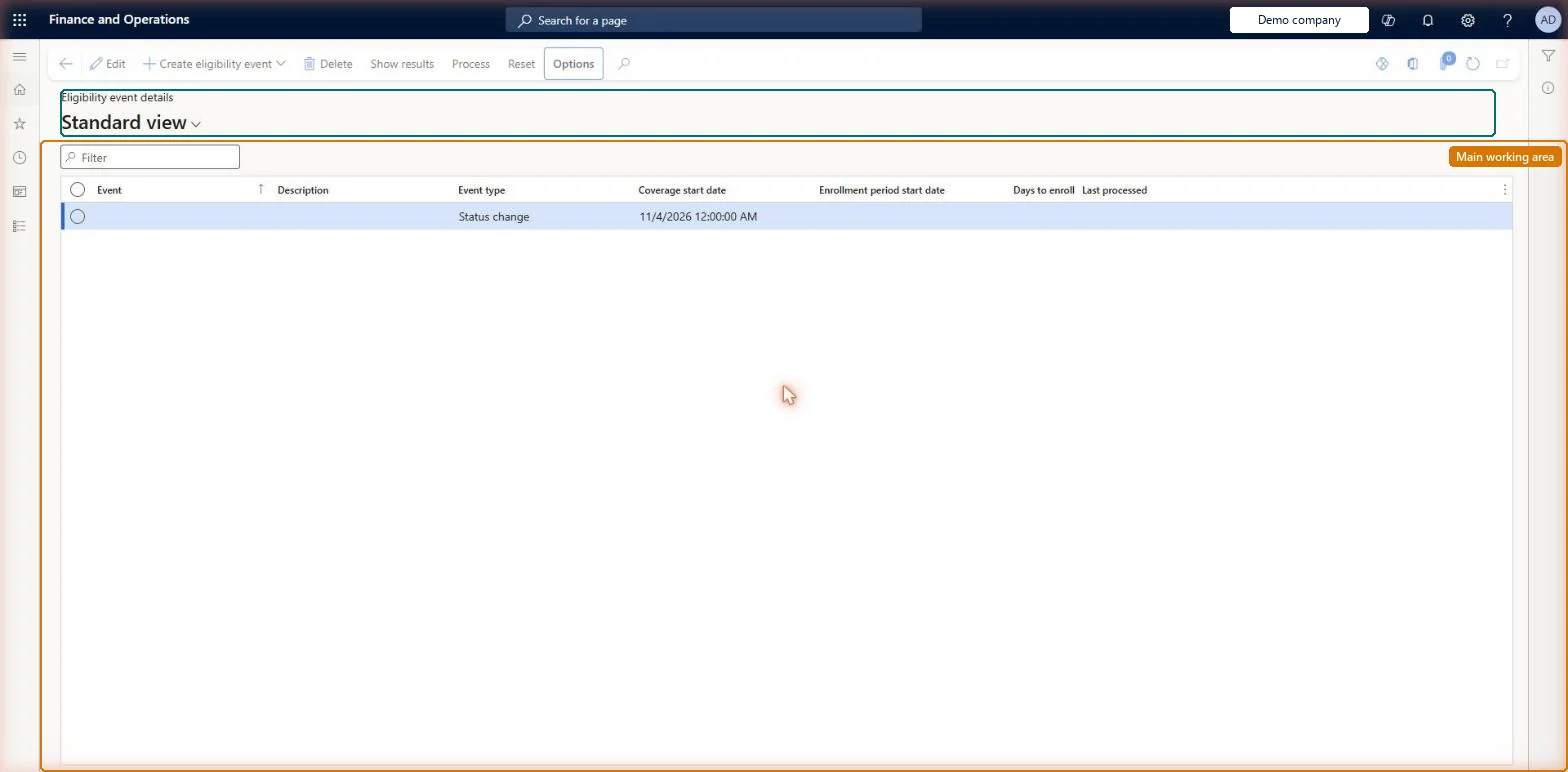
The page in Dynamics 365. page title tab to open what to set or check
About the examples: Examples and screenshots in this guide use BEAT, a demo company in a Dynamics 365 test environment. Use your own company's codes and values instead of copying them.
Setup steps on this page
Process an eligibility event per enrollment period
Work out who may enroll in rule-based and all-worker benefits before enrollment opens.
Steps from Microsoft
Go to Human resources > Benefits > Eligibility > Eligibility events.
Create a new event and enter the Event name and Description.
Select the Event type, Coverage start date, Enrollment period start date and Days to enroll, then create the event.
On the Workers FastTab, add the workers to evaluate.
On the Benefits FastTab, add the benefits to evaluate.
A worker shows as not eligible for a rule-based benefit
The policy rule of the benefit's rule type doesn't find the worker as of the Coverage start date. Check the rule's effective date and condition, or add an eligibility override on the benefit whose dates cover the coverage start date, and process again. Microsoft Learn
A worker can't be enrolled in a benefit that all workers are eligible for
The worker wasn't in a processed event. Add the worker on the Workers FastTab, select Process and enroll after the run. Microsoft Learn
The page opens read-only and Edit isn't available
Benefits management is turned on, which makes the legacy Benefits pages read-only. It can be turned off only in a Sandbox environment; in Production keep working in the Benefits management workspace. Microsoft Learn
Test checklist
From a benefit, create an eligibility event with Event type Open enrollment, a coverage start date, an enrollment period start date and days to enroll.
Add workers on the Workers FastTab for the current legal entity.
Select Process, then Show results.
Sort by Status and check eligible and ineligible workers are as expected.
One Open enrollment event per plan year with the plan year's first day as Coverage start date, every employee on the Workers FastTab and every rule-based or all-worker benefit on the Benefits FastTab; a Status change or Life event for changes during the year.Benefits set to Rule based or All workers are eligible can only be enrolled after a processed event, and eligibility is decided as of the coverage start date.
This page is part of the legacy Benefits workspace. Turning on Benefits management in Feature management makes it read-only, and in a Production environment Benefits management can't be turned off again; Microsoft recommends enabling and testing it in a Sandbox first. Benefits are kept by the Compensation and benefits manager and the Payroll administrator; HR managers and assistants, recruiters and payroll managers read them.
Shared: eligibility events are not per company. Data management lists the Benefit eligibility entity as shared; the Workers FastTab can be limited to the current legal entity when workers are added. Checked in Dynamics 365
Can it be undone
Reversible: An event decides eligibility only; it can be processed again after rules or workers change.
If you change it later
Processing an event decides eligibility only; enrollment is a separate step. For benefits set to All workers are eligible, workers in a processed event can enroll after it is processed and not at other times; benefits set to Bypass eligibility process are left out of processing. Microsoft Learn
Technical architect
6Technical
Menu item
HcmBenefitEligibilityListPageChecked in Dynamics 365
Form
HcmBenefitEligibilityDetailChecked in Dynamics 365
Table
HcmBenefitEligibilityShown as “BENEFIT ELIGIBILITY” in Record infoKey field: BenefitEligibilityIdChecked in Dynamics 365
Data entities
HcmBenefitEligibilityEntityBenefit eligibility HcmBenefitEligibilityWorkerEntityBenefit eligibility workers (The workers added on the Workers FastTab.) HcmBenefitEligibilityBenefitEntityBenefit eligibility benefits (The benefits added on the Benefits FastTab.) HcmBenefitEligibilityStatusEntityBenefit eligibility status (The eligibility status of each worker after processing.)
Who can open it
PrivilegesMaintain eligibility events and forms HcmBenefitEligibilityEventMaintainView eligibility events and forms HcmBenefitEligibilityEventViewDutiesInquire into benefits process HcmBenefitInquireEnable human resources policy HcmBenefitPolicyProcessEnable3 security rolesCompensation and benefits manager HcmCompensationAndBenefitsManagerHuman resource manager HcmHumanResourceManagerPayroll administrator HcmPayrollAdministratorChecked in Dynamics 365
Roles to set it up and use it
To set it up or change itCompensation and benefits manager HcmCompensationAndBenefitsManagerHuman resource manager HcmHumanResourceManagerPayroll administrator HcmPayrollAdministratorGive people one of these roles. On this system, 3 roles can open this page.Checked in Dynamics 365
Actions on the page
(Action Pane without tabs): Create eligibility event, Delete, Show results, Process, ResetChecked in Dynamics 365
HcmBenefitEligibilityEntity Benefit eligibility: the event header. Shared by all companies.HcmBenefitEligibilityBenefitEntity Benefit eligibility benefits: the benefits of the event.HcmBenefitEligibilityStatusEntity Benefit eligibility status: the results per worker.HcmBenefitEligibilityWorkerEntity Benefit eligibility workers: the workers of the event.Load order: Load in the order of the Legacy benefits template: Benefit eligibility, Benefit eligibility benefits, Benefit eligibility status, Benefit eligibility workers. The benefits and the workers must exist first.Load first: HcmBenefitEntityMicrosoft Learn
Checked in a working Dynamics 365 system, version 10.0.49: the menu item, form, table and security, the page.
To cite this step: HR-RBEN-020, Process an eligibility event per enrollment period. Beyond ERP Atlas Hub, 2026-11-11. https://www.beyonderp.cloud/atlas/step/HR-RBEN-020