Compensation and benefits manager, Human resource assistant, Human resource manager and 4 more roles
Business process
Develop people strategy
Menu item
HcmRatingModel
Main table
HcmRatingModel
Data entity
HcmRatingModelEntity
Setup steps
1 on this page
Show what matters for
SETUP GUIDEHow to set it up8 sections. Choose a role to highlight what matters to you.
Everyone
1What it is and why
What it is
A setup page where you define rating scales, each with up to 10 levels and a factor per level, used to rate skills and performance.
What you do here
Use this page to create the scales that measure a person's actual skill level, their target level, or the level a job requires.
Example
For example, BEAT keeps one rating model Skills with 5 levels, Beginner (factor 1) to Expert (factor 5), and a second model Languages with 3 levels at factors 1, 3 and 5, so a Fluent language rating weighs the same as an Expert skill.
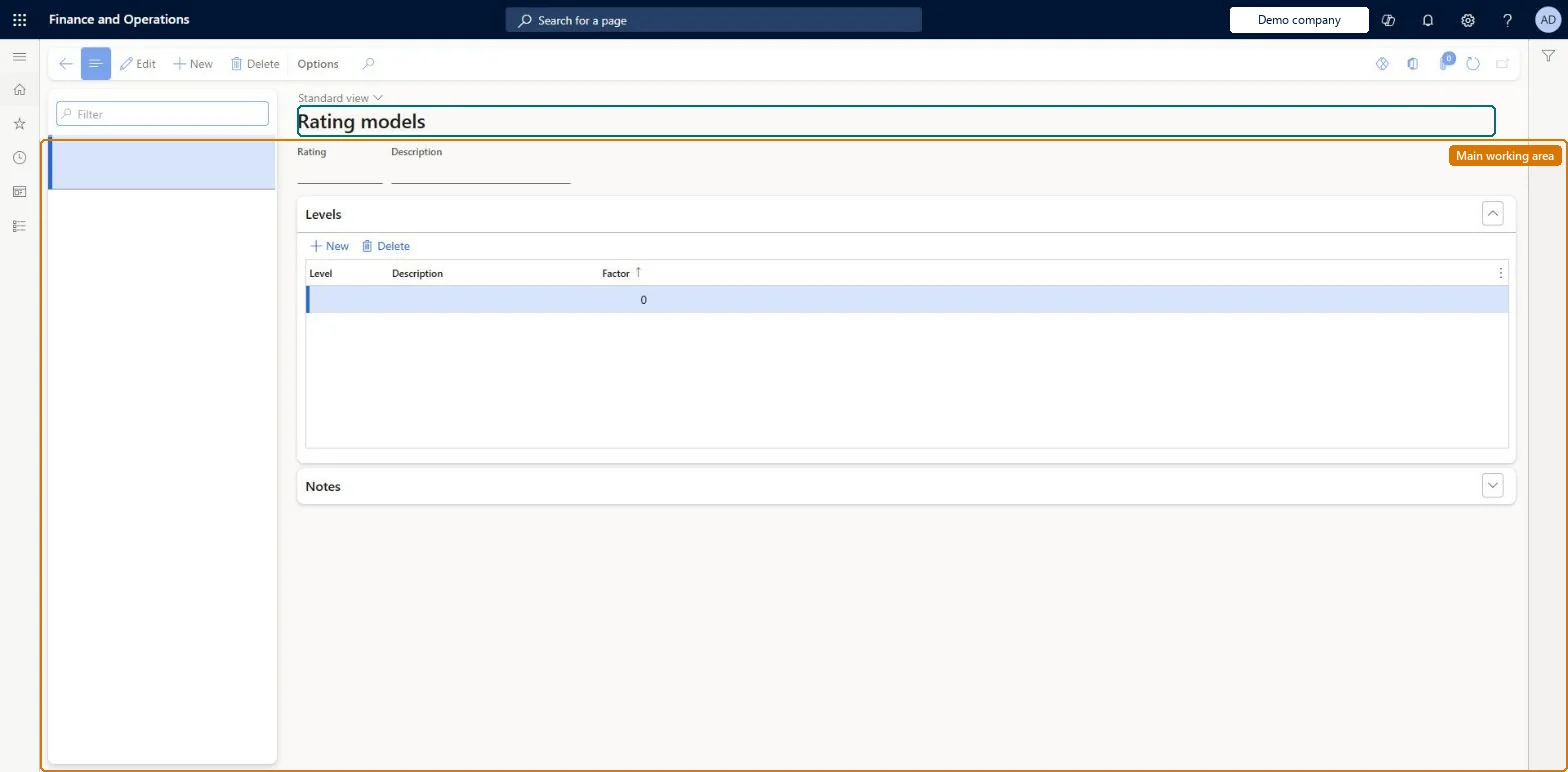
The page in Dynamics 365. page title tab to open what to set or check
About the examples: Examples and screenshots in this guide use BEAT, a demo company in a Dynamics 365 test environment. Use your own company's codes and values instead of copying them.
Setup steps on this page
Set up Rating models
Use this page to create the scales that measure a person's actual skill level, their target level, or the level a job requires.
Steps from Microsoft
Go to Human resources > Competencies > Setup > Rating models.
Select New.
Enter a Rating and a Description.
On the Levels FastTab, select New and enter a Level, Description and Factor for each level.
A number from 0 to 9, unique per level; higher factors carry more weight.Microsoft Learn
5
Factor
Common errors and fixes
Message
What to do
A level can't be saved with its factor
Each level in a model must have a unique factor from 0 to 9. Give the level another factor. Microsoft Learn
An eleventh level can't be added
A rating model holds up to 10 levels. Use fewer levels or a second model. Microsoft Learn
Test checklist
Create a rating model named Skills with levels 1 to 5, giving each level a unique factor.
Try to give two levels the same factor and check it is not accepted.
Select the model on a skill, then rate a worker on that skill and check only the model's levels can be picked.
Set the model as Performance review rating model on the Performance tab of Human resources shared parameters and check its levels appear in Final employee rating on a review.
Up to 10 levels per model, each with a unique factor from 0 to 9, higher factors for higher levels; then set the default Performance review rating model on Human resources shared parameters.Factors normalise scores between skills that use different rating models and higher factors carry more weight, so the factor scale must be consistent across models. Reviews use the default rating model set on the Performance tab of Human resources shared parameters.
With the Human resources to bookable resource integration, rating models and levels are synchronised to proficiency models in Dataverse. The roles that can maintain or only view this page are listed under its security roles. No Feature management feature is needed for this page.
Shared: rating models are not per company. Data management lists the Rating models and Rating level entities as shared. Checked in Dynamics 365
Can it be undone
Hard to reverse: Levels and factors can be edited, but ratings already given keep their level, and changing a factor changes how those ratings compare with ratings in other models.
If you change it later
Factors are used to normalise scores between skills that use different rating models, so changing them changes how ratings compare. Microsoft Learn
Technical architect
6Technical
Menu item
HcmRatingModelChecked in Dynamics 365
Form
HcmRatingModelChecked in Dynamics 365
Table
HcmRatingModelShown as “RATING MODELS” in Record infoKey field: RatingModelIdChecked in Dynamics 365
Data entities
HcmRatingModelEntityRating models Checked in Dynamics 365HcmRatingLevelEntityRating level (The Levels FastTab: level, description and factor.)
Who can open it
PrivilegesMaintain rating models for worker skills HcmRatingModelMaintainView rating models for worker skills HcmRatingModelViewDutiesInquire into compensation process HcmCompensationInquireEnable compensation process HcmCompensationProcessEnableEnable performance process HcmPerformanceProcessEnableInquire into performance process HcmPerformanceProcessInquireEnable training process HcmTrainingProcessEnableInquire into training process HcmTrainingProcessInquireEnable workforce management process HcmWorkforceProcessEnableInquire into workforce management process HcmWorkforceProcessInquire7 security rolesCompensation and benefits manager HcmCompensationAndBenefitsManagerHuman resource assistant HcmHumanResourceAssistantHuman resource manager HcmHumanResourceManagerPayroll administrator HcmPayrollAdministratorPayroll manager HcmPayrollManagerRecruiter HcmRecruiterTraining manager HcmTrainingManagerChecked in Dynamics 365
Roles to set it up and use it
To set it up or change itHuman resource assistant HcmHumanResourceAssistantCompensation and benefits manager HcmCompensationAndBenefitsManagerHuman resource manager HcmHumanResourceManagerTraining manager HcmTrainingManagerTo use itRecruiter HcmRecruiterPayroll administrator HcmPayrollAdministratorPayroll manager HcmPayrollManagerGive people one of these roles. On this system, 7 roles can open this page.Checked in Dynamics 365
Developer
7Developer
Open it by URL
https://<your-environment>/?mi=HcmRatingModel
Integrate with
HcmRatingModelEntity data entity Checked in Dynamics 365
Data migration
HcmRatingModelEntity Rating models. Shared by all companies.HcmRatingLevelEntity Rating level: the levels and factors of each model.Load order: Load with the Employee development template: Rating models is listed early, Rating level later and before Skills.Microsoft Learn