Setup step on the Financial period close configuration page · General ledger
Set up Financial period close configuration
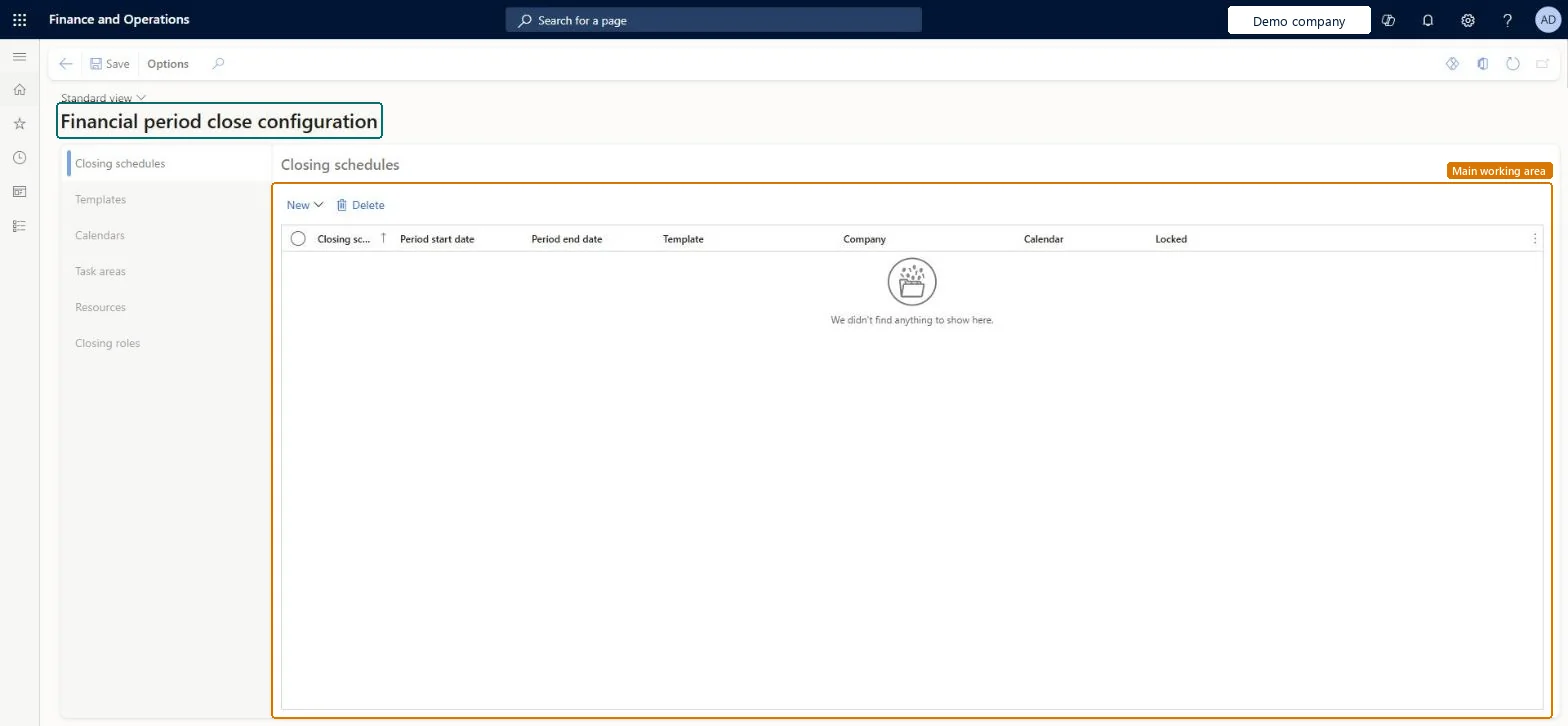
Used to define resources and their view of the workspace, task areas, closing calendars, close templates with relative due dates and dependencies, and closing schedules.
- Used by
- Accounting manager
- Business process
- Define posting policies
- Menu item
LedgerPeriodCloseConfiguration- Main table
LedgerPeriodCloseProject- Data entity
- —
- Setup steps
- 1 on this page
Everyone
1What it is and why
| What it is | The setup page for the Financial period close workspace. |
|---|---|
| What you do here | Used to define resources and their view of the workspace, task areas, closing calendars, close templates with relative due dates and dependencies, and closing schedules. |
| Example | Create separate templates to track month-end and year-end closing processes. |
Functional consultant · Solution architect
2Where it fits
| Business process | Define accounting policies › Define posting policies |
|---|---|
| Menu path | General ledger › Period close › Financial period close configuration |
| Set up first | Workers Microsoft Learn ↗ |
| Used next by | Financial period close workspace Microsoft Learn ↗All financial period close tasks Microsoft Learn ↗ |
| Related pages | — |
| In this process | Set up Journal descriptions → |
End user · Functional consultant
3How to do it
Step by step, with screenshots
Set up Financial period close configuration1 screen
Used to define resources and their view of the workspace, task areas, closing calendars, close templates with relative due dates and dependencies, and closing schedules.
Screen 1
Create the period close task area
Go to General ledger > Period close > Financial period close configuration, Task areas tab
- Open the Task areas tab
- Select New
- Enter the task area code BEAT-GL and its description
- Select Save
Description Atlas demo general ledger close 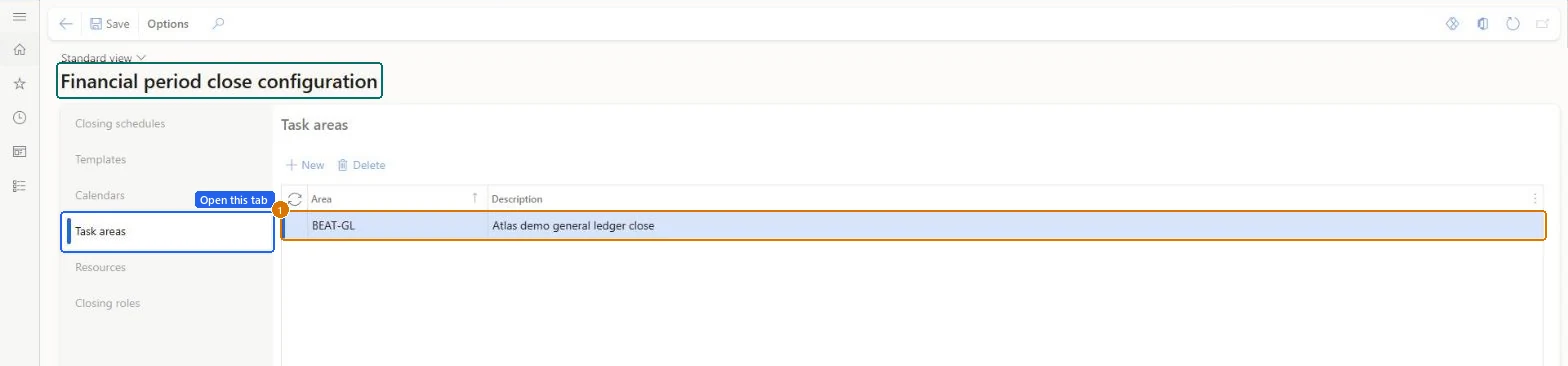
Show the full screen
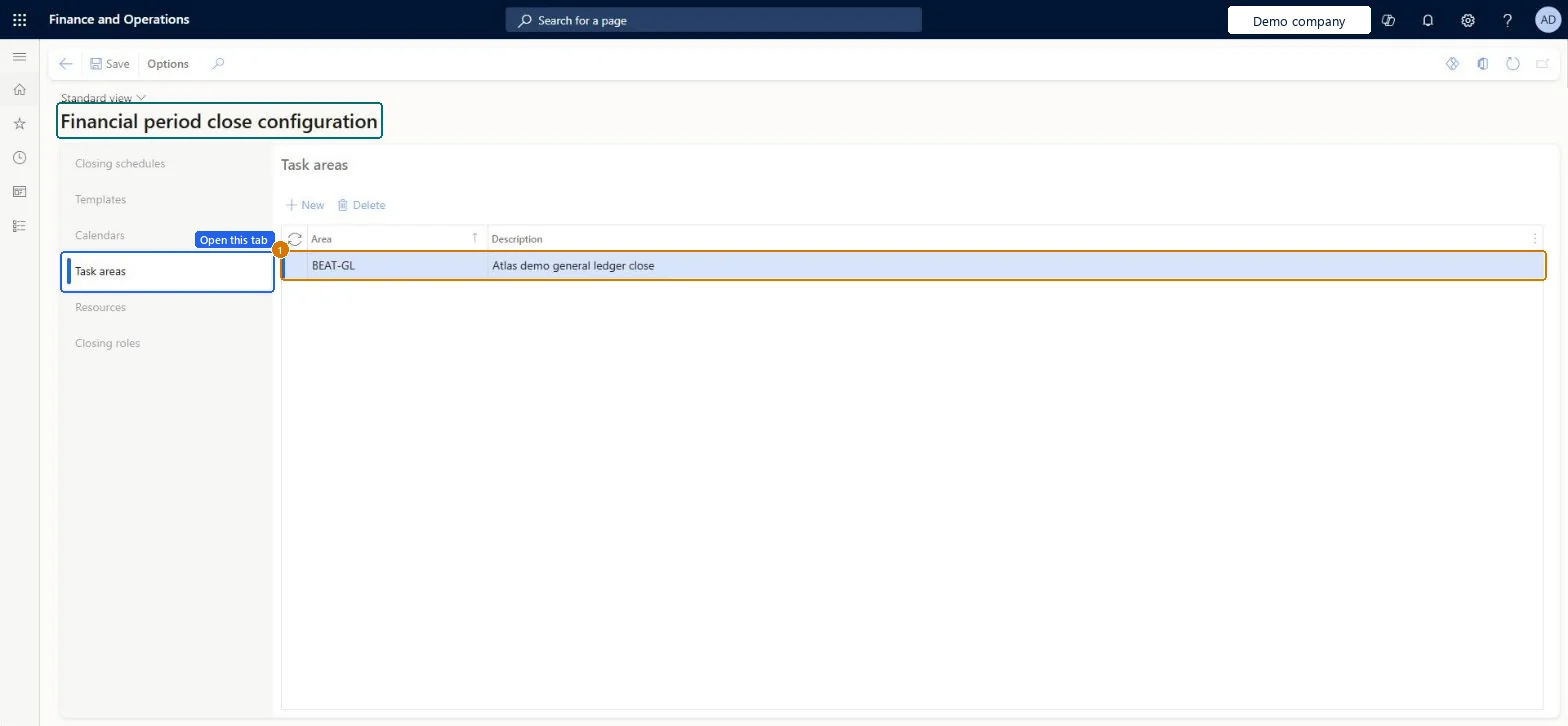
page title tab to open what to set or check
Microsoft's steps
- Go to General ledger > Period close > Financial period close configuration.
- On the Resources tab, add each employee who works on closing tasks and choose what they see in the workspace.
- On the Task areas tab, create areas that group closing tasks, such as Accounts payable or General ledger.
- On the Calendars tab, create a calendar of working days, then select Edit to mark holidays as closed days.
- Create a financial close template that lists each closing task with its relative due date, due time, companies and task link.
- Set dependencies for tasks that can't start until other tasks are finished.
- Create a closing schedule that links a template to a period end date, a calendar and the companies to close.
- When the close is finished, select the Closed option on the closing schedule.
Source: Microsoft Learn ↗
Field guide
| Field | What it means | Worked example | Table column |
|---|---|---|---|
| Only assigned tasks | The person sees only the closing tasks assigned to them in the workspace.Microsoft Learn ↗ | — | — |
| All tasks and status | The person sees every closing task and the status of the whole close.Microsoft Learn ↗ | — | — |
| Control | Marks each calendar day as Open or Closed; closing tasks are scheduled only on open days.Microsoft Learn ↗ | — | — |
| Task link | The page or web address that opens when someone selects the task name in the workspace.Microsoft Learn ↗ | — | — |
| Closing role | A generic role given to tasks; whoever holds the role when a schedule is generated gets those tasks.Microsoft Learn ↗ | — | — |
| Due date | When a task is due, counted in days from the period end: 0 is the last day of the period and 1 is the next day.Microsoft Learn ↗ | — | — |
| Period end date | The date on a closing schedule from which the real due dates of all its tasks are worked out.Microsoft Learn ↗ | — | — |
| Closed | Set on a closing schedule when the close is complete; it then leaves the workspace and can't be changed.Microsoft Learn ↗ | — | — |
| Description | — | Atlas demo general ledger close | — |
Functional consultant
4Setup decisions
| Setup step | Recommended value and why | Decision · common mistake · test |
|---|---|---|
| Set up Financial period close configuration | — | — |
Solution architect
5Design impact
| Shared or per company | — |
|---|---|
| Can it be undone | — |
| Feature or country | — |
| If you change it later | Moving a closing role to another person affects only schedules generated afterwards; tasks in schedules that already exist must be reassigned by hand. Microsoft Learn ↗ |
Technical architect
6Technical
| Menu item | LedgerPeriodCloseConfiguration Checked in Dynamics 365 |
|---|---|
| Form | LedgerPeriodCloseConfiguration Checked in Dynamics 365 |
| Table | LedgerPeriodCloseProjectShown as “Closing schedule” in Record infoKey field: NameChecked in Dynamics 365 |
| Data entities | — |
| Who can open it | PrivilegesMaintain financial period close setup LedgerPeriodCloseWorkspaceConfigurationMaintainDutiesMaintain financial period close setup LedgerPeriodCloseWorkspaceConfigurationMaintain1 security rolesAccounting managerLedgerAccountingManager |
| Actions on the page | — |
Developer
7Developer
| Open it directly | https://<your-environment>/?mi=LedgerPeriodCloseConfiguration |
|---|---|
| Integrate with | — |
| Table definition | — |
Everyone
8Sources and checks
- learn.microsoft.com/dynamics365/finance/general-ledger/financial-period-close-workspace
- learn.microsoft.com/dynamics365/finance/general-ledger/financial-period-close-workspace
- learn.microsoft.com/training/modules/configure-periodic-processes-dyn365-finance/01-financial-period-close
- Checked in a working Dynamics 365 system, version 10.0.49: the menu item, form, table and security, the page, the demo records and the values in the screenshots.
GL-CLOSE-010 — Set up Financial period close configuration. Beyond ERP Atlas Hub, snapshot 2026-10-16, partly verified. https://www.beyonderp.cloud/atlas/step/GL-CLOSE-010