SETUP GUIDEHow to set it up8 sections. Choose a role to highlight what matters to you.
Everyone
1What it is and why
What it is
A periodic job that calculates depreciation for fixed asset books and creates depreciation journals, in batch and across legal entities if needed.
What you do here
Use this periodic task to create depreciation entries for many assets at once instead of entering them by hand, optionally posting the journals straight away.
Example
For example, with Summarize depreciation turned on and a To date of March 31, 2025, the monthly amounts are combined into one line described as depreciation since January 31, 2025.
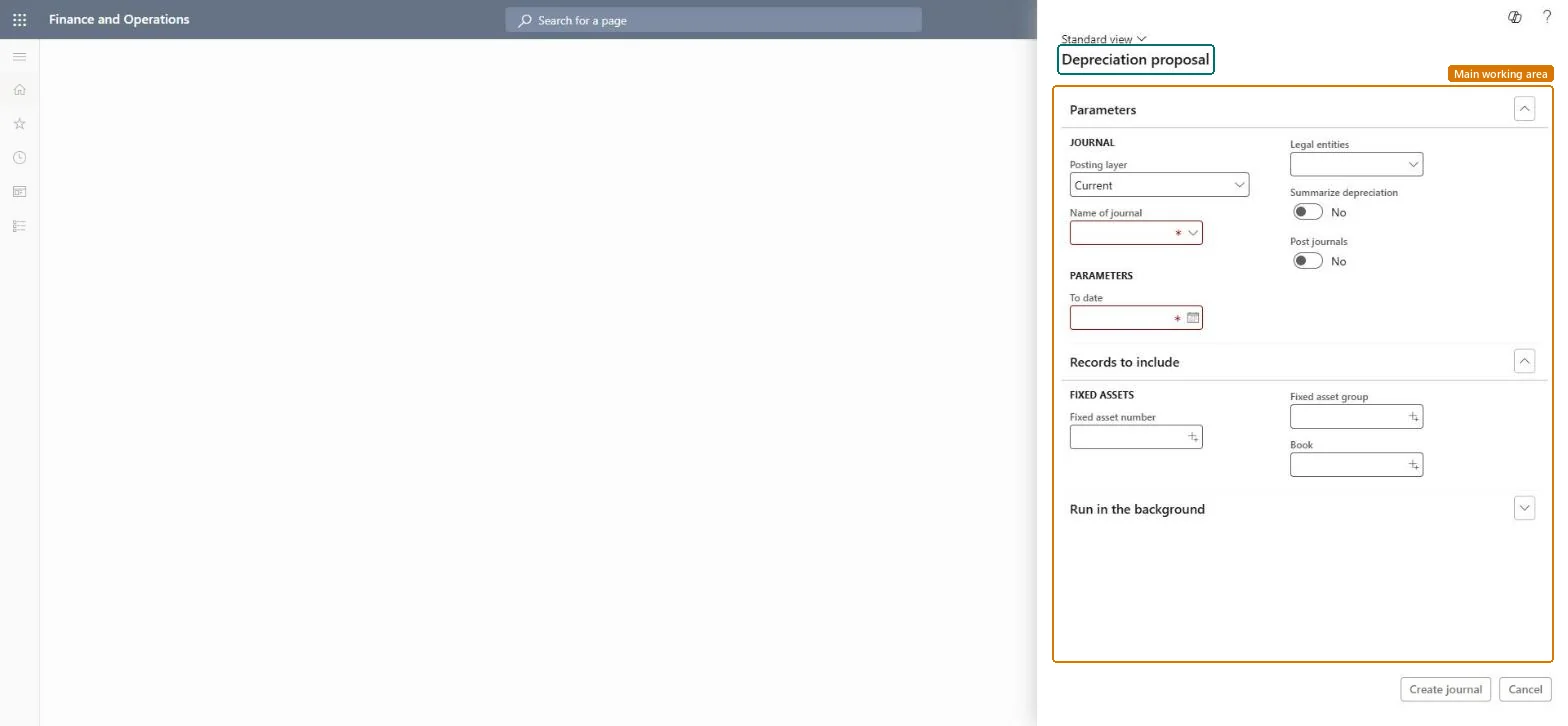
The page in Dynamics 365. page title tab to open what to set or check
About the examples: Examples and screenshots in this guide use BEAT, a demo company in a Dynamics 365 test environment. Use your own company's codes and values instead of copying them.
When to run it
When to run it
At each period end, after the period's acquisitions and adjustments are posted.
How often
Monthly, or at the depreciation interval used by your books.
Batch settings
Batch processing is on by default and is the recommended mode; journal creation and posting run in the background, also across legal entities.
What the output shows
Depreciation journals with one line per asset book (or one summarized line), dated at the To date. With Summarize depreciation the line text reads, for example, Depreciation since January 31. An asset with no line usually isn't in Open status or has Calculate depreciation turned off.
Propose, review and post depreciation for the period.
Steps from Microsoft
Go to Fixed assets > Journal entries > Create depreciation proposal.
In Name of journal, choose the depreciation journal name. Set the To date to the last day of the period you depreciate.
Turn on Summarize depreciation to combine the monthly amounts into one line per book; you can then set a Depreciation posting date for catch-up depreciation.
In Legal entities, pick the companies to include. Only companies with a proposal journal set up in Fixed assets parameters appear. Set Post journals to Yes if the journals should post straight away.
Select Create journal, then open Fixed assets journal, check the lines of each depreciation journal and post them if Post journals was off.
The journal name used for the depreciation journals that are created.Microsoft Learn
Summarize depreciation
Combines the monthly depreciation amounts into one journal line.Microsoft Learn
Depreciation posting date
Posts catch-up depreciation for earlier periods on one consistent date; only available when summarizing.Microsoft Learn
Post journals
Posts the depreciation journals automatically after they are created.Microsoft Learn
Batch processing
Runs journal creation and posting in the background; it is on by default.Microsoft Learn
Legal entities
The companies to include in the run; only companies with a proposal journal set up in their parameters appear.Microsoft Learn
Common errors and fixes
Message
What to do
Posting stops because an asset book is locked in another depreciation journal
With Lock asset books in a depreciation journal turned on, an asset book can be in only one depreciation journal. Post or delete the other journal; the book is unlocked automatically when that journal is posted, or you can unlock it manually. Microsoft Learn
The depreciation proposal skips an asset
Check Calculate depreciation on the asset book. It is set to No when a purchase line is below the capitalization threshold, and the proposal skips books with No. Microsoft Learn
Catch-up depreciation is posted on many dates
Turn on Depreciation posting date with Summarize depreciation; it posts all prior-period depreciation on one date. It works only with Straight line service life and not for localized versions. Microsoft Learn
Test checklist
Each Open asset book has a depreciation line up to the To date.
No empty or duplicate journals were created.
Posted amounts match the asset book depreciation profile.
Run the proposal in batch each period end for all books with Calculate depreciation = Yes, review the journals, and post; turn on Lock asset books in a depreciation journal.Batch mode is recommended for larger proposals; the lock stops the same asset book from being posted from two depreciation journals.
Fixed assets is part of Dynamics 365 Finance. Fixed asset accountants run depreciation each period. On this system the roles that open the page include Accounting supervisor, Accountant, Rental manager. The Lock asset books in a depreciation journal option is turned on in Feature management; the proposal itself needs no feature.
Checked in Dynamics 365
Solution architect
5Design impact
Shared or per company
Per company, or several legal entities in one run when you pick them in Legal entities. Microsoft Learn
Can it be undone
Reversible: Delete the journals before posting; after posting, post a depreciation adjustment.
If you change it later
Depreciation can't be posted twice for the same period; a second journal for a period that is already depreciated is stopped. Microsoft Learn
Technical architect
6Technical
Menu item
action:AssetMultiJournalDepProposalChecked in Dynamics 365
Form
AssetProposalDepreciationChecked in Dynamics 365
Roles to set it up and use it
To use itAccounting supervisor LedgerAccountingSupervisorAccountant LedgerAccountantRental manager RentalManagerGive people one of these roles. On this system, 3 roles can run this page.Checked in Dynamics 365
Load order: The depreciation proposal has no data entity in Data management, so it can't be loaded from a file or a configuration template. The report stores nothing of its own: it reads the posted fixed asset data, so migrate the assets, books and transactions and run it again in the new environment. When asset books are migrated with depreciation already taken, check that their depreciation dates show the last period depreciated, so the first proposal in the new system doesn't depreciate those periods again.Microsoft Learn