About the examples: Examples and screenshots in this guide use BEAT, a demo company in a Dynamics 365 test environment. Use your own company's codes and values instead of copying them.
Step by step, with screenshots
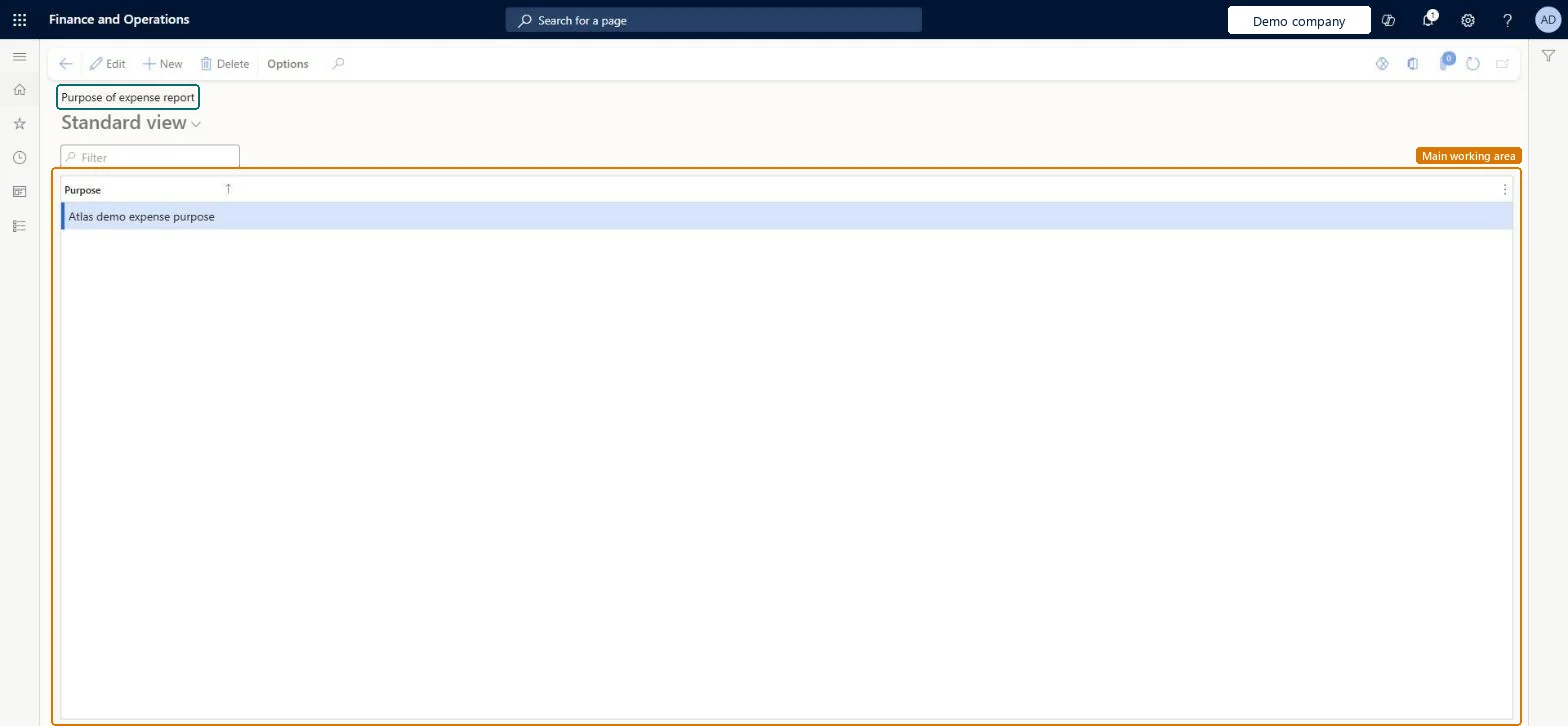
Set up Purpose of expense report1 screen
Use this page to give workers a fixed list of reasons for their expense reports; with Validate expense purpose on, they must pick from it.
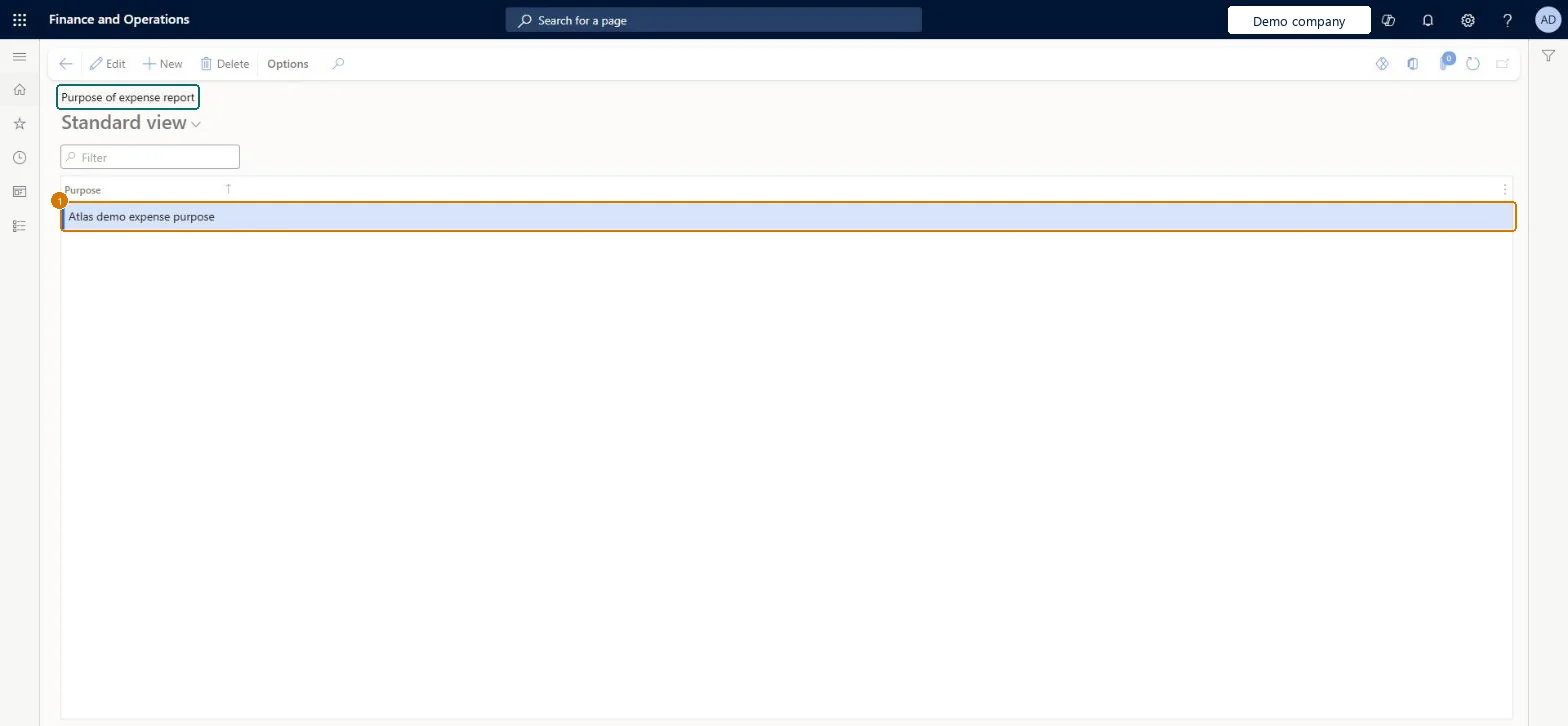
Screen 1
Add a purpose for expense reports
Go to Expense management > Setup > Optional setup > Purpose of expense report
Select New
Enter the purpose text workers can choose
Select Save
Purpose
Expense purpose
Show the full screen page title tab to open what to set or check
Steps from Microsoft
Go to Expense management > Setup > Optional setup > Purpose of expense report.
Select New.
Enter the purpose text employees will pick, such as Customer meeting.
Save, and turn on Validate expense purpose in the parameters if employees must pick from the list.
The purpose text that workers can choose on an expense report.Microsoft Learn
Expense purpose
Txt
Common errors and fixes
Message
What to do
Employees can't type their own purpose
Validate expense purpose (or Validate travel requisition purpose) is on, so only values from this list are accepted. Add the purpose here. Microsoft Learn
Test checklist
Add purposes such as Customer visit and Conference.
Turn on Validate expense purpose on the General tab of Expense management parameters.
Create an expense report and check the purpose must be chosen from the list.
Turn on Validate travel requisition purpose and check the same list is enforced on a new travel requisition.
Set up the purposes, then turn on Validate expense purpose (and Validate travel requisition purpose if needed) in Expense management parametersLearn says those parameters limit users to the set of values configured for Purpose of expense report when they create expense reports or travel requisitions.
In this system Employee and Contractor enter their own expenses, and Expense administrator sets up the module and processes documents. The expense mobile app needs the Employee role, a company on the user account and a link to an employee with active employment. The expense administrator maintains the list. No Feature management feature is needed for this page.
Reversible: Purposes and the validation parameters can be changed at any time; they apply when reports are created.
If you change it later
Expense purposes are optional; if none are set up, workers can type any purpose. Microsoft Learn
Technical architect
6Technical
Menu item
TrvTravelTxtChecked in Dynamics 365
Form
TrvTravelTxtChecked in Dynamics 365
Table
TrvTravelTxtShown as “Expense purposes” in Record infoChecked in Dynamics 365
Data entities
TrvExpenseReportPurposeEntityExpense purposes Microsoft data model DimAttributeTrvTravelTxtEntity(the purposes when they are used as financial dimension values) Microsoft data model
Who can open it
PrivilegesMaintain business purposes available during expense entry TrvTravelTxtMaintainView business purposes available during expense entry TrvTravelTxtViewDutiesMaintain Master entity data for data management DataManagementApplicationMasterEntitiesMaintainView Master entity data for data management DataManagementApplicationMasterEntitiesViewExpenseAgentDutyExpenseAgentV2DutyEnable expense management process TrvTravelAndExpenseProcessEnableInquire into expense management reference data TrvTravelAndExpenseReferenceDataInquire7 security rolesBusiness Performance Planning app role BPPBudgetPlanningAppRoleData management administrator DataManagementAdministratorData management migration user DataManagementMigrationUserExpense administrator ExpenseAdministratorExpenseAgentRoleDemand planning app role ScpDemandPlanningAppRoleInformation technology manager SysServerITManagerChecked in Dynamics 365
Roles to set it up and use it
To set it up or change itExpense administrator ExpenseAdministratorInformation technology manager SysServerITManagerBusiness Performance Planning app role BPPBudgetPlanningAppRoleData management migration user DataManagementMigrationUserDemand planning app role ScpDemandPlanningAppRoleTo use itExpenseAgentRole ExpenseAgentV2Role Give people one of these roles. On this system, 8 roles can open this page.Checked in Dynamics 365
Actions on the page
Options: Personalize, Page options, ShareChecked in Dynamics 365
TrvExpenseReportPurposeEntity (Expense purposes): loaded for each company, in Microsoft's default template 600 - Expense.Load order: Microsoft's default template 600 - Expense loads Expense purposes at execution unit 1, level 30, sequence 10. Lower levels load first, and entities at the same level load in sequence order.Load first: the default templates at lower levels (System setup to General ledger)Microsoft Learn
Checked in a working Dynamics 365 system, version 10.0.49: the menu item, form, table and security, the page, the demo records and the values in the screenshots.
To cite this step: EM-SETUP-190, Set up Purpose of expense report. Beyond ERP Atlas Hub, 2026-11-11. https://www.beyonderp.cloud/atlas/step/EM-SETUP-190