About the examples: Examples and screenshots in this guide use BEAT, a demo company in a Dynamics 365 test environment. Use your own company's codes and values instead of copying them.
Step by step, with screenshots
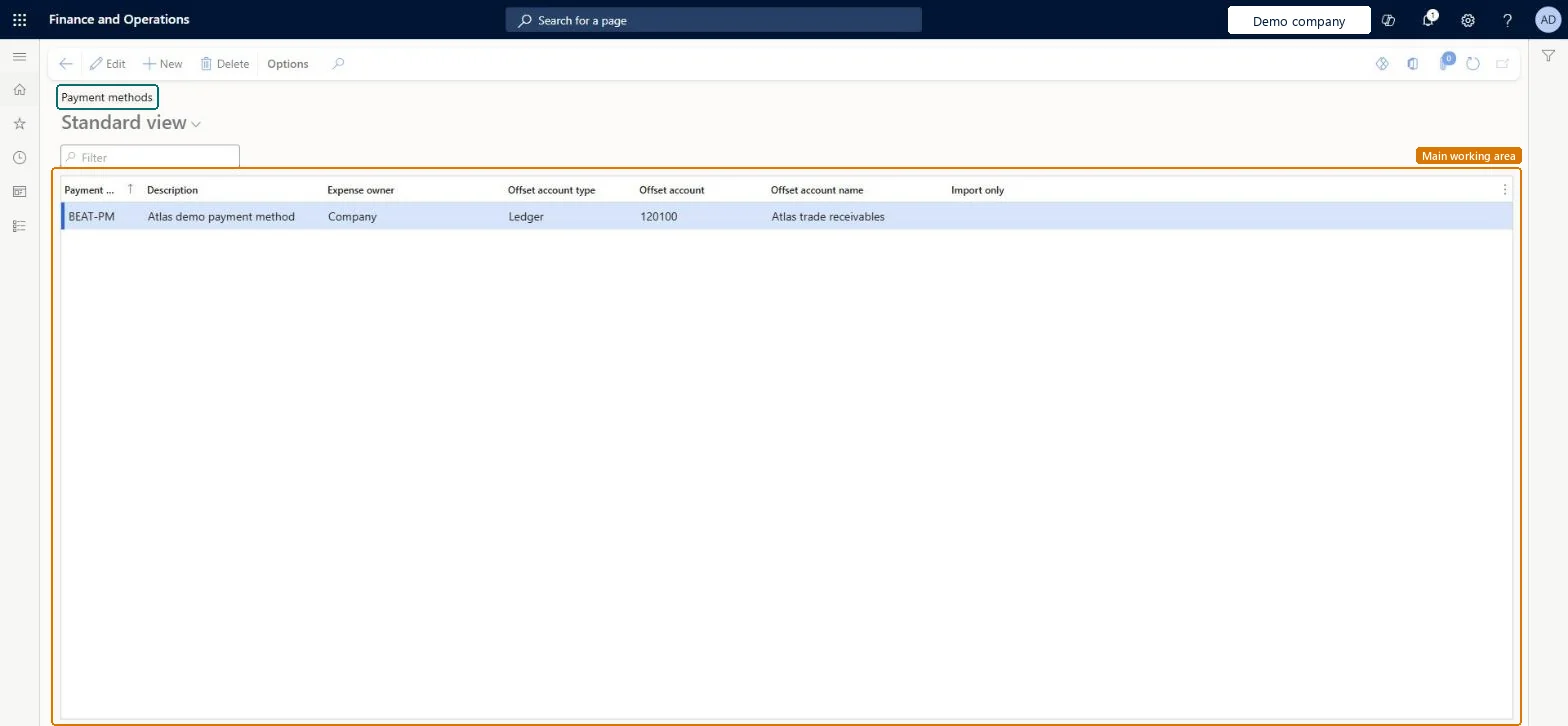
Set up Payment methods1 screen
Use this page to define which payment methods employees may use, who owns the expense, and any offset account.
Screen 1
Create a payment method for expenses
Go to Expense management > Setup > General > Payment methods
Select New
Enter the payment method and a description
Select who owns the expense
Select the offset account type and the offset account
Select Save
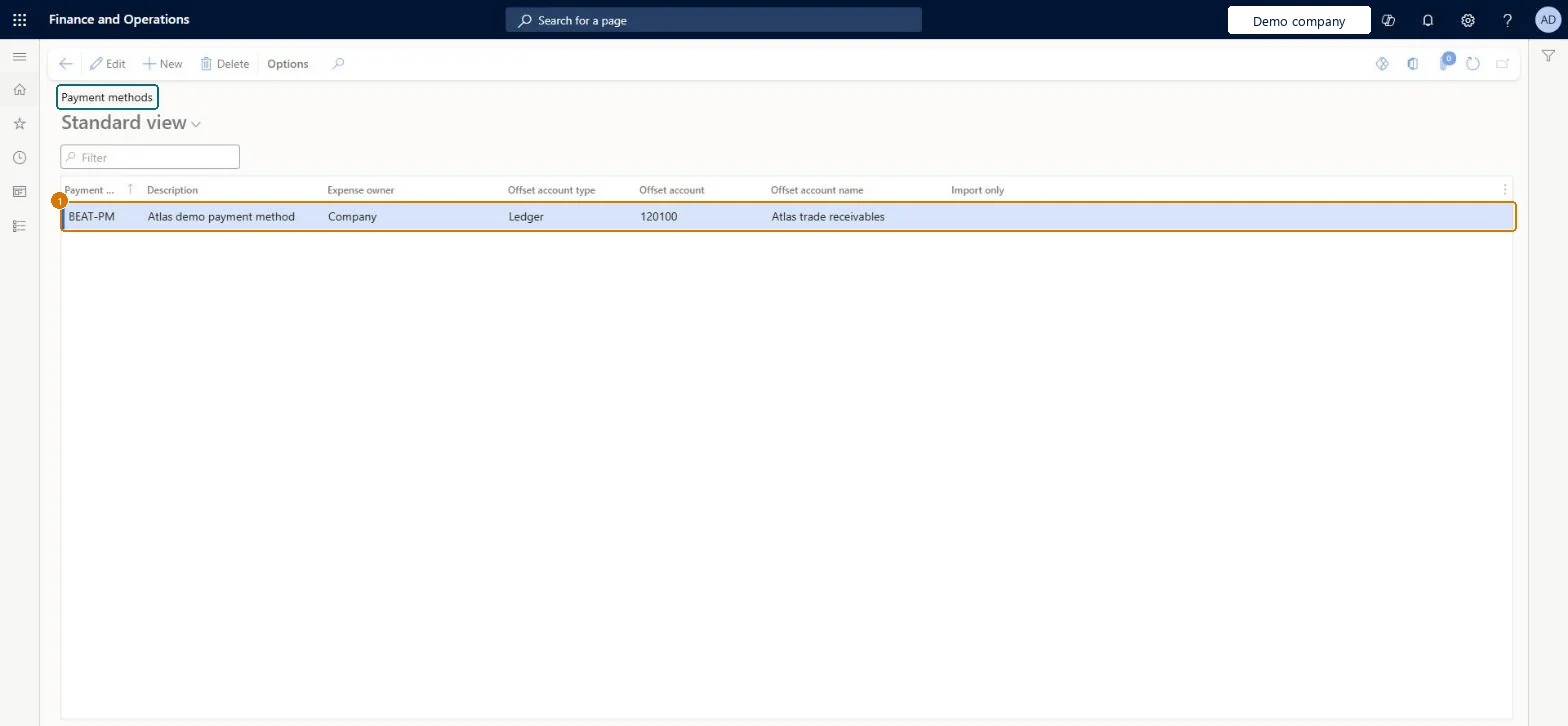
1Payment method
BEAT-PM
Description
Payment method
Expense owner
Company
Offset account type
Ledger
Offset account
120100
Show the full screen page title tab to open what to set or check
Steps from Microsoft
Go to Expense management > Setup > General > Payment methods.
Select New and enter the payment method and description.
Set the Expense owner: Company for corporate cards and company-paid items, Employee for out-of-pocket expenses.
Set the Offset account type and Offset account when the method needs one, such as a card clearing account.
Turn on Import only for corporate card methods that should be used only with imported transactions.
Who owns expenses paid this way: the company (for example a corporate card) or the employee (out of pocket). Cash advances work only with Employee.Microsoft Learn
One payment method per way employees pay (for example cash, corporate card, personal card), with Expense owner = Employee on any method used for expenses settled against cash advancesLearn lists the payment-method decisions (allowed methods, expense owner, offset account, import only for cards) and states that cash advances apply only when the payment method has Employee as the expense owner.
Ability to post expense liability in vendor currency for cash payment method (Recommended)
Licence or add-in
In this system Employee and Contractor enter their own expenses, and Expense administrator sets up the module and processes documents. The expense mobile app needs the Employee role, a company on the user account and a link to an employee with active employment. The expense administrator maintains payment methods.
Hard to reverse: Payment methods are referenced as the Default payment method and Allowed payment methods on every expense category, so a change or removal must be followed through on the categories.
If you change it later
The expense owner and offset account decide what posting creates: an employee-owned method creates an amount owed to the employee, while a company-owned method with an offset account posts against that account. Cash advances are reduced only by employee-owned methods. Microsoft Learn
Technical architect
6Technical
Menu item
TrvPaymethodChecked in Dynamics 365
Form
TrvPaymethodChecked in Dynamics 365
Table
TrvPayMethodShown as “Payment method” in Record infoChecked in Dynamics 365
PrivilegesMaintain payment methods TrvPaymethodMaintainView payment methods TrvPaymethodViewDutiesMaintain Reference entity data for data management DataManagementApplicationReferenceEntitiesMaintainView Reference entity data for data management DataManagementApplicationReferenceEntitiesViewEnable expense management process TrvTravelAndExpenseProcessEnableInquire into expense management reference data TrvTravelAndExpenseReferenceDataInquireMaintain travel requisitions and expenses TrvTravelRequestsAndExpensesMaintain8 security rolesBusiness Performance Planning app role BPPBudgetPlanningAppRoleData management administrator DataManagementAdministratorData management migration user DataManagementMigrationUserExpense administrator ExpenseAdministratorContractor HcmContractorEmployee HCMEmployeeDemand planning app role ScpDemandPlanningAppRoleInformation technology manager SysServerITManagerChecked in Dynamics 365
Roles to set it up and use it
To set it up or change itExpense administrator ExpenseAdministratorInformation technology manager SysServerITManagerBusiness Performance Planning app role BPPBudgetPlanningAppRoleData management migration user DataManagementMigrationUserDemand planning app role ScpDemandPlanningAppRoleTo use itContractor HcmContractorEmployee HCMEmployeeGive people one of these roles. On this system, 8 roles can open this page.Checked in Dynamics 365
Actions on the page
Options: Personalize, Page options, ShareChecked in Dynamics 365
TrvPayMethodEntity (Expense payment method): loaded for each company, in Microsoft's default template 600 - Expense.Load order: Microsoft's default template 600 - Expense loads Expense payment method at execution unit 1, level 600, sequence 10. Lower levels load first, and entities at the same level load in sequence order.Load first: the default templates at lower levels (System setup to Retail)Microsoft Learn
Checked in a working Dynamics 365 system, version 10.0.49: the menu item, form, table and security, the page, the demo records and the values in the screenshots.
To cite this step: EM-SETUP-070, Set up Payment methods. Beyond ERP Atlas Hub, 2026-11-11. https://www.beyonderp.cloud/atlas/step/EM-SETUP-070