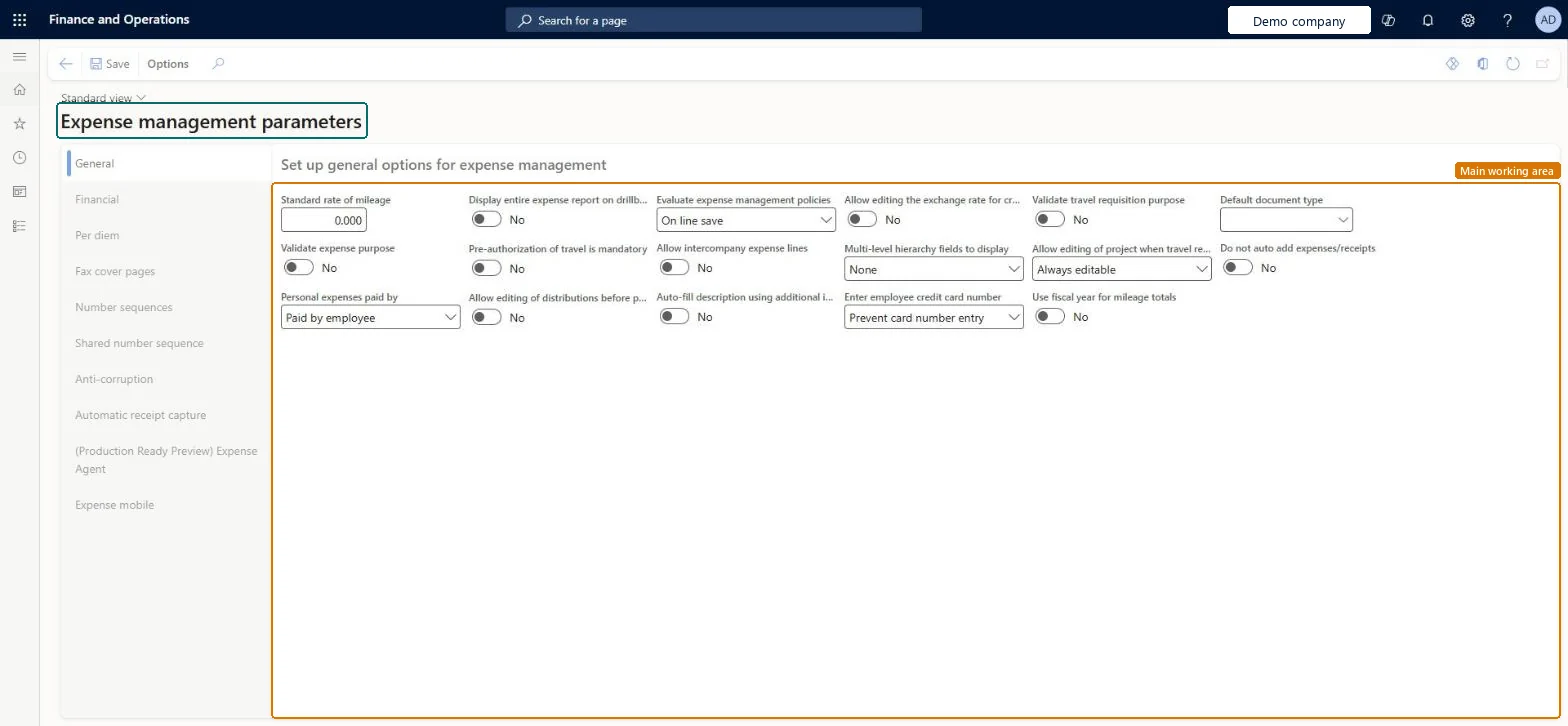
Setup step on the Expense management parameters page · Expense management
Set up Expense management parameters
Use this page to set defaults across the module, such as the mileage rate, posting journal, tax recovery, per diem rules, number sequences and anti-corruption messages.
Auditor, Business Performance Planning app role, Data management administrator and 6 more roles
Business process
Develop people strategy
Menu item
TrvParameters
Main table
TrvParameters
Data entity
TrvExpenseParametersEntity
Setup steps
1 on this page
Show what matters for
SETUP GUIDEHow to set it up8 sections. Choose a role to highlight what matters to you.
Everyone
1What it is and why
What it is
A setup page that holds the main settings for Expense management.
What you do here
Use this page to set defaults across the module, such as the mileage rate, posting journal, tax recovery, per diem rules, number sequences and anti-corruption messages.
Example
For example, if employees get a complimentary breakfast, the per diem can be reduced by 10 percent through the breakfast reduction setting.
The page in Dynamics 365. page title tab to open what to set or check
About the examples: Examples and screenshots in this guide use BEAT, a demo company in a Dynamics 365 test environment. Use your own company's codes and values instead of copying them.
Step by step, with screenshots
Set up Expense management parameters1 screen
Use this page to set defaults across the module, such as the mileage rate, posting journal, tax recovery, per diem rules, number sequences and anti-corruption messages.
Screen 1
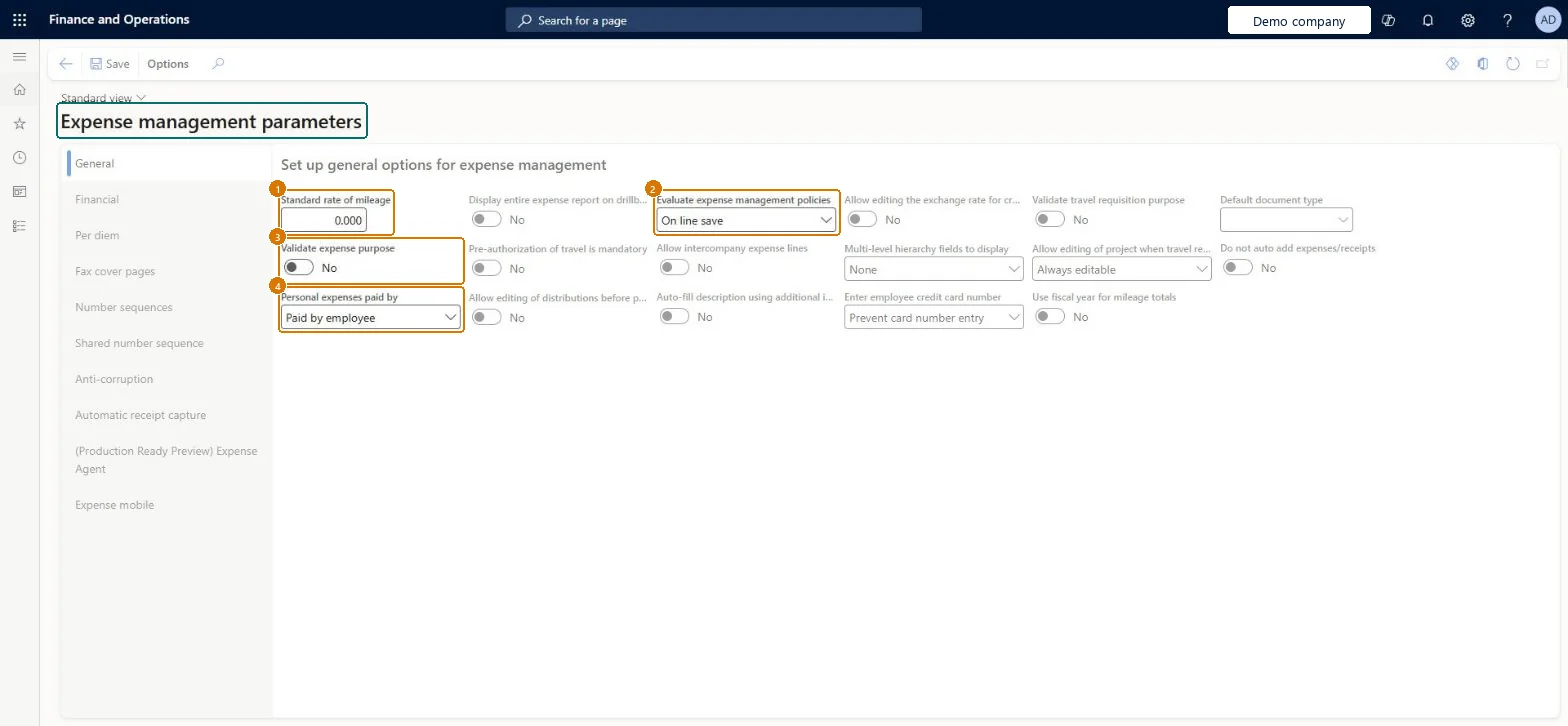
Review the expense management parameters
Go to Expense management > Setup > General > Expense management parameters
Open the page and review the General tab
Use the other tabs to set the posting, per diem, number sequence and anti-corruption defaults
1Standard rate of mileage
0.000
2Evaluate expense management policies
On line save
3Validate expense purpose
No
4Personal expenses paid by
Paid by employee
Show the full screen page title tab to open what to set or check
Steps from Microsoft
Go to Expense management > Setup > General > Expense management parameters.
Select the Per diem tab.
In the Calculate meal reduction by field, select Meal type per trip, Meal type per day or Number of meals per day.
Shows the anti-corruption text when an expense report is created.Microsoft Learn
UseAntiCorruption
Enter employee credit card number
Whether a 15- or 16-character Card ID can be saved on an employee's Credit cards page.Microsoft Learn
16
Enable posting of expenses on posting date
Posts expenses with the expense report's posting date (from 10.0.45); with Correct accounting date during posting on, a closed period moves to the first date of the next open period.Microsoft Learn
Allow expense report submit on budget overrun for budget register and project budget
Lets employees submit reports that go over the budget register or project budget.Microsoft Learn
Common errors and fixes
Message
What to do
Posting fails because the accounting date is in a period that is on hold or closed
Turn on Correct accounting date during posting on the Financial tab of Expense management parameters, so the date moves to the next open period, or open the period. Microsoft Learn
Enable tax recovery from expenses can't be selected
It can't be used when US sales tax and use tax rules are enabled. Decide on tax recovery before you turn on the US sales tax rules. Microsoft Learn
Card numbers can't be saved on the employee's Credit cards page
Enter employee credit card number sets whether a 15- or 16-character Card ID is accepted. Match it to the card provider. Microsoft Learn
Submit or approval is blocked because the expense goes over the budget
Check the budget. The parameters Allow expense report submit on budget overrun and Allow expense report approval on budget overrun decide whether employees and approvers may continue. Microsoft Learn
Test checklist
Set Ledger daily journal name and Correct accounting date during posting = Yes.
Put the current period on hold, then approve and post an expense report dated in it.
Check the voucher date moved to the next open period.
Approve a cash advance, run Pay and transfer and check a posted voucher or an unposted journal according to Post cash advances immediately.
Set the Ledger daily journal name, Correct accounting date during posting = Yes, Evaluate expense management policies = on line save, and decide tax recovery and intercompany before the first report is entered.These parameters decide where reports post, what happens in a closed period, when employees see policy messages, and whether tax recovery and intercompany lines are possible; tax recovery can't be turned on once US sales tax rules are used.
BEAT uses number sequence Trav_5. Checked in Dynamics 365
Tax recovery number
Per company
BEAT uses number sequence Trav_9. Checked in Dynamics 365
Voucher
Per company
BEAT uses number sequence Trav_13. Checked in Dynamics 365
Invoice
Per company
BEAT uses number sequence Trav_17. Checked in Dynamics 365
Expense report number
Per legal entity
BEAT uses number sequence Trav_22. Checked in Dynamics 365
Travel requisition number
Per legal entity
BEAT uses number sequence Trav_26. Checked in Dynamics 365
Itemization group
Shared
ExpenseItemizationGroupId, shared across all legal entities and shown on the Shared number sequence tab; BEAT uses Trav_1. Microsoft Learn
Feature management and licence
Feature to turn on
Enable number sequence configuration in the Expense parameters form (Optional)Expense reports reimagined (Optional)
Licence or add-in
In this system Employee and Contractor enter their own expenses, and Expense administrator sets up the module and processes documents. The expense mobile app needs the Employee role, a company on the user account and a link to an employee with active employment. The expense administrator maintains the parameters. From 10.0.45 the Number sequence and Shared number sequence tabs show the expense number sequences here; they don't change how sequences are used.
Reversible: Parameters apply to expense reports, cash advances and postings processed after the change; posted expenses keep their accounting dates and journals.
If you change it later
Enable tax recovery from expenses can't be turned on when US sales tax and use tax rules are enabled. Microsoft Learn
Technical architect
6Technical
Menu item
TrvParametersChecked in Dynamics 365
Form
TrvParametersChecked in Dynamics 365
Table
TrvParametersShown as “Parameters” in Record infoChecked in Dynamics 365
PrivilegesMaintain parameter settings for expense management TrvParametersMaintainView parameter settings for expense management TrvParametersViewDutiesMaintain Parameters entity data for data management DataManagementApplicationParametersEntitiesMaintainView Parameters entity data for data management DataManagementApplicationParametersEntitiesViewExpenseAgentDutyExpenseAgentV2DutyInquire into expense management policies TrvTravelAndExpensePoliciesInquireEnable expense management process TrvTravelAndExpenseProcessEnableInquire into expense management reference data TrvTravelAndExpenseReferenceDataInquireMaintain travel requisitions and expenses TrvTravelRequestsAndExpensesMaintain10 security rolesAuditor AuditPolicyManagerBusiness Performance Planning app role BPPBudgetPlanningAppRoleData management administrator DataManagementAdministratorData management migration user DataManagementMigrationUserExpense administrator ExpenseAdministratorExpenseAgentRoleContractor HcmContractorEmployee HCMEmployeeDemand planning app role ScpDemandPlanningAppRoleInformation technology manager SysServerITManagerChecked in Dynamics 365
Roles to set it up and use it
To set it up or change itExpense administrator ExpenseAdministratorInformation technology manager SysServerITManagerBusiness Performance Planning app role BPPBudgetPlanningAppRoleData management migration user DataManagementMigrationUserDemand planning app role ScpDemandPlanningAppRoleTo use itContractor HcmContractorEmployee HCMEmployeeExpenseAgentRole ExpenseAgentV2Role Auditor AuditPolicyManagerGive people one of these roles. On this system, 11 roles can open this page.Checked in Dynamics 365
Actions on the page
Options: Personalize, Page options, Edit, ShareChecked in Dynamics 365
TrvExpenseParametersEntity (Expense management parameters): loaded for each company, in Microsoft's default template 600 - Expense.Load order: Microsoft's default template 600 - Expense loads Expense management parameters at execution unit 1, level 600, sequence 10. Lower levels load first, and entities at the same level load in sequence order.Load first: the default templates at lower levels (System setup to Retail)Microsoft Learn
Checked in a working Dynamics 365 system, version 10.0.49: the menu item, form, table and security, the page, the demo records and the values in the screenshots.
To cite this step: EM-SETUP-020, Set up Expense management parameters. Beyond ERP Atlas Hub, 2026-11-11. https://www.beyonderp.cloud/atlas/step/EM-SETUP-020