SETUP GUIDEHow to set it up8 sections. Choose a role to highlight what matters to you.
Everyone
1What it is and why
What it is
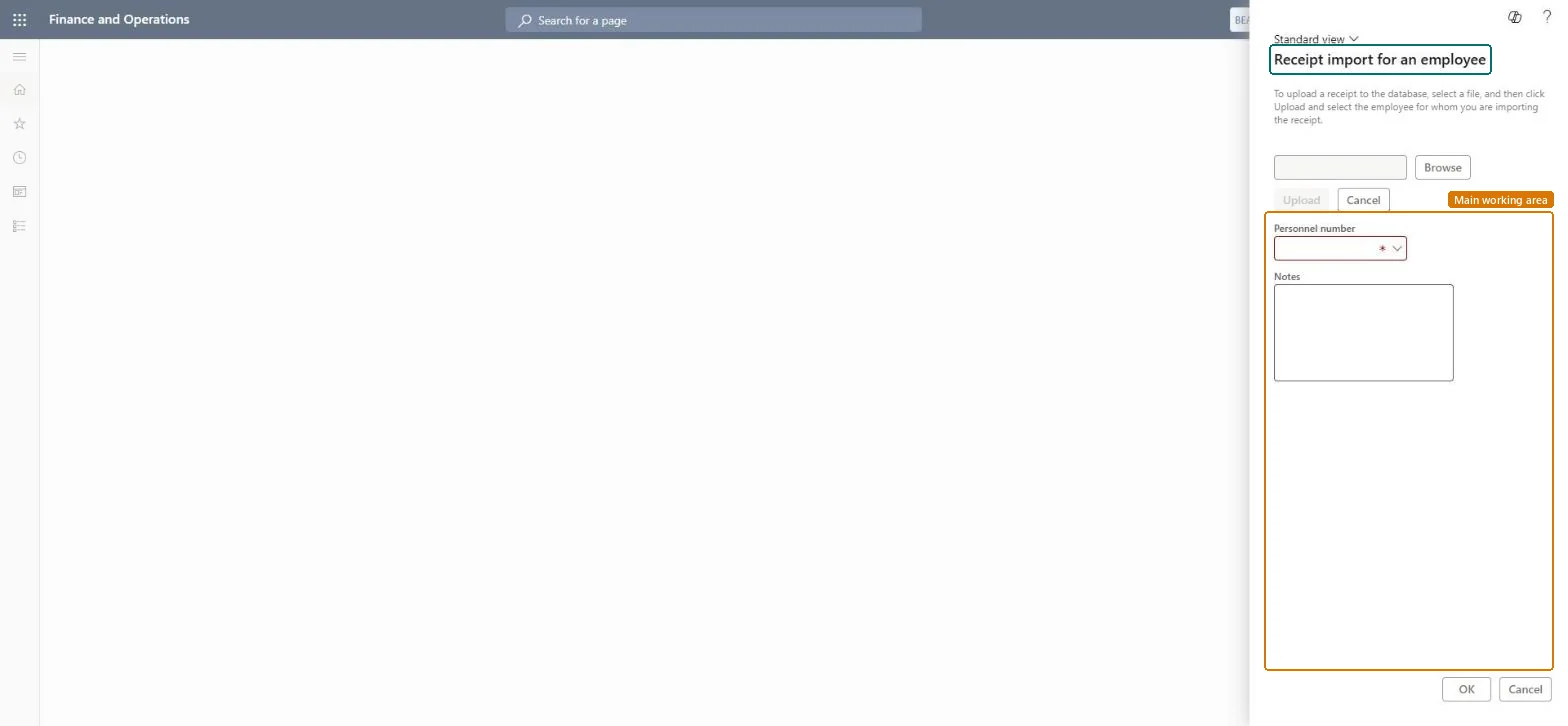
A periodic job that imports a batch of receipts, such as faxed receipts with a bar-code cover page, for one employee across several of their expense reports.
What you do here
Use this job when the company still collects receipts by fax with the cover page set on the Fax cover pages tab of the parameters; receipts are mostly uploaded from the workspace or the mobile app today.
Example
For example, a consultant who travelled for three weeks faxes all receipts with one cover page; the import attaches them across the consultant's three expense reports.
The page in Dynamics 365. page title tab to open what to set or check
About the examples: Examples and screenshots in this guide use BEAT, a demo company in a Dynamics 365 test environment. Use your own company's codes and values instead of copying them.
When to run it
When to run it
When an employee sends in a batch of receipts that cover several of their expense reports.
How often
On demand, or on a recurrence when receipts arrive regularly.
Batch settings
Use the Batch tab and Recurrence when receipt files arrive on a fixed schedule.
What the output shows
Receipts attached for the employee across their expense reports. A receipt that is missing usually could not be matched to the employee.
The receipt file to import for the employee.Checked in Dynamics 365
Batch (tab)
Runs the import as a batch job, with a recurrence when files arrive regularly.Checked in Dynamics 365
Common errors and fixes
Message
What to do
A receipt isn't attached
The cover page bar code must carry the employee's identifier (User ID on the Fax cover pages tab). Attach the receipt by hand, or upload it from the workspace. Microsoft Learn
Test checklist
Set the fax instructions and bar code on the parameters.
Import a test receipt file for an employee with two draft reports.
Check the receipts are attached to the right reports.
Check a receipt that can't be matched is reported.
Use it only where fax receipts are still part of the process; otherwise switch employees to upload or the mobile app.Receipts uploaded in the workspace or the app are matched to expenses directly, and OCR can read them; fax import has none of that.
In this system Employee and Contractor enter their own expenses, and Expense administrator sets up the module and processes documents. The expense mobile app needs the Employee role, a company on the user account and a link to an employee with active employment. The expense administrator runs this job. No Feature management feature is needed.
Per company: receipts are attached to the employee's expense reports in the current legal entity. Checked in Dynamics 365
Can it be undone
Reversible: Imported receipts can be removed from the reports before they are submitted.
If you change it later
The fax cover page carries a bar code (39 or 128) with the employee's identifier when User ID (Bar code information) is on; that is how the receipts are matched to the employee. Microsoft Learn
Technical architect
6Technical
Menu item
TrvReceiptImportForEmployeeChecked in Dynamics 365
Form
TrvReceiptImportChecked in Dynamics 365
Roles to set it up and use it
To set it up or change itExpense administrator ExpenseAdministratorGive people one of these roles. On this system, 1 role can open this page.Checked in Dynamics 365
Load order: The job has no data entity in Data management, so it can't be loaded from a file or a configuration template. It processes data that is already in the system and keeps only its batch settings; set up and schedule it again in each environment.Microsoft Learn
Checked in a working Dynamics 365 system, version 10.0.49: the menu item, form, table and security, the page.
To cite this step: EM-JOB-060, Import faxed receipts for an employee. Beyond ERP Atlas Hub, 2026-11-11. https://www.beyonderp.cloud/atlas/step/EM-JOB-060