SETUP GUIDEHow to set it up8 sections. Choose a role to highlight what matters to you.
Everyone
1What it is and why
What it is
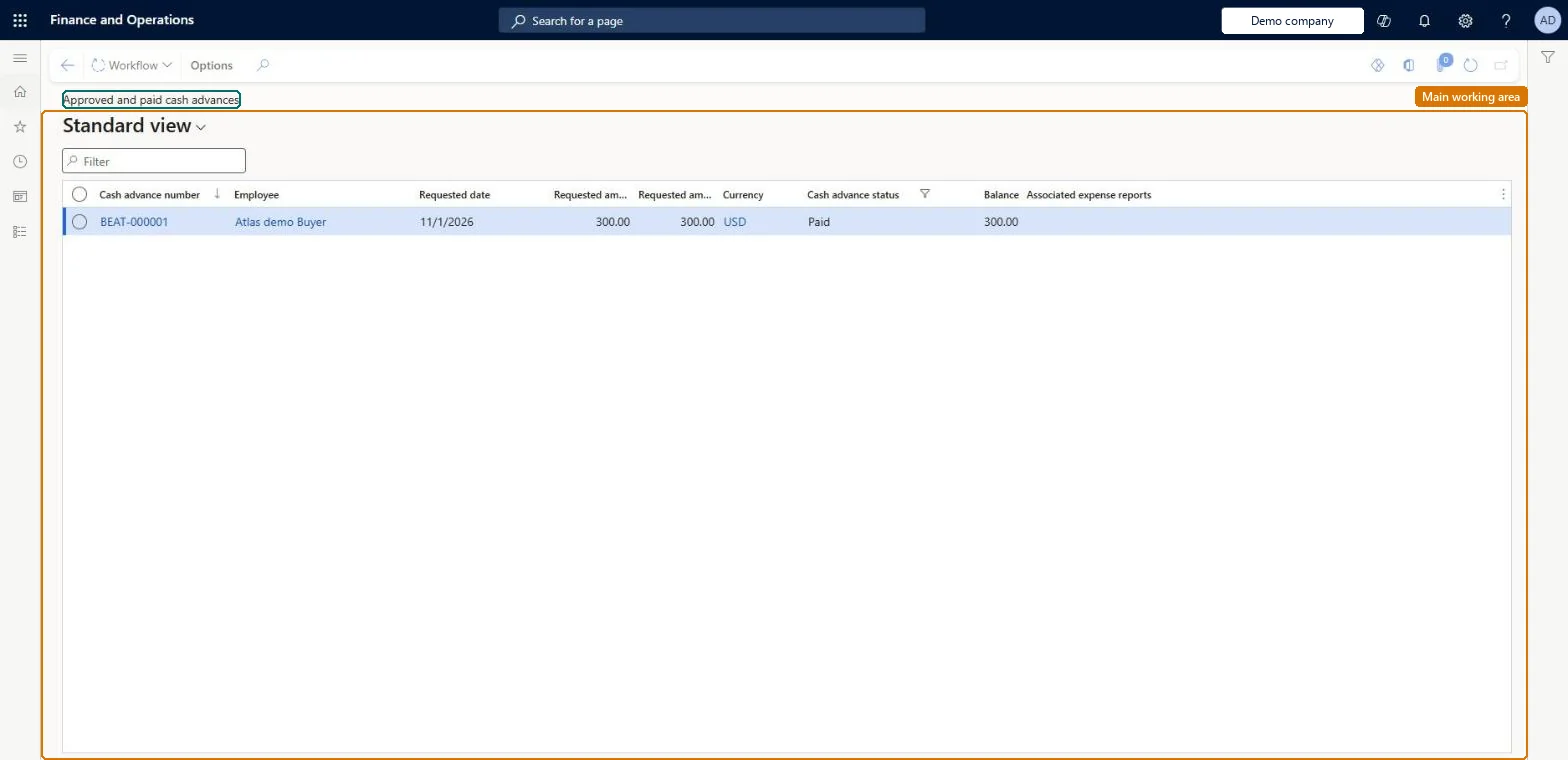
An inquiry that lists cash advances that have been approved and paid to employees.
What you do here
Use this page to see which advances employees are holding, so you can check that they are settled by expense reports or returned.
Example
For example, before an employee's last day, the expense administrator filters this list on the employee and finds a 500.00 USD advance from a trip that still has 120.00 USD to be returned with the Return cash category.
The page in Dynamics 365. page title tab to open what to set or check
About the examples: Examples and screenshots in this guide use BEAT, a demo company in a Dynamics 365 test environment. Use your own company's codes and values instead of copying them.
When to run it
When to run it
Before period end and before an employee leaves, to find advances not yet settled.
How often
Monthly, and when an employee leaves.
What the output shows
Paid advances and how much of each is settled. A balance that stays open needs an expense report or a Return cash line.
The number of the request, from the Cash advance number sequence.Microsoft Learn
Amount
The amount the employee asked for, in the request currency.Microsoft Learn
3,000.00
Currency
The currency of the request; a returned balance must be in this currency.Microsoft Learn
USD
Common errors and fixes
Message
What to do
You do not have access to enter cash advances because you are not mapped to an employee record. Contact your manager or support team for assistance.
Link the user to an employee with active employment and set a company on the user account. In the live system the pages under My expenses, Process expense reports and Process cash advances showed this message for a user with no employee record. Checked in Dynamics 365
An advance stays open although the trip is reported
Only lines with a payment method whose expense owner is the employee reduce an advance. Correct the payment method, or return the balance with Return cash. Microsoft Learn
Test checklist
Pay a test advance with Pay and transfer.
Check it appears on Approved and paid cash advances.
Submit an expense report paid with Cash for part of the amount.
Check the advance balance is reduced by that amount.
Review the list monthly and when an employee leaves; chase any advance older than the trip plus the reporting deadline.An advance is an amount the employee owes the company until expense reports or Return cash settle it.
Ability to map cash advances to expense lines (Optional)(Preview) Manage cash advance rate adjustments (Optional)
Licence or add-in
In this system Employee and Contractor enter their own expenses, and Expense administrator sets up the module and processes documents. The expense mobile app needs the Employee role, a company on the user account and a link to an employee with active employment. The expense administrator and accounts payable follow up paid advances.
Per company: advances are paid and settled in the legal entity of the employee. Microsoft Learn
Can it be undone
Reversible: The inquiry changes no data.
If you change it later
The page only lists paid advances. Expense reports paid with an employee-owned payment method reduce them; Return cash clears what is left. Microsoft Learn
Technical architect
6Technical
Menu item
TrvCashAdvancesApprovedPaidChecked in Dynamics 365
Data entities
TrvCashAdvanceEntityCash advances Checked in Dynamics 365
Roles to set it up and use it
To set it up or change itExpense administrator ExpenseAdministratorGive people one of these roles. On this system, 1 role can open this page.Checked in Dynamics 365
TrvCashAdvanceEntity data entity Checked in Dynamics 365
Data migration
TrvCashAdvanceEntity (Cash advances): only advances still open at cutover.Load order: Settle advances before cutover where you can; load the open ones after employees and cash advance accounts.Load first: Employees, Cash advance accountsMicrosoft Learn