SETUP GUIDEHow to set it up8 sections. Choose a role to highlight what matters to you.
Everyone
1What it is and why
What it is
A setup page where you design a custom, editable Excel workbook from a data entity and a chosen set of its fields.
What you do here
Use this page to build Excel workbooks that users can open, edit and publish data back from, and to create blank documents for building Word templates.
Example
For example, BEAT's finance team needs to update payment terms on 300 vendors. An administrator selects the vendor entity, adds the key fields, the mandatory fields and Payment terms, creates the workbook, and the team edits the column in Excel and selects Publish.
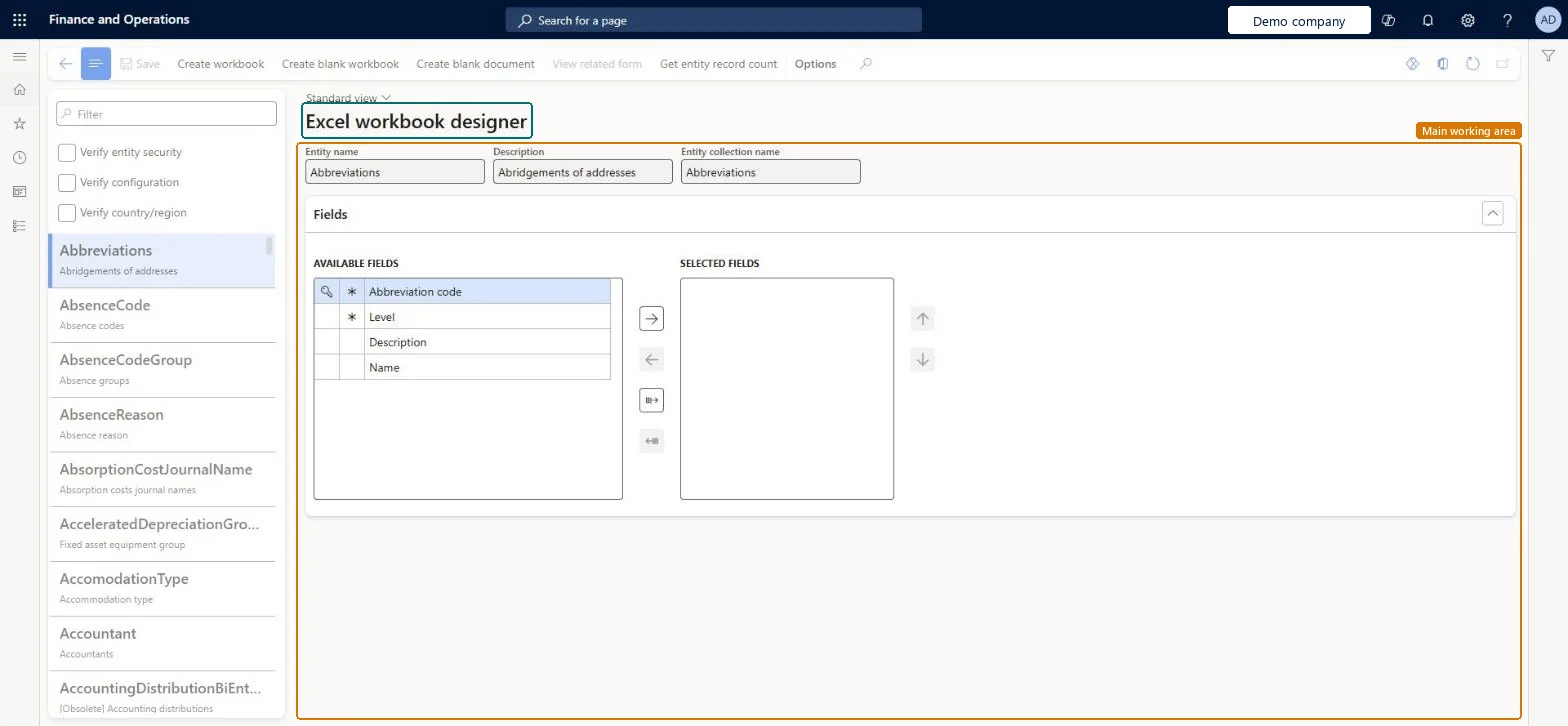
The page in Dynamics 365. page title tab to open what to set or check
About the examples: Examples and screenshots in this guide use BEAT, a demo company in a Dynamics 365 test environment. Use your own company's codes and values instead of copying them.
Setup steps on this page
Design an editable Excel workbook
Build a workbook from a data entity so users can edit data in Excel and publish it back.
Steps from Microsoft
Go to Common > Common > Office integration > Excel workbook designer.
Select the entity and the fields to include in the Excel table.
Make sure all key fields, marked with a key symbol, are included so that edits can be published.
Include all mandatory fields, marked with an asterisk, so records can be created or updated.
Opens the page that shows the data the entity exposes. It's available only for entities that are linked to a page.Microsoft Learn
Opens the vendors page for the vendor entity.
Create workbook
Creates an Excel workbook bound to the selected entity and fields.Microsoft Learn
Create blank document
Creates a blank document to start a Word template.Microsoft Learn
Common errors and fixes
Message
What to do
Publish fails for edited rows
Add all key fields (marked with a key symbol) and, for new records, all mandatory fields (marked with an asterisk) to the workbook, then create it again. Microsoft Learn
Test checklist
Select an entity, add all key fields (key symbol) and mandatory fields (asterisk) plus the fields you need, and select Create workbook.
Open the workbook, select Enable editing and check the data loads.
Change a value, select Publish and check the Messages dialog shows one record edited.
Refresh the record in the browser and check the new value is shown.
Remove a key field from the design, edit a value and check that publishing is refused.
Always include every key field and every mandatory field, then the fields to editPublish needs the key fields to find records and the mandatory fields to create them.
On the live system, these roles can open the page: System user, TestEssentialsRole.
Checked in Dynamics 365
Solution architect
5Design impact
Shared or per company
The designer works on one data entity at a time; the workbook it creates reads and publishes data through that entity. Microsoft Learn
Can it be undone
Reversible: The design can be changed and created again; data published from the workbook is changed in the system.
If you change it later
Edits can be published back only when all the entity's key fields are in the Excel table, and new or updated records need all mandatory fields. Microsoft Learn
Technical architect
6Technical
Menu item
ExportToExcelWorkbookDesignerChecked in Dynamics 365
Form
ExportToExcelWorkbookDesignerChecked in Dynamics 365
Table
ExportToExcelEntityListTmpShown as “Data entities” in Record infoChecked in Dynamics 365
Who can open it
PrivilegesOpen in Microsoft Office ExportToExcel4 security rolesAifTestSecRoleEventTestRoleSystem user SystemUserTestEssentialsRoleChecked in Dynamics 365
Roles to set it up and use it
To set it up or change itSystem user SystemUserTestEssentialsRole Give people one of these roles. On this system, 2 roles can open this page.Checked in Dynamics 365
Actions on the page
Options: Personalize, Page options, Edit, ShareChecked in Dynamics 365
Load order: The Excel workbook designer has no data entity in Data management. The designer stores no setup; it creates a workbook from an existing data entity. Keep the workbook file and load it as a document template if others need it.Microsoft Learn