SETUP GUIDEHow to set it up8 sections. Choose a role to highlight what matters to you.
Everyone
1What it is and why
What it is
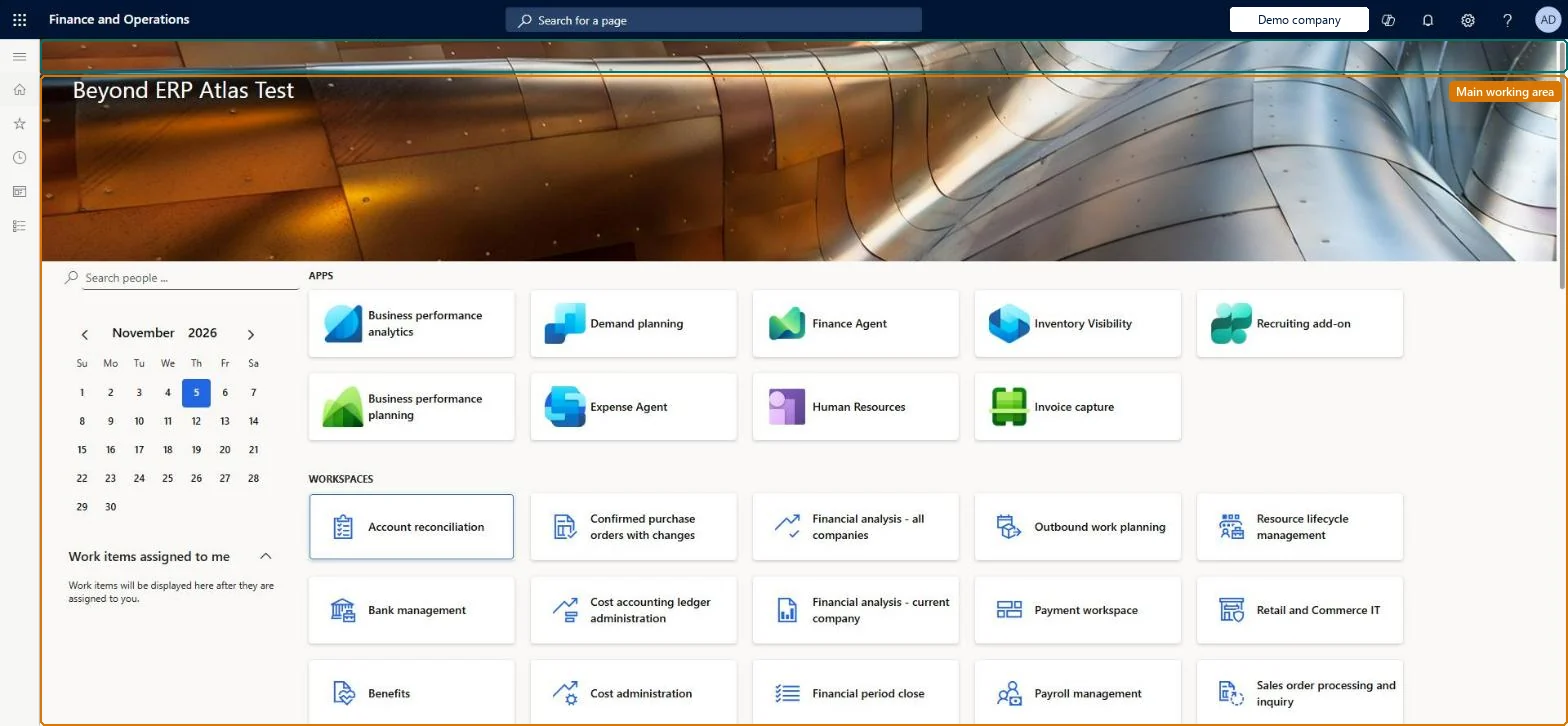
A home page that each user sees as their initial page by default, with tiles and lists that lead to workspaces and other pages.
What you do here
Use this page to get to the apps and workspaces you have access to, set the session date, and see the workflow work items assigned to you.
Example
For example, a BEAT accounts payable clerk pins the count of vendor invoices waiting for approval from a workspace to the dashboard, so every morning the number shows on the workspace tile without opening the workspace.
The page in Dynamics 365. page title tab to open what to set or check
About the examples: Examples and screenshots in this guide use BEAT, a demo company in a Dynamics 365 test environment. Use your own company's codes and values instead of copying them.
Setup steps on this page
Pin the counts each role needs to the dashboard
Make the dashboard show each role's daily work without opening workspaces.
Steps from Microsoft
Go to Common > Common > Default dashboard.
Open the workspace that holds the information you want to pin.
Pin one or two workspace counts per role, such as items waiting for approvalPinned counts show on the workspace tile on the dashboard, so the user sees the work before opening anything.
On the live system, these roles can open the page: System user, TestEssentialsRole, Retail store IT, Information technology manager, System external user.
Checked in Dynamics 365
Solution architect
5Design impact
Shared or per company
Per user: pinned tiles are personalizations, and the dashboard shows the workspaces of the user's own roles for the current legal entity. Microsoft Learn
Can it be undone
Reversible: Clearing Pin to dashboard removes the count again.
If you change it later
Customizing the dashboard changes which components are shown; users only see workspaces and apps they have permission to open. Microsoft Learn
Technical architect
6Technical
Menu item
DefaultDashboardChecked in Dynamics 365
Form
DefaultDashboardChecked in Dynamics 365
Roles to set it up and use it
To set it up or change itSystem user SystemUserTestEssentialsRole Retail store IT RetailStoreITInformation technology manager SysServerITManagerSystem external user SystemExternalUserGive people one of these roles. On this system, 7 roles can open this page.Checked in Dynamics 365
Developer
7Developer
Open it by URL
https://<your-environment>/?mi=DefaultDashboard
Data migration
Load order: The Default dashboard has no data entity in Data management. Pinned tiles are user personalizations; move them with the personalization export and import on User options, or let users pin them again.Checked in Dynamics 365
Checked in a working Dynamics 365 system, version 10.0.49: the menu item, form, table and security, the page.
To cite this step: CMN-DASH-010, Pin the counts each role needs to the dashboard. Beyond ERP Atlas Hub, 2026-11-11. https://www.beyonderp.cloud/atlas/step/CMN-DASH-010