Use corrective and preventative (CAPA) management module to enter and record details about CAPA cases in Dynamics 365 Supply Chain Management
Menu item
QMSActivitiesListPageMyActivities
Main table
smmActivities
Data entity
None for this page's own settings
Setup steps
1 on this page
Show what matters for
SETUP GUIDEHow to set it up8 sections. Choose a role to highlight what matters to you.
Everyone
1What it is and why
What it is
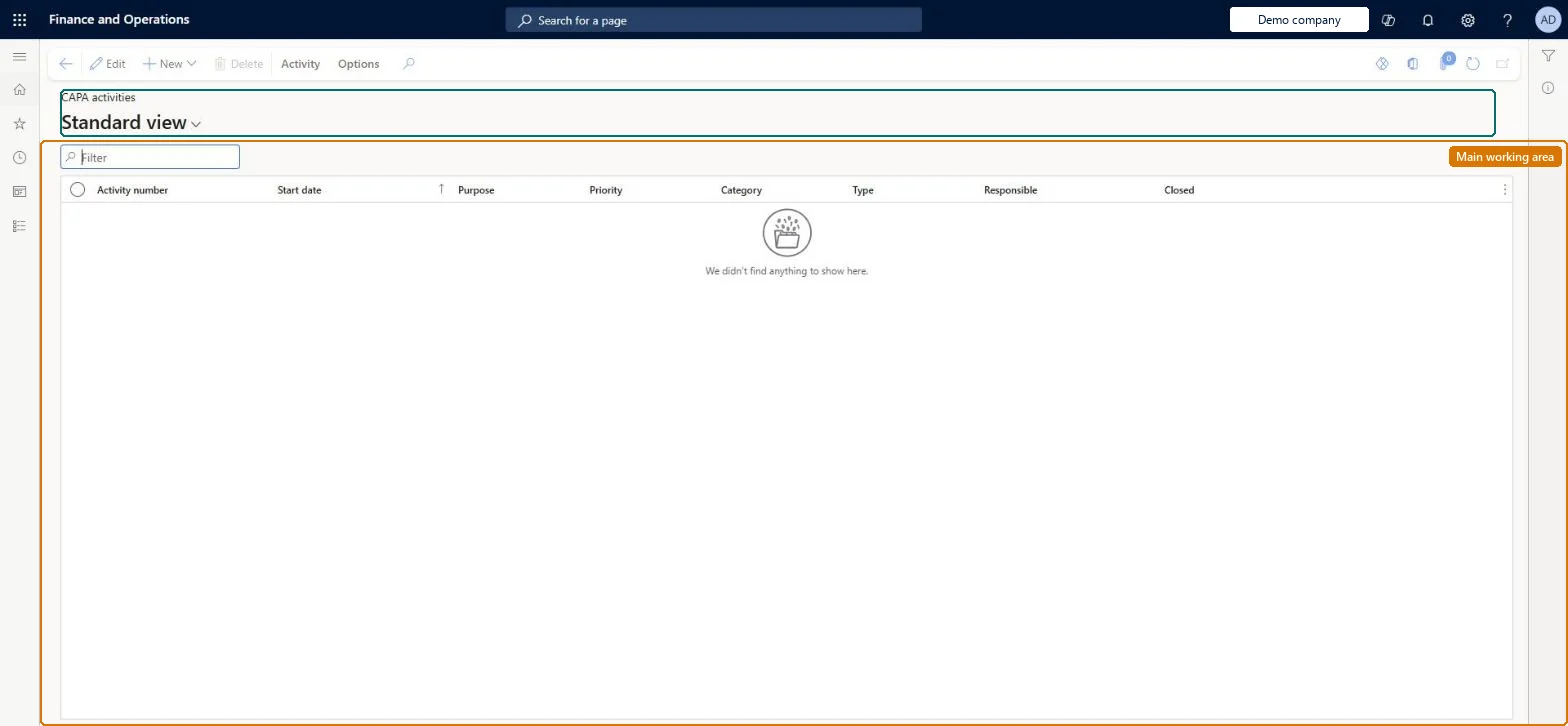
A list of the CAPA process activities that are assigned to you, directly or through your CAPA worker group.
What you do here
Use this page to track the CAPA activities you are responsible for, record your work, and mark them as complete.
Example
For example, a BEAT investigator assigned through the Supplier quality worker group opens My CAPA activities and sees 'Identify the problem' for case CAPA-000012, records the findings and sets it as complete.
The page in Dynamics 365. page title tab to open what to set or check
About the examples: Examples and screenshots in this guide use BEAT, a demo company in a Dynamics 365 test environment. Use your own company's codes and values instead of copying them.
Setup steps on this page
Work CAPA activities from My CAPA activities
Find and finish CAPA activities so cases can move through their stages.
Steps from Microsoft
Go to Common > Common > Activities > CAPA activities > My CAPA activities.
Use My CAPA activities to see the CAPA activities assigned to you, directly or through your CAPA worker group.
Read the Closed column to see which of your activities are finished.
Select Set as complete on the Activity tab when the work is done; when all mandatory activities of the stage are closed, change the case's stage.
Open each activity from the notification email or this list and record notes before closing itThe notes on the activity are the evidence the case's later stages and the audit rely on.
Per company: CAPA activities belong to CAPA cases of the legal entity (the Activities entity is not shared). Checked in Dynamics 365
Can it be undone
Hard to reverse: Closing the last mandatory activity lets the case change stage, which can't be reversed.
If you change it later
Closing the last mandatory activity of a stage lets the case move to its next stage, which can't be undone. Microsoft Learn
Technical architect
6Technical
Menu item
QMSActivitiesListPageMyActivitiesChecked in Dynamics 365
Form
smmActivitiesChecked in Dynamics 365
Table
smmActivitiesShown as “ACTIVITIES” in Record infoKey field: ActivityNumberChecked in Dynamics 365
Data entities
smmActivitiesEntityActivities (the activity records; CAPA activities are generated by the CAPA process, not loaded) Microsoft data model
Who can open it
PrivilegesView my CAPA activities QMSSmmActivitiesListPage_MyActivityViewMaintain my CAPA activities QMSSmmActivitiesListPage_MyActivMaintainDutiesMaintain CAPA activities QMSsmmActivitiesMaintain2 security rolesCAPA administrator QMSCAPAAdministratorCAPA updater QMSCAPAUpdaterChecked in Dynamics 365
Roles to set it up and use it
To set it up or change itCAPA updater QMSCAPAUpdaterCAPA administrator QMSCAPAAdministratorGive people one of these roles. On this system, 2 roles can open this page.Checked in Dynamics 365
Actions on the page
Activity: Maintain, Set up, Attachments(Action Pane without tabs): New, DeleteChecked in Dynamics 365
smmActivitiesEntity (Activities): loaded for each company.Load order: CAPA activities are generated by the CAPA process when a case reaches a stage; migrate open CAPA cases and let the process generate the activities.Load first: CAPA cases, CAPA process templatesMicrosoft Learn
Checked in a working Dynamics 365 system, version 10.0.49: the menu item, form, table and security, the page.
To cite this step: CMN-CAPAACT-020, Work CAPA activities from My CAPA activities. Beyond ERP Atlas Hub, 2026-11-11. https://www.beyonderp.cloud/atlas/step/CMN-CAPAACT-020