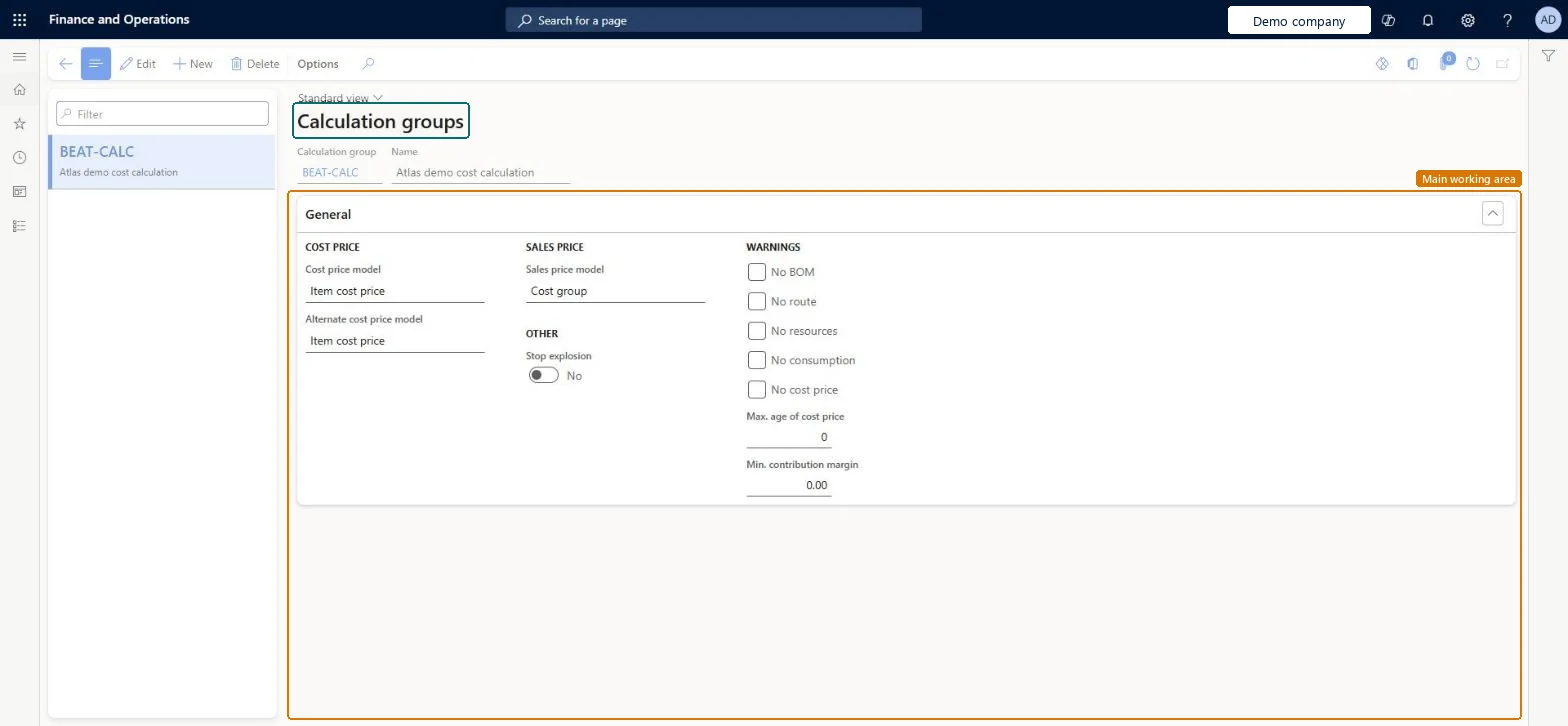
Setup step on the Calculation groups page · Cost management
Set up Calculation groups
Use this page to set how the cost and sales price of components are sourced in BOM calculations and which warnings users receive when they run a BOM calculation.
Product design manager, Inventory accountant, Inventory accountant clerk and 2 more roles
Business process
Define costing policies
Menu item
BOMCalcGroup
Main table
BOMCalcGroup
Data entity
CostCalculationGroupEntity
Setup steps
1 on this page
Show what matters for
SETUP GUIDEHow to set it up8 sections. Choose a role to highlight what matters to you.
Everyone
1What it is and why
What it is
A setup page where you define BOM calculation groups, which hold the cost price model, sales price model and warning conditions that BOM calculations use as default values.
What you do here
Use this page to set how the cost and sales price of components are sourced in BOM calculations and which warnings users receive when they run a BOM calculation.
Example
For example, you can enter 60 in Max. age of cost price so that a BOM calculation warns when a cost price has not been reevaluated for more than 60 days.
The page in Dynamics 365. page title tab to open what to set or check
About the examples: Examples and screenshots in this guide use BEAT, a demo company in a Dynamics 365 test environment. Use your own company's codes and values instead of copying them.
Setup steps on this page
Set up Calculation groups
Use this page to set how the cost and sales price of components are sourced in BOM calculations and which warnings users receive when they run a BOM calculation.
How to use it
Go to Cost management > Predetermined cost policies setup > Calculation groups.
Select New and enter a Calculation group and Name.
Under Cost price, select the Cost price model and, optionally, the Alternate cost price model.
Under Sales price, select the Sales price model, and set Stop explosion if needed.
Under Warnings, select the warning checkboxes and enter Max. age of cost price and Min. contribution margin.
Select Save.
Source: Checked in Dynamics 365
Fields on the page
Field
What it means
Table column
Cost price model
The source of a purchased component's cost contribution in the BOM calculation: Item cost price, Item purchase price, Trade agreements or Inventory price.Microsoft Learn
CostPrice
Alternate cost price model
A second cost price source that is used only when no price is found in the primary cost price model.Microsoft Learn
CostPriceAlt
Sales price model
How a suggested sales price is calculated: from the item sales price or from the cost price and the profit setting of the cost group.Microsoft Learn
SalesPrice
Stop explosion
Treats a manufactured item as a purchased item for cost roll-up in BOM calculations.Microsoft Learn
StopExplodePrice
No BOM
Warns when no active BOM version is found for a component or the parent item in the calculation.Microsoft Learn
The number of days after which a cost price should be reevaluated. A warning is given when the limit is reached.Microsoft Learn
CheckAgeCostPrice
Min. contribution margin
The percentage below which the contribution margin of a component triggers a warning.Microsoft Learn
CheckMinContribution
Test checklist
Create a calculation group with Cost price model, Alternate cost price model and Sales price model = Cost group, and select No BOM and No route warnings.
Set it as the default calculation group in Cost management parameters.
Run a BOM calculation for a manufactured item and check the warnings on the Complete page.
Set Max. age of cost price to 60 and check a warning for a component cost older than 60 days.
Assign a different group on one released product and check it overrides the default.
One default calculation group set in Cost management parameters (Inventory accounting > Calculation group), with extra groups only for items with special needs; leave Stop explosion cleared.A calculation group is required to run BOM calculation; the default covers all items and an item-level group overrides it. Learn says Stop explosion is typically left cleared.
Reversible: Calculation group settings are copied as defaults onto the BOM calculation page each time a calculation runs, and can be overridden there; past calculation results aren't changed.
Technical architect
6Technical
Menu item
BOMCalcGroupChecked in Dynamics 365
Form
BOMCalcGroupChecked in Dynamics 365
Table
BOMCalcGroupShown as “CALCULATION GROUPS” in Record infoChecked in Dynamics 365
PrivilegesMaintain BOM calculation groups BOMCalcGroupMaintainView BOM calculation groups BOMCalcGroupViewDutiesInquire into BOM calculations BOMBillsOfMaterialsCalcStatusInquireEnable BOM management process BOMBillsOfMaterialsMgmtProcessEnableEnable cost process InventCostCostProcessEnable5 security rolesProduct design manager BOMProductDesignManagerInventory accountant InventCostAccountantInventory accountant clerk InventCostCostClerkAccounting manager LedgerAccountingManagerProduction manager ProdProductionManagerChecked in Dynamics 365
Roles to set it up and use it
To set it up or change itAccounting manager LedgerAccountingManagerProduct design manager BOMProductDesignManagerTo use itInventory accountant InventCostAccountantInventory accountant clerk InventCostCostClerkProduction manager ProdProductionManagerGive people one of these roles. On this system, 5 roles can open this page.Checked in Dynamics 365
CostCalculationGroupEntity (Calculation groups): loaded for each company, in Microsoft's default template 300 - Inventory.Load order: Microsoft's default template 300 - Inventory loads Calculation groups at execution unit 1, level 30, sequence 10. Lower levels load first, and entities at the same level load in sequence order.Load first: the default templates at lower levels (System setup to General ledger)Microsoft Learn