Setup step on the Aging period definitions page · Credit and collections
Set up Aging period definitions
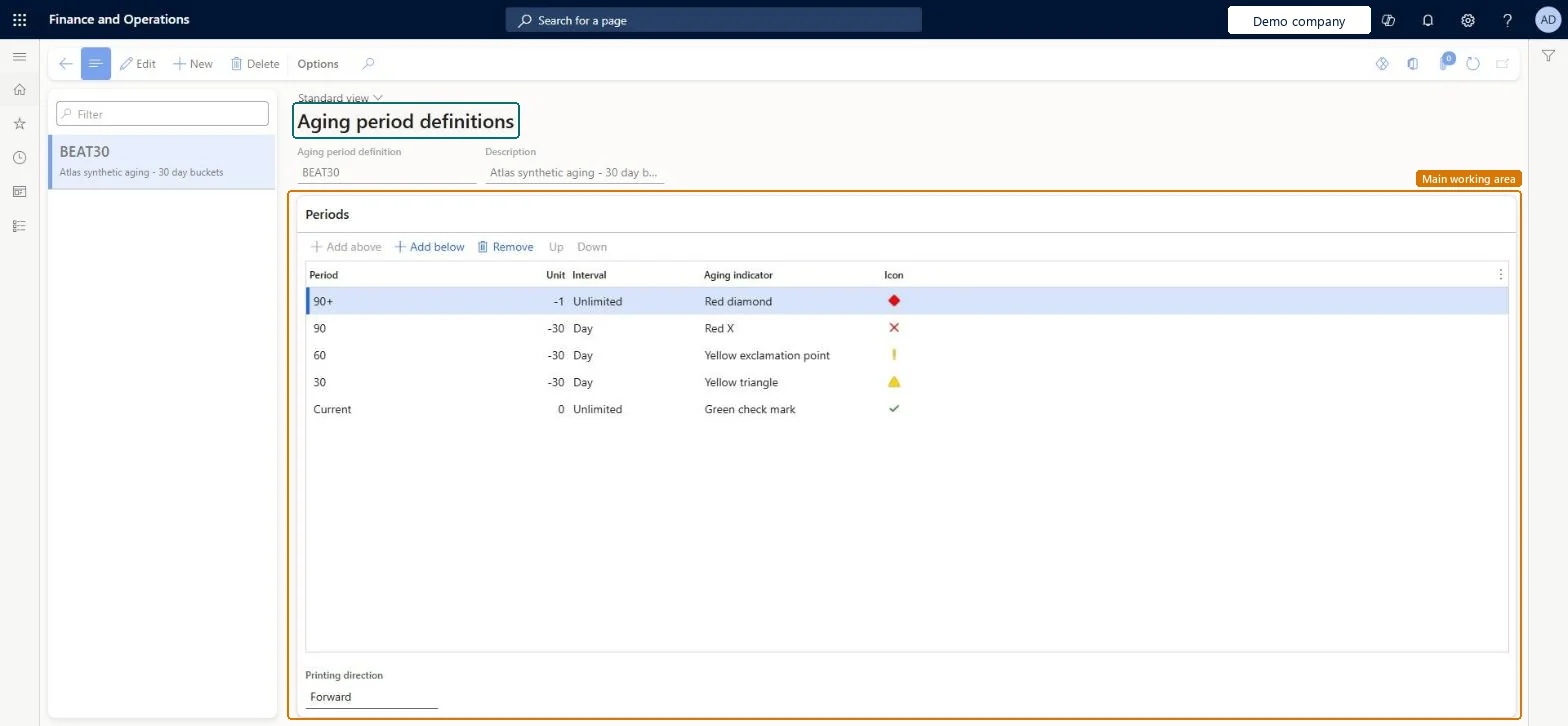
Use this page to set the aging periods that become the columns on the Aged balances, Collections activities and Collections cases list pages and on aging reports.
SETUP GUIDEHow to set it up8 sections. Choose a role to highlight what matters to you.
Everyone
1What it is and why
What it is
A setup page for aging period definitions, which are used to analyze how old customer and vendor balances are, based on a date you enter.
What you do here
Use this page to set the aging periods that become the columns on the Aged balances, Collections activities and Collections cases list pages and on aging reports.
Example
For example, you might use a green indicator for the current period, yellow for 30 days past due and red for 90 days past due.
The page in Dynamics 365. page title tab to open what to set or check
About the examples: Examples and screenshots in this guide use BEAT, a demo company in a Dynamics 365 test environment. Use your own company's codes and values instead of copying them.
Step by step, with screenshots
Set up Aging period definitions1 screen
Use this page to set the aging periods that become the columns on the Aged balances, Collections activities and Collections cases list pages and on aging reports.
Screen 1
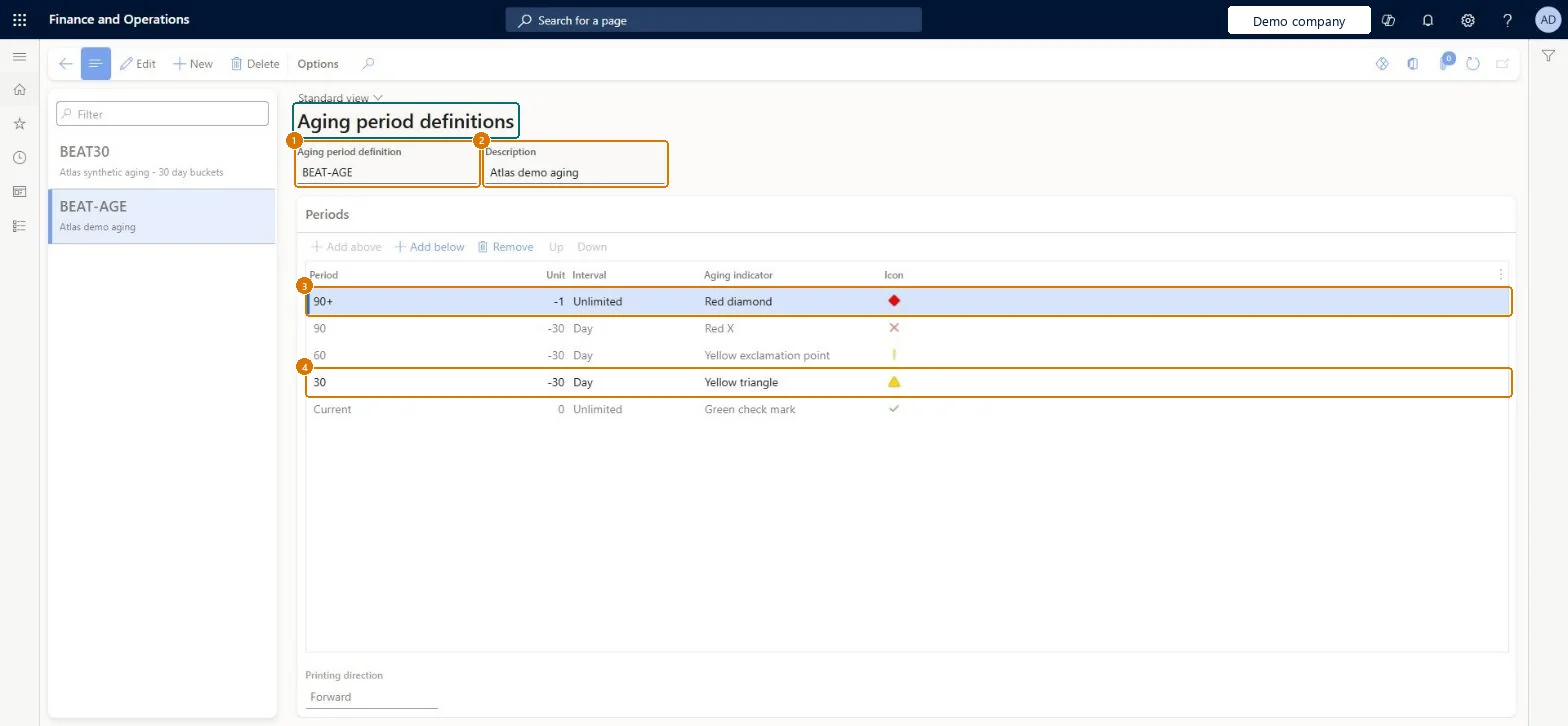
Create an aging period definition
Go to Credit and collections > Setup > Aging period definitions
Select New
Enter the definition code and description
Review the default periods and change the interval and aging indicator for each if needed
Select Save
1Aging period definition
BEAT-AGE
2Description
Aging
Periods
90+, 90, 60, 30 and Current (the defaults), 30 days apart
Show the full screen page title tab to open what to set or check
Steps from Microsoft
Go to Credit and collections > Setup > Aging period definitions.
Select New, and enter the Aging period definition and a Description.
Select Add below to insert an aging period.
In the Period field, enter the description to show on aging reports.
In the Unit field, enter a number, and in the Interval field, select an option.
In the Aging indicator field, select an option.
Update the top period so it describes the oldest period, and then close the page.
Keep the default definition (the one in Accounts receivable parameters) to six periods or fewer, and use Today's date when aging runs in batch.No more than six aging periods can be used on external statements, aging snapshots or the Collections list page, and a default definition with more than six periods isn't respected.
Adding a seventh period to the default definition: it can no longer be used for snapshots or the Collections list, and the default is ignored.
Solution architect
5Design impact
Can it be undone
Reversible: Definitions can be edited at any time; the change shows after the next Age customer balances run. Ledger period intervals can't be mixed with day, week, month, quarter or year intervals.
If you change it later
A definition with more than six aging periods can't be used on external statements, aging snapshots or the Collections list page. Microsoft Learn
To set it up or change itCollections manager CollectionLetterCollectionsManagerAccounts receivable manager CustInvoiceAccountsReceivableManagerAccounting supervisor LedgerAccountingSupervisorTo use itCollections agent CollectionLetterCollectionsAgentAccounting manager LedgerAccountingManagerAccounts receivable payments clerk PaymAccountsReceivablePaymentsClerkAccounts receivable clerk CustInvoiceAccountsReceivableClerkAccounts receivable centralized payments clerk PaymAccountsReceivableCentralPaymClerkGive people one of these roles. On this system, 12 roles can open this page.Checked in Dynamics 365
Checked in a working Dynamics 365 system, version 10.0.49: the menu item, form, table and security, the page, the demo records and the values in the screenshots.
To cite this step: CC-SETUP-050, Set up Aging period definitions. Beyond ERP Atlas Hub, 2026-11-11. https://www.beyonderp.cloud/atlas/step/CC-SETUP-050