PAGE GUIDEWhat the page does and how to use it7 sections. Choose a role to highlight what matters to you.
Everyone
1What it is and why
What it is
A periodic job that creates an aging snapshot, which calculates aged balances for a group of customers at a point in time.
What you do here
Use this periodic task to refresh the aged balances shown on the Aged balances list page and the Collections page, for all customers or for one customer pool.
Example
For example, you can run it as a recurring batch job with Today's date so that each run ages balances as of the day it runs.
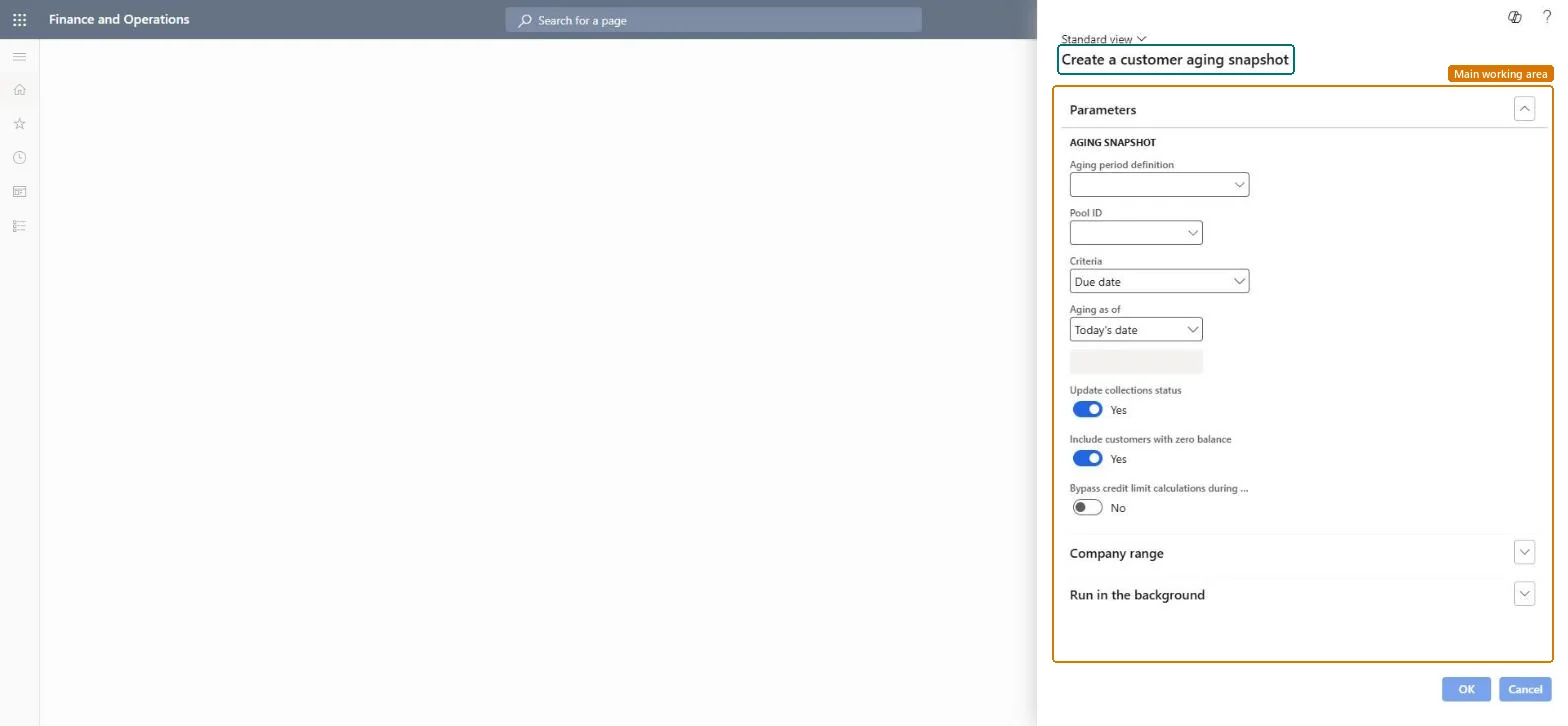
The page in Dynamics 365. page title tab to open what to set or check
About the examples: Examples and screenshots in this guide use BEAT, a demo company in a Dynamics 365 test environment. Use your own company's codes and values instead of copying them.
When to run it
When to run it
Before collectors work the Aged balances list page and the Collections page, which show only customers with an aging snapshot.
How often
As a recurring batch job, as often as your collectors need current aged balances.
Batch settings
Schedule it in batch with Aging as of set to Today's date. Set Maximum number of batch tasks for Age customer balances in Accounts receivable parameters to between 12 and 20, and never above 30.
What the output shows
An aging snapshot per customer with balances in the periods of the aging period definition, shown on Aged balances and Collections. A customer missing from Aged balances usually had a zero balance with Include customers with zero balance set to No, or isn't in the pool.
Go to Credit and collections > Periodic tasks > Age customer balances.
In Aging period definition, select the definition the snapshot uses; you can have one snapshot per definition.
Leave Pool ID blank to age all customers, or select a customer pool of type Aging snapshot to age only those.
In Criteria, choose Transaction date, Due date or Document date, and in Aging as of choose Today's date for a recurring batch or Selected date for a fixed date.
Set Include customers with zero balance to No and Bypass credit limit calculations during aging to Yes when you want the fastest run.
On Company range, select the legal entities set up for centralized payments.
Open Aged balances and check that the customers and aging periods look right.
Not needed: The next run replaces the snapshot. Collection statuses changed by Update collection status stay as Promise to pay broken. Microsoft Learn
If you change it later
Replaces the aging snapshot for the aging period definition; with Update collection status set to Yes, it also changes Promise to pay to Promise to pay broken when the promised date has passed. Microsoft Learn
Technical architect
5Technical
Menu item
CustAgingSnapshotChecked in Dynamics 365
Form
CustAgingSnapshotChecked in Dynamics 365
Roles to set it up and use it
To set it up or change itCollections manager CollectionLetterCollectionsManagerCollections agent CollectionLetterCollectionsAgentGive people one of these roles. On this system, 2 roles can open this page.Checked in Dynamics 365