Cash and bank managementBank statement reconciliation
BankReconciliationHeader
Used by
Accounts payable manager, Auditor, Chief executive officer and 7 more roles
Business process
Perform advanced bank reconciliation in Dynamics 365 Finance
Menu item
BankReconciliationHeader
Main table
BankReconciliationHeader
Setup steps
1 on this page
Show what matters for
SETUP GUIDEHow to set it up8 sections. Choose a role to highlight what matters to you.
Everyone
1What it is and why
What it is
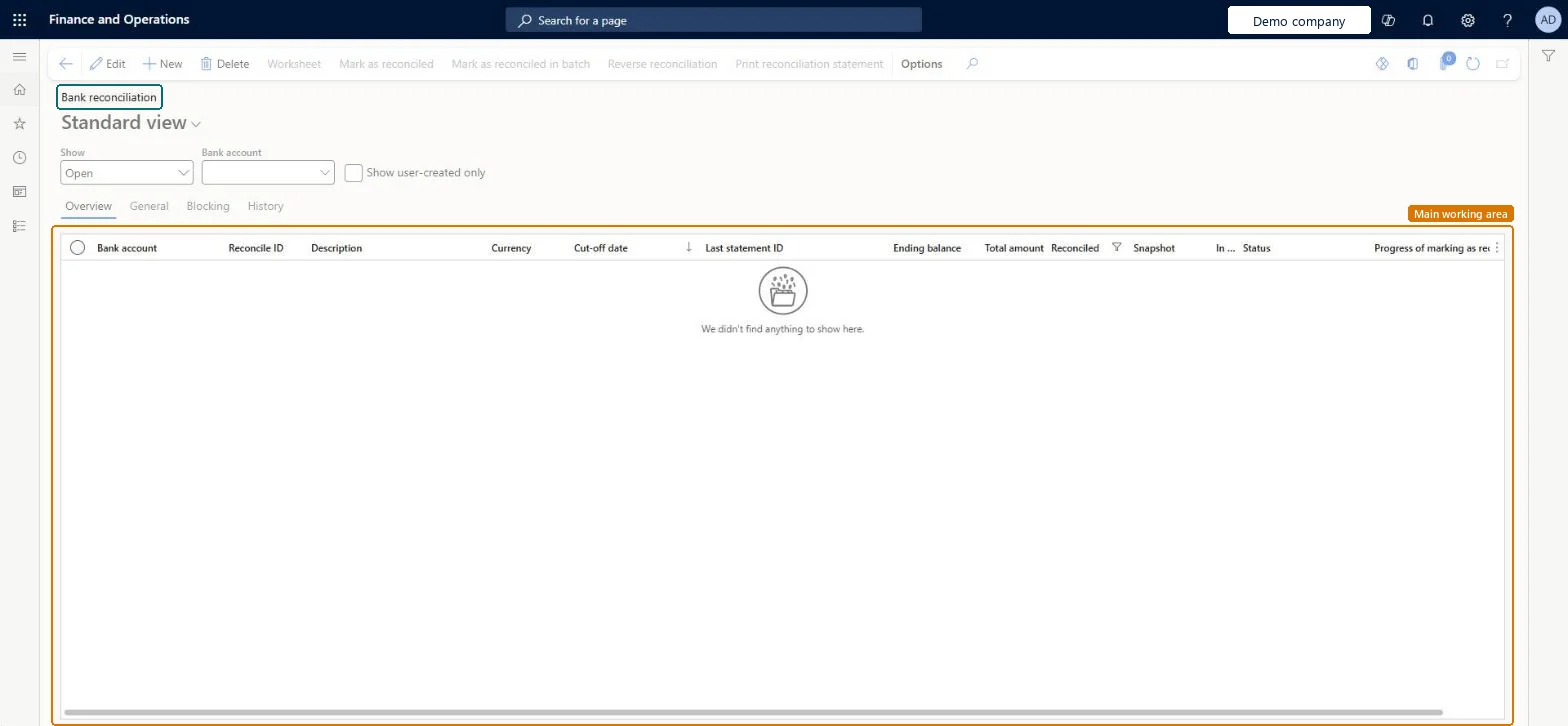
A list page where you create a bank reconciliation for an imported bank statement and open its reconciliation worksheet.
What you do here
Use this page to match bank statement lines with the bank transactions in Finance and then mark the statement as reconciled.
Example
For example, BEAT's March statement for the operating account has 412 lines: the default rule set matches 398, the accountant matches 9 by hand, a 0.03 penny difference is within the allowed 0.05, and 5 fee lines are posted as vouchers before the worksheet is marked as reconciled.
The page in Dynamics 365. page title tab to open what to set or check
About the examples: Examples and screenshots in this guide use BEAT, a demo company in a Dynamics 365 test environment. Use your own company's codes and values instead of copying them.
Setup steps on this page
Reconcile bank statements on the worksheet
Match statement lines with bank transactions and mark the worksheet as reconciled.
Steps from Microsoft
Go to Cash and bank management > Bank statement reconciliation > Bank reconciliation.
Select New and select the bank account of the imported statement.
Check the cut-off date, which is the current date unless you change it.
Select Worksheet to open the Bank reconciliation worksheet page.
Select Run matching rules and pick the matching rule sets or rules to run.
To match by hand, select the bank statement transactions and the matching bank transactions, and then select Match.
Select Mark as new for bank-initiated items such as fees or interest.
Select Unmatch to undo a wrong match.
When you're done, mark the worksheet as reconciled.
Decides which statement lines and bank transactions are included on the worksheet.Microsoft Learn
31.03.2026
CutOffDate
Correction amount
Shows a small penny difference, within the allowed tolerance, on a matched bank transaction.Microsoft Learn
0.03
Bank account
The bank account of the imported statement; a bank account can have only one open reconciliation.Microsoft Learn
OPERATING
Run matching rules
Runs the selected matching rule set or rules on the worksheet; run it as a batch process for many transactions.Microsoft Learn
Mark as reconciled
Closes the worksheet: corrections post to the main account of the bank transaction type and unmatched statement lines move to the next reconciliation.Microsoft Learn
Common errors and fixes
Message
What to do
A new reconciliation can't be created for the bank account
A bank account can have only one open bank reconciliation. Finish or mark the open one as reconciled first. Microsoft Learn
A penny difference isn't corrected for a check or deposit
Corrections aren't supported for the Check and Deposit document types. Match them only when the amounts agree, or correct the payment. Microsoft Learn
Two lines that look right won't match
Matches must respect the allowed date difference and, with Validate transaction type mapping on, the transaction code mapping set in the parameters. Microsoft Learn
Test checklist
Create a reconciliation for the imported statement and open the Worksheet.
Run the default matching rule set and check the matched count.
Match one line with a 0.03 difference within the Allowed penny difference and check Correction amount shows 0.03.
Mark as reconciled and check the correction posted to the bank transaction type's main account and the unmatched lines moved to the next reconciliation.
Run the default matching rule set first, match the rest by hand, post bank-initiated lines as vouchers or New lines, then mark as reconciled once per statement.Marking as reconciled can't be undone; unmatched lines move to the next reconciliation, so reconcile in statement order.
BEAT uses number sequence Bank_7, set on Cash and bank management parameters. Checked in Dynamics 365
Reconcile ID
Set on Cash and bank management parameters > Number sequences. Microsoft Learn
Feature management and licence
Feature to turn on
Modern bank reconciliation (On by default from 10.0.43)Advanced bank reconciliation improvement - enable filtering and provide separate grid for new transactions (Mandatory from 10.0.43)
Licence or add-in
In this system 10 roles can open this page, among them Auditor, Chief executive officer, Chief financial officer and Accounts receivable manager.
Irreversible: A reconciliation marked as reconciled can't be undone or edited.
If you change it later
Once a reconciliation is marked as reconciled it can't be undone or edited; unmatched statement lines move to the next reconciliation. Microsoft Learn
Technical architect
6Technical
Menu item
BankReconciliationHeaderChecked in Dynamics 365
Form
BankReconciliationHeaderChecked in Dynamics 365
Table
BankReconciliationHeaderShown as “Bank reconciliation journal” in Record infoChecked in Dynamics 365
Who can open it
PrivilegesMaintain bank reconciliation BankReconciliationMaintainView bank reconciliation BankReconciliationViewDutiesInquire into bank account reconciliation status BankBankAcctReconStatusInquireEnable bank management process BankBankManagementProcessEnableReview bank management process performance BankBankManagementProcessPerfReviewInquire into bank management reference data BankBankMgmtReferenceDataInquire10 security rolesAuditor AuditPolicyManagerChief executive officer CompanyChiefExecutiveOfficerChief financial officer CompanyChiefFinancialOfficerAccounts receivable manager CustInvoiceAccountsReceivableManagerAccountant LedgerAccountantAccounting manager LedgerAccountingManagerAccounting supervisor LedgerAccountingSupervisorFinancial controller LedgerFinancialControllerTreasurer PaymTreasurerAccounts payable manager VendInvoiceAccountsPayableManagerChecked in Dynamics 365
Roles to set it up and use it
To set it up or change itTreasurer PaymTreasurerAccountant LedgerAccountantTo use itChief financial officer CompanyChiefFinancialOfficerAccounting manager LedgerAccountingManagerFinancial controller LedgerFinancialControllerAccounting supervisor LedgerAccountingSupervisorAccounts receivable manager CustInvoiceAccountsReceivableManagerGive people one of these roles. On this system, 10 roles can open this page.Checked in Dynamics 365
Actions on the page
Options: Personalize, Page options, ShareChecked in Dynamics 365
Load order: A bank reconciliation has no data entity in Data management, so it can't be loaded from a file or a configuration template. Reconcile in each environment; at go-live, start with the first statement after the opening balance and reconcile open items from there.Checked in Dynamics 365
Checked in a working Dynamics 365 system, version 10.0.49: the menu item, form, table and security, the page.
To cite this step: CB-REC-040, Reconcile bank statements on the worksheet. Beyond ERP Atlas Hub, 2026-11-11. https://www.beyonderp.cloud/atlas/step/CB-REC-040