Accounts payable manager, Chief financial officer, Accounts receivable manager and 6 more roles
Business process
Create bank accounts in Dynamics 365 Finance
Menu item
BankAccountTableListPage
Main table
BankAccountTable
Data entity
BankAccountEntity
Setup steps
1 on this page
Show what matters for
SETUP GUIDEHow to set it up8 sections. Choose a role to highlight what matters to you.
Everyone
1What it is and why
What it is
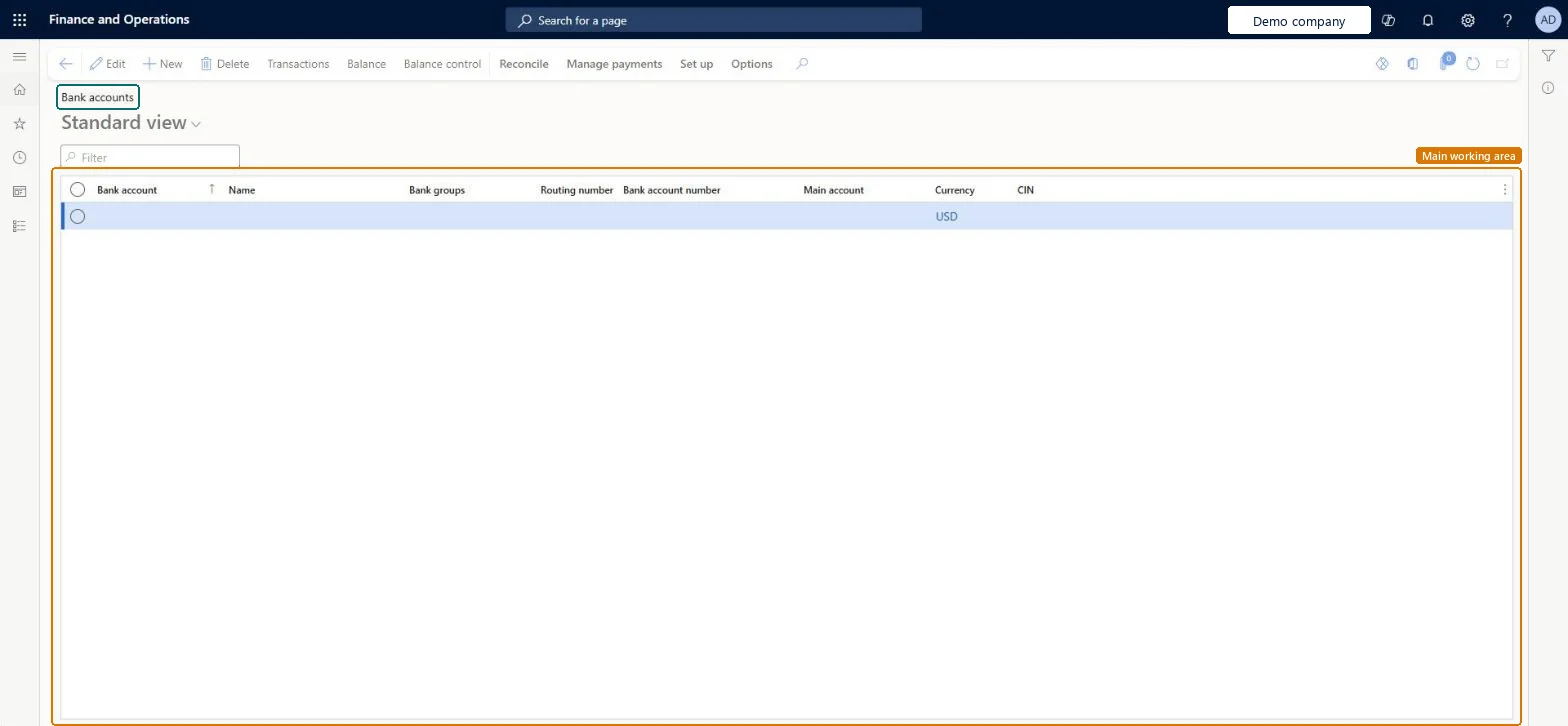
A list page where you enter and maintain all the information for the company's bank accounts.
What you do here
Use this page to create each company bank account, link it to its main account and bank group, set its status and active dates, and choose how it is reconciled.
Example
For example, BEAT opens operating account OPERATING in USD with main account 110110 and bank group of its bank; it sets Advanced bank reconciliation to Yes, Statement format to its BAI2 format and Allowed penny difference to 0.05, so a statement line of 1,000.03 still matches a payment of 1,000.00.
The page in Dynamics 365. page title tab to open what to set or check
About the examples: Examples and screenshots in this guide use BEAT, a demo company in a Dynamics 365 test environment. Use your own company's codes and values instead of copying them.
Setup steps on this page
Create and maintain bank accounts
Create each company bank account with its main account, bank group, status and reconciliation options.
Steps from Microsoft
Go to Cash and bank management > Bank accounts > Bank accounts and select New.
Enter the bank account ID, a name that identifies the account and the bank account number, and select the Bank groups value so its address and routing details are copied.
Select the Main account the bank account posts to and the currency.
Set Bank account status and, if needed, Active from and Active to; enter the Credit limit if the bank gives one.
If the bank needs prenotes before electronic payments, select Prenote required and enter Prenote response days.
On the Reconciliation FastTab, set Advanced bank reconciliation to Yes and choose the Statement format, Allowed penny difference and Default matching rule set, then save.
The general ledger account that the bank account posts to.Microsoft Learn
110110
LedgerDimension
Bank groups
The bank group whose address and routing details are copied to the bank account.Microsoft Learn
BankGroupId
Prenote required
Turn on when the bank needs a prenote before it accepts electronic payments.Microsoft Learn
isBankPrenote
Prenote response days
How many days the bank takes to process a prenote.Microsoft Learn
PrenoteResponseDays
Bank account status
Whether the account is active for all transactions, inactive for new ones, or inactive for all.Microsoft Learn
Active for all transactions
BankAccountStatus
Active from
The date from which the account can be used for new transactions.Microsoft Learn
ActiveFrom
Active to
The date after which the account can't be used for new transactions.Microsoft Learn
ActiveTo
Credit limit
The credit amount that the bank offers on this account.Microsoft Learn
OverDraftLimit
Advanced bank reconciliation
Turns on electronic statement import and automatic matching for this account.Microsoft Learn
Allowed penny difference
The largest amount difference that still counts as a match during reconciliation.Microsoft Learn
0.05
BankReconAllowedPennyDifference
Statement format
The import format used to read this account's electronic bank statements.Microsoft Learn
FormatId
Clear bridged transactions during reconciliation
When on, bridged payments are cleared to the bank automatically when the reconciliation worksheet is marked as reconciled.Microsoft Learn
BankReconBridgedAutoClearing
Reconcile after import
Validates the statement, creates a reconciliation and worksheet and runs the default matching rule set as soon as a statement is imported.Microsoft Learn
Yes
Default matching rule set
The matching rule set that runs on the worksheet and automatically after import.Microsoft Learn
Bank name in statements
The identifier the bank uses for this account on electronic statements; used when one file holds several accounts.Microsoft Learn
Common errors and fixes
Message
What to do
A new payment can't use the bank account
With Bank account status Inactive for new transactions, or after the Active to date, no new transactions can be scheduled on the account; pending payments still go through. Check the status and the active dates. Microsoft Learn
A new bank account waits for approval
With Bank account lifecycle management on and Change approval on creation selected, creating a bank account starts the Workflow for proposed bank account change. Submit it and have it approved. Microsoft Learn
Statement import fails for the account
The Statement format on the bank account must match the format of the bank's file. Select the right format on the Reconciliation FastTab. Microsoft Learn
Test checklist
Create the bank account with Main account, currency and Bank groups.
Set Advanced bank reconciliation to Yes and select the Statement format.
Import a sample bank statement and check the lines appear on the statement page.
Run reconciliation with the default matching rule set and check matched lines; check amounts within Allowed penny difference still match.
One bank account per bank account held, each with its own main account; Advanced bank reconciliation = Yes with the matching Statement format for accounts with electronic statements.The workspace and the bank reports only agree with the trial balance when a main account is used by one bank account; advanced reconciliation needs the statement format that matches the bank's file.
One-way: A bank account used in posted documents can't be deleted; retire it with its status or Active to date.
If you change it later
Status and Active to dates stop new transactions while pending payments still go through. With Bank account lifecycle management on, changes to protected fields go through the approval workflow and are kept in the change history. Turning on Advanced bank reconciliation changes how the account is reconciled from then on. Microsoft Learn
Technical architect
6Technical
Menu item
BankAccountTableListPageChecked in Dynamics 365
Form
BankAccountTableChecked in Dynamics 365
Table
BankAccountTableShown as “Bank accounts” in Record infoKey field: AccountID, BankCodeType, RegistrationNum, AccountNum, BankCIN, SWIFTNo, IBAN, CompanyPaymId, DivisionPaymIdChecked in Dynamics 365
PrivilegesMaintain bank accounts BankAccountTableMaintainView bank accounts BankAccountTableViewDutiesInquire into bank accounts master BankBankAccountsInquireMaintain bank accounts master BankBankAccountsMaintain9 security rolesChief financial officer CompanyChiefFinancialOfficerAccounts receivable manager CustInvoiceAccountsReceivableManagerPayroll administrator HcmPayrollAdministratorAccountant LedgerAccountantAccounting manager LedgerAccountingManagerAccounting supervisor LedgerAccountingSupervisorFinancial controller LedgerFinancialControllerTreasurer PaymTreasurerAccounts payable manager VendInvoiceAccountsPayableManagerChecked in Dynamics 365
Roles to set it up and use it
To set it up or change itTreasurer PaymTreasurerTo use itChief financial officer CompanyChiefFinancialOfficerAccounting manager LedgerAccountingManagerFinancial controller LedgerFinancialControllerAccountant LedgerAccountantAccounting supervisor LedgerAccountingSupervisorGive people one of these roles. On this system, 9 roles can open this page.Checked in Dynamics 365
Actions on the page
Reconcile: ReconcileManage payments: Deposits, Remittances, Journals, Related information, Statistics, Positive paySet up: Negotiable instruments, Layout, Methods of paymentOptions: Personalize, Page options, ShareChecked in Dynamics 365
BankAccountEntity (Bank accounts): loaded for each company, in Microsoft's default template 100 - Bank.Load order: Microsoft's default template 100 - Bank loads Bank accounts at execution unit 1, level 100, sequence 10. Lower levels load first, and entities at the same level load in sequence order.Load first: Currencies, Journal names, Bank groups, Customer charge groups, Reconciliation matching rule sets, the default templates at lower levels (System setup to dependency bands 30 to 90)Microsoft Learn