Accounts receivable clerk, Accounts receivable manager, Auditor and 5 more roles
Business process
Write off bad debt
Menu item
CustWriteOffFinancialReasonsSetup
Main table
CustWriteOffFinancialReasonsSetup
Data entity
CustWriteOffFinancialReasonsSetupEntity
Setup steps
1 on this page
Show what matters for
SETUP GUIDEHow to set it up8 sections. Choose a role to highlight what matters to you.
Everyone
1What it is and why
What it is
A setup page for the reason codes used on customer write-off transactions.
What you do here
Use it to set up the write-off reason codes that are applied when customer balances are written off.
Example
For example, the settle remainder feature takes its default reason code from these write-off reason codes, and the account linked to the code becomes the default settle remainder account.
The page in Dynamics 365. page title tab to open what to set or check
About the examples: Examples and screenshots in this guide use BEAT, a demo company in a Dynamics 365 test environment. Use your own company's codes and values instead of copying them.
Step by step, with screenshots
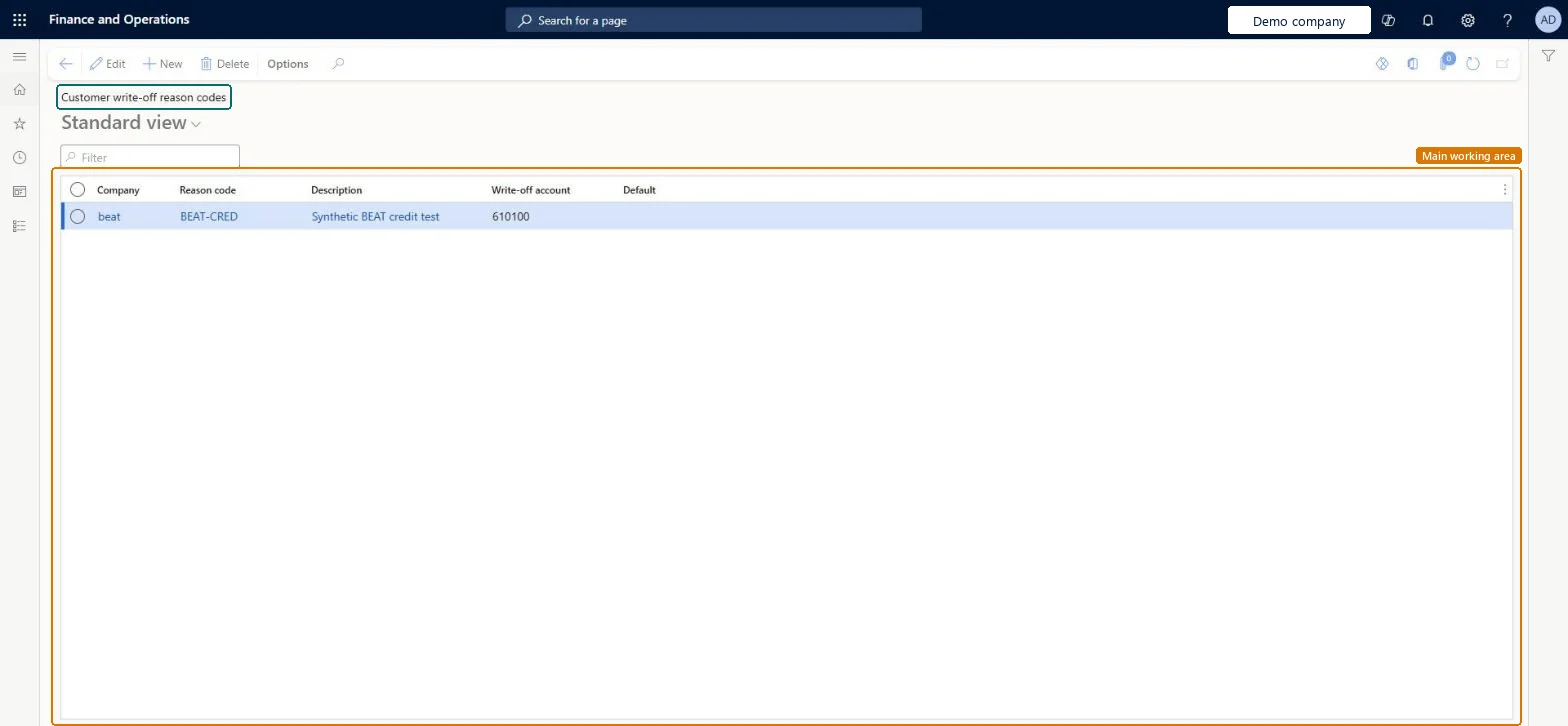
Set up Customer write-off reason codes1 screen
Set up the reason codes that are used when customer balances are written off.
Screen 1
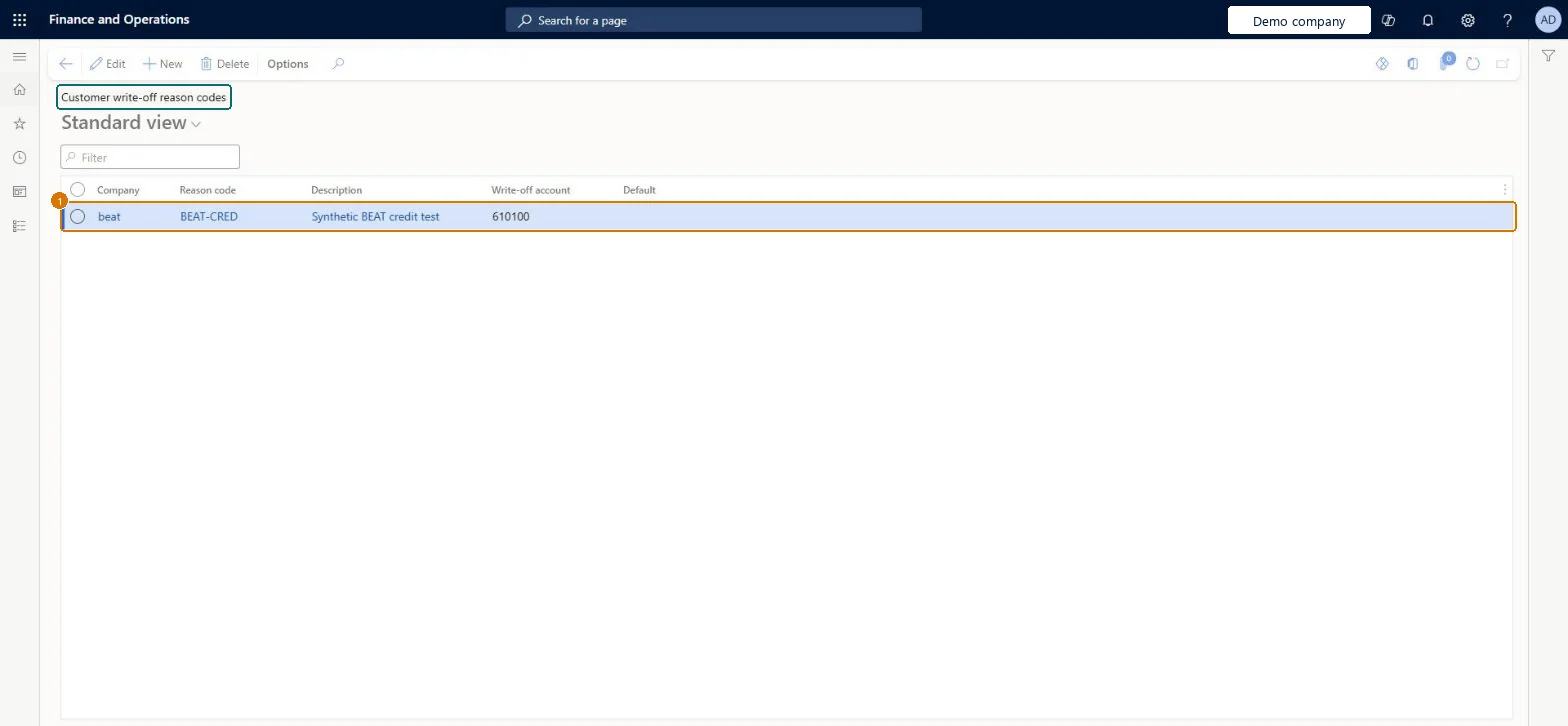
Create the customer write-off reason code
Go to Accounts receivable > Setup > Customer write-off reason codes
Select New
Enter the reason code, description and write-off account
Leave Default cleared
1Reason code
BEAT-CRED
Description
Credit adjustment
Write-off account
610100
Show the full screen page title tab to open what to set or check
How to use it
Go to Accounts receivable > Setup > Customer write-off reason codes.
Select New to add a reason code.
Fill in the Company, Reason code, Description and Write-off account.
Set Default if this code should be the default.
Select Edit to change an existing code, or Delete to remove the selected one.
A short text that describes the write-off reason.Microsoft Learn
Credit adjustment
Description
Write-off account
610100
WriteOffLedgerDimension
Test checklist
Create two write-off reason codes with different write-off accounts and set one as the Default reason code under Settle remainder in Accounts receivable parameters.
Settle a payment against a slightly larger invoice, select Settle remainder and check the default reason code and account.
Change the reason in the dialog and check that the settlement account changes to the other code's account.
Post and check that the invoice is fully settled and the remainder posted to the selected account.
One write-off reason code per type of write-off, each with its own Write-off account, plus one default code for the Write-off section in parameters and for Settle remainder.When a remainder is settled, the settlement account comes from the account on the reason code, and the default settle remainder account is taken from the default reason code. Separate codes give separate accounts without users typing accounts by hand.
Users change the reason in the Settle remainder dialog without noticing that the settlement account changes with it, so the remainder posts to a different ledger account than expected.Test: Write-off from Collections uses the reason code
Solution architect
5Design impact
Can it be undone
Reversible: Codes and accounts can be changed at any time; the change applies to write-offs and settle remainder entries created afterwards. Write-offs already posted must be corrected with a journal.
If you change it later
When the remainder of a settlement is written off, the settlement account follows the reason code, so changing the reason changes the account used. Microsoft Learn
Technical architect
6Technical
Menu item
CustWriteOffFinancialReasonsSetupChecked in Dynamics 365
Form
CustWriteOffFinancialReasonsSetupChecked in Dynamics 365
Table
CustWriteOffFinancialReasonsSetupShown as “Customer write-off reason codes” in Record infoChecked in Dynamics 365
Data entities
CustWriteOffFinancialReasonsSetupEntityCustomer write-off reason codes Microsoft data model
To set it up or change itAccounts receivable manager CustInvoiceAccountsReceivableManagerCollections manager CollectionLetterCollectionsManagerAccounting supervisor LedgerAccountingSupervisorAccounts receivable payments clerk PaymAccountsReceivablePaymentsClerkTo use itAccounts receivable clerk CustInvoiceAccountsReceivableClerkAccounting manager LedgerAccountingManagerAccounts receivable centralized payments clerk PaymAccountsReceivableCentralPaymClerkAuditor AuditPolicyManagerGive people one of these roles. On this system, 8 roles can open this page.Checked in Dynamics 365
CustWriteOffFinancialReasonsSetupEntity (Customer write-off reason codes): shared by all companies, in Microsoft's default template 140 - Accounts receivable.Load order: Microsoft's default template 140 - Accounts receivable loads Customer write-off reason codes at execution unit 1, level 30, sequence 10. Lower levels load first, and entities at the same level load in sequence order.Load first: the default templates at lower levels (System setup to General ledger)Microsoft Learn
Checked in a working Dynamics 365 system, version 10.0.49: the menu item, form, table and security, the page, the demo records and the values in the screenshots.
To cite this step: AR-SETUP-140, Set up Customer write-off reason codes. Beyond ERP Atlas Hub, 2026-11-11. https://www.beyonderp.cloud/atlas/step/AR-SETUP-140