About the examples: Examples and screenshots in this guide use BEAT, a demo company in a Dynamics 365 test environment. Use your own company's codes and values instead of copying them.
Step by step, with screenshots
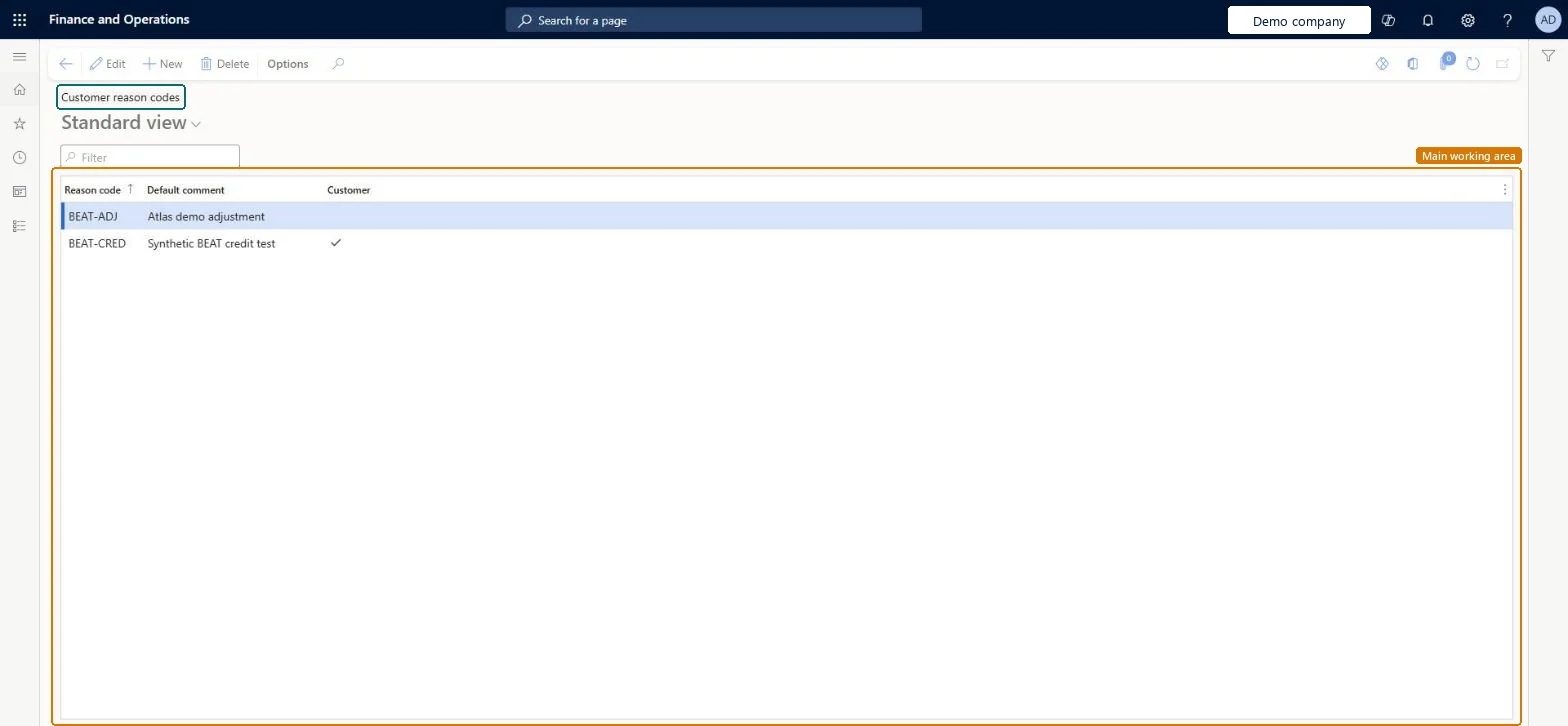
Set up Customer reasons1 screen
Set up the reason codes recorded against customer accounts and transactions.
Screen 1
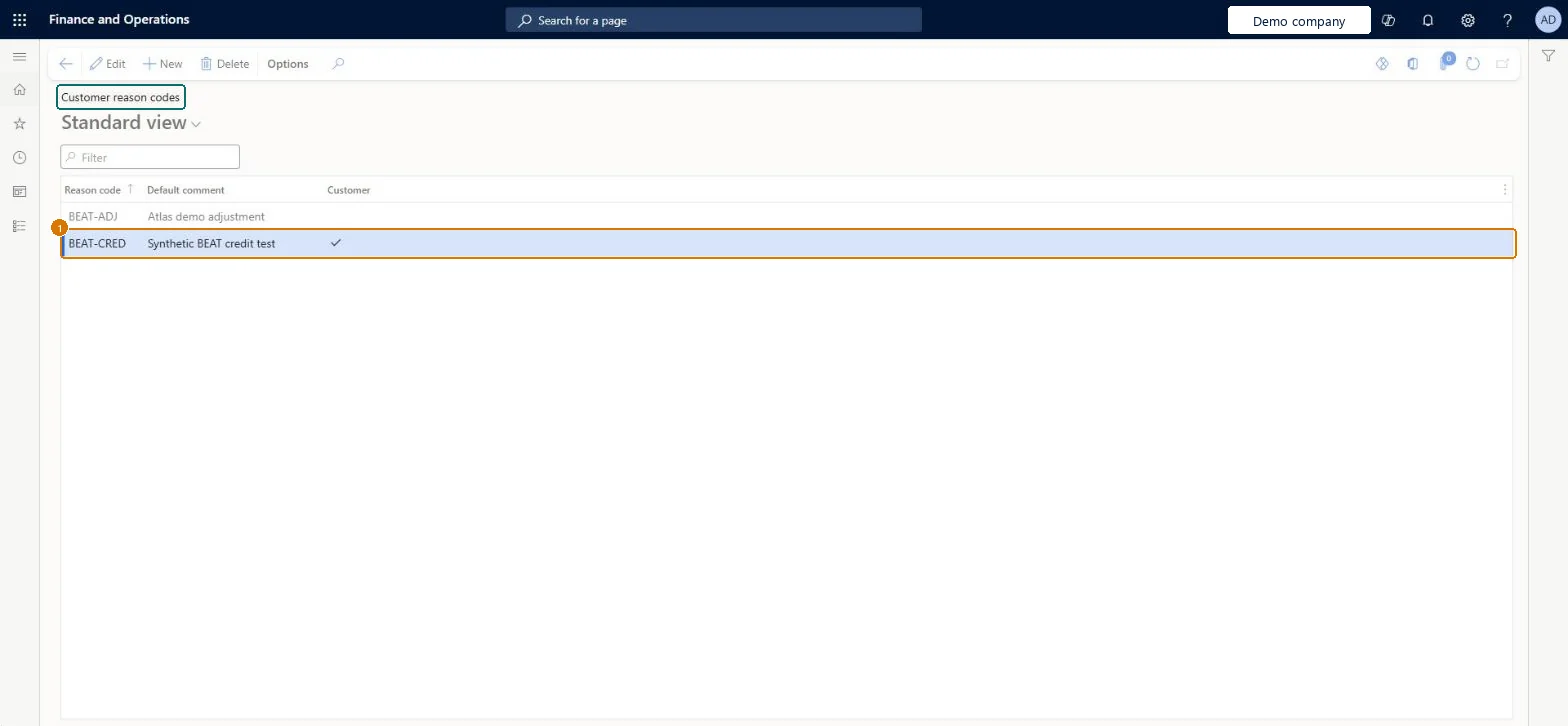
Create the customer reason code
Go to Accounts receivable > Setup > Customer reason codes
Select New
Enter the reason code BEAT-CRED and its default comment
Tick Customer
Default comment
Credit adjustment
Customer
Yes
Show the full screen page title tab to open what to set or check
How to use it
Go to Accounts receivable > Setup > Customer reason codes.
Select New to add a reason code.
Fill in the Reason code and Default comment.
Tick Customer if the code applies to customers.
Select Edit to change an existing code, or Delete to remove the selected one.
Source: Checked in Dynamics 365
Fields on the page
Field
What it means
Example
Table column
Default comment
Credit adjustment
Description
Customer
Makes the reason available in Accounts receivable.Microsoft Learn
Yes
Cust
Test checklist
Create a reason code with a Default comment and the Customer check box selected.
Create a free text invoice, select the reason code and check that Reason comment fills in with the default comment.
Post the invoice and check that the reason code and comment show on the posted tax transactions.
A short list of reason codes, each with a Default comment, and the Customer check box selected on every code that Accounts receivable users must be able to pick.The Default comment fills the Reason comment field when the code is selected, and the module check boxes control in which areas the code is available.
Creating codes without selecting the Customer check box. The code then isn't offered on customer documents such as sales orders and free text invoices.
Reversible: Edit or add codes at any time; changes apply to documents registered afterwards. When tax is posted, the reason code and comment are stored on the tax transactions, so posted history keeps the old values. Microsoft Learn
Technical architect
6Technical
Menu item
CustReasonsChecked in Dynamics 365
Form
ReasonsChecked in Dynamics 365
Table
ReasonTableShown as “Reasons” in Record infoChecked in Dynamics 365
PrivilegesMaintain customer reason codes CustReasonsMaintainView customer reason codes CustReasonsViewDutiesInquire into collections status CollectionLetterCollectionsStatusInquirEnable invoice and cash process CustInvoiceInvoiceAndCashProcessEnableInquire into invoice and cash reference data CustInvoiceInvoiceAndCashRefDataInquireEnable invoice and cash process RentalCustInvoiceInvAndCashProcEnable12 security rolesCollections agent CollectionLetterCollectionsAgentCollections manager CollectionLetterCollectionsManagerAccounts receivable clerk CustInvoiceAccountsReceivableClerkAccounts receivable manager CustInvoiceAccountsReceivableManagerAccountant LedgerAccountantAccounting manager LedgerAccountingManagerAccounting supervisor LedgerAccountingSupervisorFinancial controller LedgerFinancialControllerAccounts receivable centralized payments clerk PaymAccountsReceivableCentralPaymClerkAccounts receivable payments clerk PaymAccountsReceivablePaymentsClerkRental coordinator agent RentalCoordinatorAgentRental manager RentalManagerChecked in Dynamics 365
Roles to set it up and use it
To set it up or change itRental manager RentalManagerAccounts receivable manager CustInvoiceAccountsReceivableManagerRental coordinator agent RentalCoordinatorAgentCollections manager CollectionLetterCollectionsManagerAccounting supervisor LedgerAccountingSupervisorTo use itAccounts receivable clerk CustInvoiceAccountsReceivableClerkAccounts receivable payments clerk PaymAccountsReceivablePaymentsClerkAccounts receivable centralized payments clerk PaymAccountsReceivableCentralPaymClerkFinancial controller LedgerFinancialControllerAccountant LedgerAccountantGive people one of these roles. On this system, 12 roles can open this page.Checked in Dynamics 365
LedgerFinancialReasonEntity (Financial reasons): loaded for each company, in Microsoft's default template 025 - General ledger.VendVendorReasonsEntity (Vendor reasons): loaded for each company, in Microsoft's default template 120 - Accounts payable.Load order: Microsoft's default template 025 - General ledger loads Financial reasons at execution unit 1, level 25, sequence 10. Lower levels load first, and entities at the same level load in sequence order.Load first: the default templates at lower levels (System setup to Workflow)Microsoft Learn
Checked in a working Dynamics 365 system, version 10.0.49: the menu item, form, table and security, the page, the demo records and the values in the screenshots.