Accounts payable clerk, Accounts payable manager, Auditor and 21 more roles
Business process
Maintain vendors in Dynamics 365 Supply Chain Management
Menu item
VendFreeNotes_IT
Main table
FreeNotesTable_IT
Setup steps
1 on this page
Show what matters for
SETUP GUIDEHow to set it up8 sections. Choose a role to highlight what matters to you.
Everyone
1What it is and why
What it is
A setup page (Italy, Advanced notes management) where the text of predefined vendor notes and their applicability are defined.
What you do here
Use this page to set up notes that apply to all vendors, specific vendors or vendor groups, and to items; for vendors, purchase orders are the only available document.
Example
Notes set up for applicable vendors and products are automatically generated as attachments to new purchase orders.
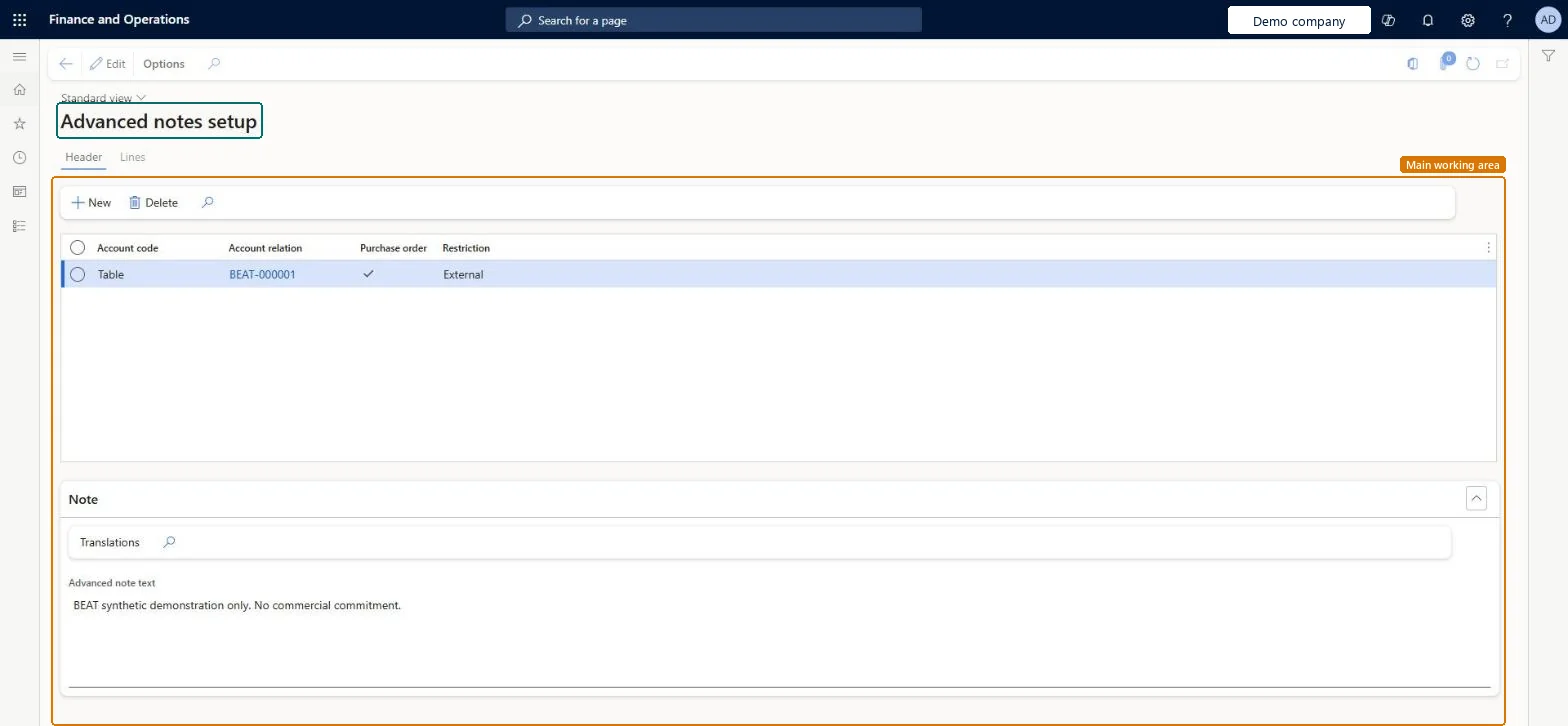
The page in Dynamics 365. page title tab to open what to set or check
About the examples: Examples and screenshots in this guide use BEAT, a demo company in a Dynamics 365 test environment. Use your own company's codes and values instead of copying them.
Step by step, with screenshots
Set up Vendors advanced notes setup1 screen
Defines the text, translations and applicability of predefined notes attached automatically to purchase orders for all or selected vendors.
Screen 1
Set up the vendor advanced note
Go to Accounts payable > Setup > Advanced notes > Vendors advanced notes setup, Header tab
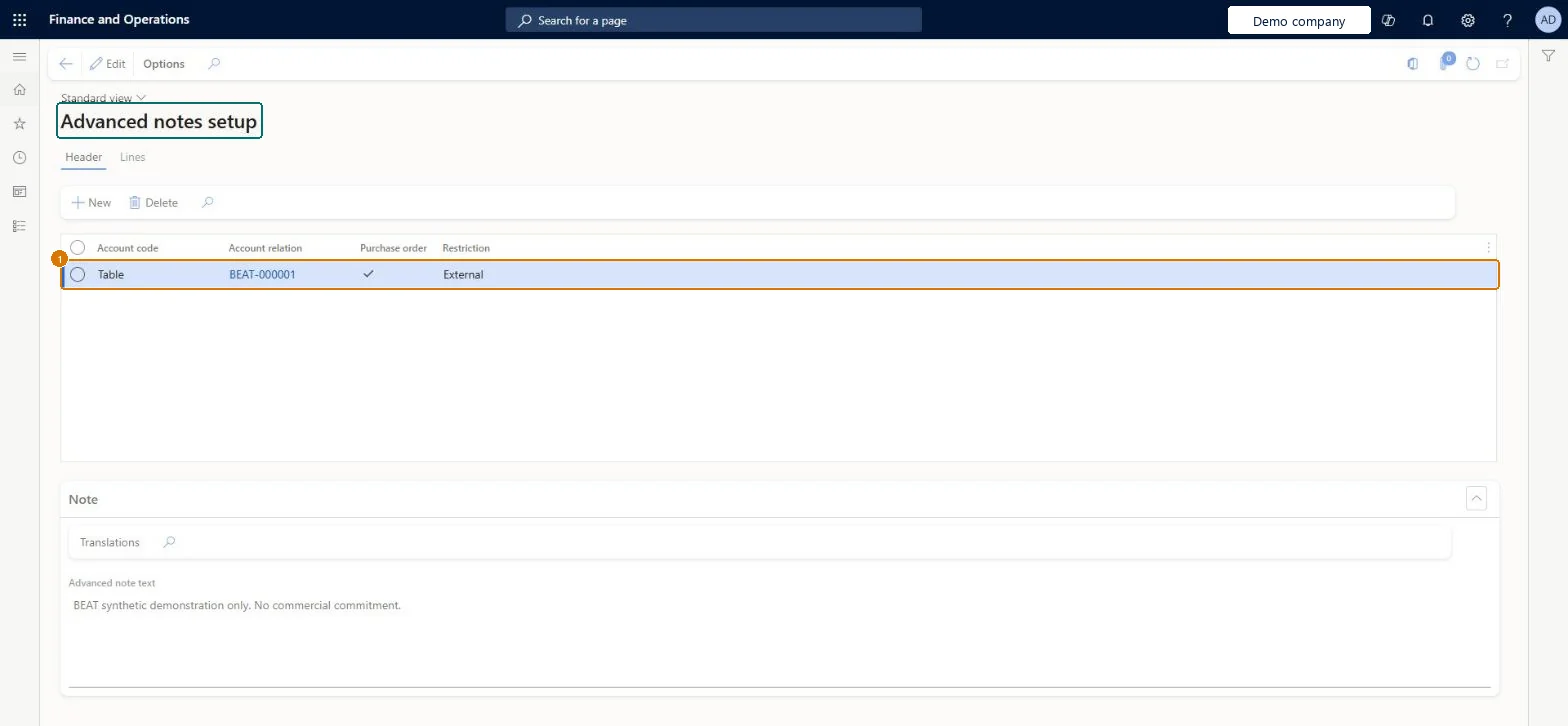
On the Header tab, select New
Choose the account code and account relation, then tick Purchase order
Set Restriction to External
Enter the note in Advanced note text
1Account relation
BEAT-000001
Account code
Table
Purchase order
Yes
Restriction
External
Advanced note text
For information only. No commercial commitment.
Show the full screen page title tab to open what to set or check
Steps from Microsoft
Go to Accounts payable > Setup > Advanced notes > Vendors advanced notes setup.
In the lower part of the page, enter the note text in your default language.
To add the text in other languages, select Translations.
In the upper part of the page, set where the note applies by selecting the check boxes for the documents; for vendors, only Purchase order is available.
Note text in the default language with Translations for other languages, applied to all vendors, a vendor or a group on Header and to items on Lines, with Purchase order selectedPurchase order is the only document available for vendor advanced notes, and notes are generated automatically as attachments to new purchase orders.
Expecting the note to print: only notes defined as External print, and only per the Form setup settings and document types with class Simple note.
Reversible: Notes are attached when a purchase order is created, so edits affect new orders only.
Feature or country
IT
Technical architect
6Technical
Menu item
VendFreeNotes_ITChecked in Dynamics 365
Form
FreeNotes_ITChecked in Dynamics 365
Table
FreeNotesTable_ITShown as “Advanced notes setup” in Record infoChecked in Dynamics 365
Who can open it
PrivilegesManagement of document notes FreeNotesMaintainFreeNotesViewDutiesInquire into invoice and cash policies CustInvoiceInvoiceAndCashPoliciesInquirEnable invoice and cash process CustInvoiceInvoiceAndCashProcessEnableInquire into shipping policies InventShippingPoliciesInquireEnable shipping process InventShippingProcessEnableInquire into quotation to sales order policies SalesQuotationToSalesOrderPolInquireEnable quotation to sales order process SalesQuotationToSalesOrderProcessEnableInquire into invoice and payment policies VendInvoiceInvoicePaymentPoliciesInquirEnable invoice and payment process VendInvoiceInvoicePaymentProcessEnableMaintain vendor invoices VendInvoiceVendorInvoicesMaintainInquire into vendor invoice status VendInvoiceVendorInvoiceStatusInquire24 security rolesAuditor AuditPolicyManagerCollections manager CollectionLetterCollectionsManagerChief financial officer CompanyChiefFinancialOfficerAccounts receivable clerk CustInvoiceAccountsReceivableClerkAccounts receivable manager CustInvoiceAccountsReceivableManagerLanded cost agent ITMAgentAccountant LedgerAccountantAccounting manager LedgerAccountingManagerAccounting supervisor LedgerAccountingSupervisorFinancial controller LedgerFinancialControllerAccounts payable centralized payments clerk PaymAccountsPayableCentralPaymClerkAccounts payable payments clerk PaymAccountsPayablePaymentsClerkAccounts receivable centralized payments clerk PaymAccountsReceivableCentralPaymClerkAccounts receivable payments clerk PaymAccountsReceivablePaymentsClerkRental coordinator agent RentalCoordinatorAgentRental manager RentalManagerRental purchasing manager RentalPurchasingManagerRental sales manager RentalSalesManagerRetail service RetailServiceSales manager TradeSalesManagerAccounts payable clerk VendInvoiceAccountsPayableClerkAccounts payable manager VendInvoiceAccountsPayableManagerWarehouse planner WHSWarehousePlannerWarehouse manager WMSWarehouseManagerChecked in Dynamics 365
Roles to set it up and use it
To set it up or change itAccounts payable manager VendInvoiceAccountsPayableManagerAccounting supervisor LedgerAccountingSupervisorRental manager RentalManagerRental coordinator agent RentalCoordinatorAgentRental sales manager RentalSalesManagerTo use itChief financial officer CompanyChiefFinancialOfficerFinancial controller LedgerFinancialControllerAccountant LedgerAccountantAccounts payable payments clerk PaymAccountsPayablePaymentsClerkAccounts payable centralized payments clerk PaymAccountsPayableCentralPaymClerkGive people one of these roles. On this system, 24 roles can open this page.Checked in Dynamics 365
Actions on the page
Buttons: New, Delete, TranslationsChecked in Dynamics 365
Checked in a working Dynamics 365 system, version 10.0.49: the menu item, form, table and security, the page, the demo records and the values in the screenshots.
To cite this step: AP-SETUP-080, Set up Vendors advanced notes setup. Beyond ERP Atlas Hub, 2026-11-11. https://www.beyonderp.cloud/atlas/step/AP-SETUP-080